
How to Ask Google to Crawl New Posts via Indexing API
You hit publish at 9 a. m., and by Friday your new post still hasn't appeared in Google. Meanwhile, competitors with fresher content are already ranking for the exact query you targeted. If you've ever wondered how to ask Google to crawl new posts via indexing API, you're not alone, and the answer is faster than you think.
You're right to be frustrated. Waiting on Google's organic crawl cycle feels like shouting into a void, especially when you've invested hours in research and writing. This guide will show you exactly how to notify Google of new or updated URLs within minutes using the Indexing API, from creating a service account to submitting your first ping. You'll learn the official setup path, the real-world workaround publishers use, and how to avoid the most common rejection errors.
Here's the twist: Google's own documentation says the Indexing API is only for JobPosting and BroadcastEvent structured data, yet thousands of publishers use it for regular blog posts every day. We'll unpack that contradiction and show you how to navigate it safely. For a broader look at the full workflow, see our guide on how to ask Google to crawl new posts. If you'd rather skip the manual setup entirely, BloGoose automates indexing pings for every article it publishes to WordPress.
What the Google Indexing API Actually Does (and Its Limits)
The Google Indexing API is a programmatic interface that lets you notify Google directly when a URL is created or updated, triggering a crawl request that typically processes within minutes instead of days. It's the difference between mailing a letter and sending a text message.
Think of Google's normal indexing process like a library that sends a truck around town once a week to pick up new books. The Indexing API is like calling the library and saying, "I just put a new book on my shelf, come get it now." You're not changing how the book gets catalogued; you're just cutting the wait time to near zero.
Here's the catch: Google's official documentation states the Indexing API is only for pages with JobPosting or BroadcastEvent structured data. If you're publishing standard blog posts, product pages, or landing pages, you're technically outside the documented use case. In practice, however, many publishers submit all content types and receive successful crawl notifications. Google has not actively blocked non-conforming submissions, but the policy could change.
To understand when to use the API versus other methods, consider the Two-Lane Indexing Framework. Lane 1 is passive indexing: your XML sitemap, internal links, and IndexNow pings that wait for Google's crawler to arrive on its own schedule. Lane 2 is active indexing: Indexing API pings that proactively summon the crawler. Passive methods protect your crawl budget and cover your entire site, while active pings are best reserved for time-sensitive or high-value URLs.
One important distinction: the Indexing API does not guarantee indexing. It guarantees a crawl request. Google still evaluates content quality, relevance, and technical health before adding a URL to its index. A successful API response means "we received your notification," not "your page is now ranking."
Prerequisites and Step 1: Create a Service Account in Google Cloud Console
Before you can ping Google about new posts, you need a service account, a machine identity that lets your scripts or tools authenticate with Google APIs without a human logging in. Here's the exact setup path, including the menu clicks most tutorials skip.
Prerequisites checklist:
- A Google account with owner access to the Search Console property you want to submit URLs for
- A Google Cloud project (free tier works fine)
- Access to the Google Cloud Console at console. cloud. google. com
- Your site verified in Google Search Console
- Create a Google Cloud project. Go to console. cloud. google. com, click the project dropdown in the top navigation bar, then click New Project. Name it something like "indexing-api" and click Create. You should see a notification confirming the project was created, and the project selector should now show your new project name.
- Navigate to the Service Accounts page. In the left sidebar, open the hamburger menu (☰), then follow this exact path: IAM & Admin to Service Accounts. This is the menu path most guides gloss over, and it's where beginners get lost. You should now see a table listing service accounts (likely empty if this is a new project).
- Create the service account. Click the + Create Service Account button at the top of the table. Enter a service account name like "indexing-api-bot" and an optional description. Click Create and Continue. You can skip the optional role assignment and user access steps, the Indexing API doesn't require them. Click Done.
- Generate and download the JSON key. Find your new service account in the table, click the three-dot menu (⋮) under Actions, and select Manage Keys. Click Add Key to Create New Key, choose JSON as the key type, and click Create. The JSON key file downloads to your computer automatically. Download it immediately, this is the only time Google will give you the private key. If you lose it, you must create a new key. You should see a confirmation message and the key file in your Downloads folder.
Store this JSON file somewhere secure. It contains credentials that let anyone with the file act as your service account. Never commit it to a public repository or share it in support tickets. If you're using BloGoose, you can paste the JSON contents directly into the indexing settings, and the platform handles authentication and ping scheduling for every new post automatically.
For the full API reference and official setup documentation, see the Google Indexing API docs. Next, you'll enable the Indexing API in your project and grant your service account permission in Search Console.
Step 2: Enable the Indexing API and Add Your Service Account to Search Console
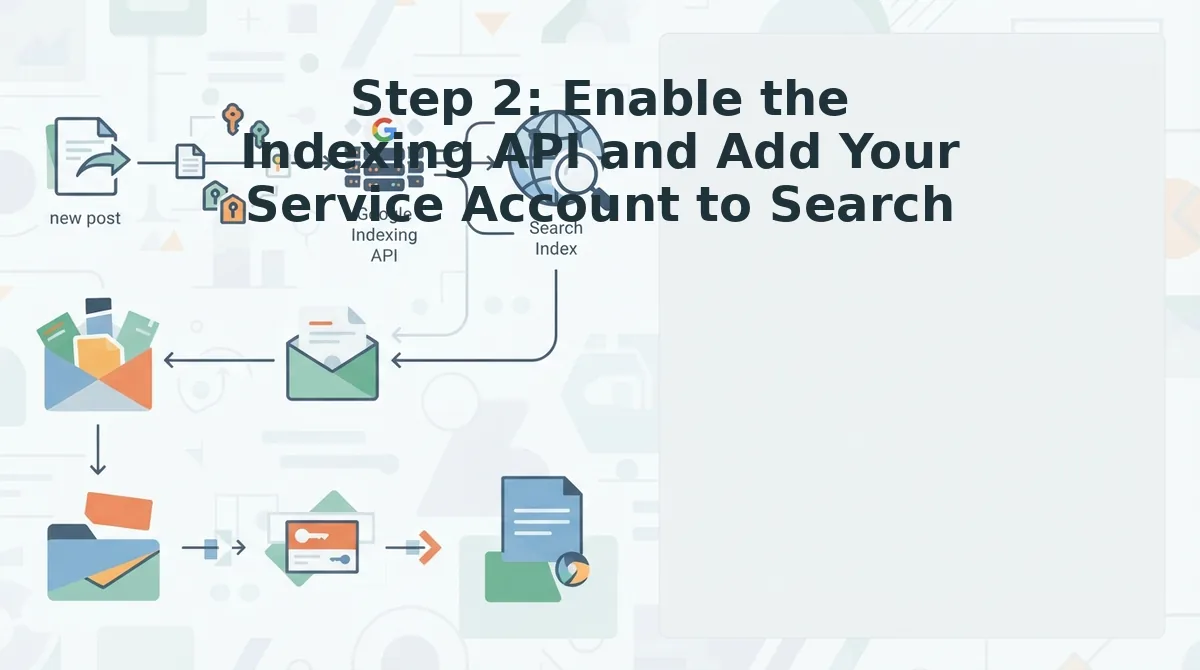
Enabling the Indexing API takes under two minutes, but the step most users miss is granting your service account Owner access in Google Search Console, without it, every request returns a 403 error.
Prerequisites: A Google Cloud project with a service account created (Step 1), the JSON key file downloaded, and Owner access to the Search Console property you want to index.
- Open the Google Cloud Console API Library. Navigate to APIs & Services to Library, type "Indexing API" into the search bar, and click the result. Click the blue Enable button. You should see a green checkmark and "API enabled" within a few seconds.
- Copy your service account email address. Go to APIs & Services to Credentials, find the service account you created in Step 1, and copy the full email ending in
@your-project. iam. gserviceaccount. com. - Open Google Search Console and add the service account as an Owner. Select the property you want to index, then navigate to Settings to Users and permissions to Add user. Paste the service account email into the field, select Owner from the permission dropdown, and click Add. You should see the service account listed with "Owner" status immediately.
- Verify the setup with a test request. Skip ahead to Step 3 and send a single URL notification. A 200 response confirms the permission chain works end-to-end.
If you are using BloGoose, the setup wizard detects your CMS stack and automates this entire permission flow during onboarding, so you never touch the Cloud Console twice. For a full walkthrough, see the Google Indexing API setup guide.
Step 3: Send Your First Indexing Request (cURL and Python Examples)
Sending an indexing request means making a single HTTP POST to Google's Indexing API endpoint with your service account's OAuth token and the URL you want crawled. A 200 response confirms Google accepted the notification; the actual crawl typically happens within hours, not days.
Prerequisites: The Indexing API enabled (Step 2), your service account JSON key file saved locally, and the google-auth library installed if you use Python.
- Generate an OAuth token from your service account key. Use the
google-authlibrary or a JWT-signing tool to create a short-lived bearer token. In Python,google. oauth2. service_account. Credentials. from_service_account_file()handles this automatically. - Send a POST request to the publish endpoint. The endpoint is
https://indexing.googleapis.com/v3/urlNotifications:publish. The JSON body requires two fields:url(the full URL of your new post) andtype(useURL_UPDATEDfor new or updated posts,URL_DELETEDfor removed pages). - Check the response code. A
200 OKresponse means Google accepted the notification. A403means your service account lacks Owner permission in Search Console; a429means you hit the quota. - Verify in the GSC coverage report. Open Search Console to Pages and look for the URL transitioning from "Discovered - currently not indexed" to "Indexed" within 24 - 72 hours.
Here is the cURL request:
curl -X POST "https://indexing.googleapis.com/v3/urlNotifications:publish" \
 -H "Authorization: Bearer YOUR_OAUTH_TOKEN" \
 -H "Content-Type: application/json" \
 -d '{"url":"https://yoursite.com/new-post/","type":"URL_UPDATED"}'
And the Python equivalent:
from google. oauth2 import service_account
from google. auth. transport. requests import AuthorizedSession

credentials = service_account. Credentials. from_service_account_file(
 "service-account-key. json",
 scopes=["https://www.googleapis.com/auth/indexing"]
)
session = AuthorizedSession(credentials)
response = session. post(
 "https://indexing.googleapis.com/v3/urlNotifications:publish",
 json={"url": "https://yoursite.com/new-post/", "type": "URL_UPDATED"}
)
print(response. status_code) # 200 = accepted
If you publish through a tool like the AI blog generator direct WordPress publishing pipeline, the ping is sent automatically the moment the post goes live, so you never run these commands manually.
Step 4: Automate the Process for Every New Post
Manual pings work for a one-off test, but the real value of the Indexing API comes from firing a notification on every publish without thinking about it. Here are the automation paths ranked by how much setup they remove.
- BloGoose automated publishing engine. BloGoose ships every article with an automatic indexing ping on publish, no service account setup, no Cloud Console, no cron job. The platform handles OAuth token generation and request throttling behind the scenes, so your content enters Google's queue the second it goes live. This is the fastest path from draft to indexed for teams publishing at volume. See how it fits into a full automated SEO content workflow.
- Rank Math IndexNow module for WordPress. Rank Math's IndexNow integration automatically notifies Bing, Yandex, and other IndexNow-supporting engines when a post is published or updated. It does not replace the Google Indexing API, but it covers engines Google's API does not, and it runs with zero code. Enable it under Rank Math to Dashboard to Modules to IndexNow.
- Zapier or Make webhook on publish. Create a Zap that triggers on "New Post Published" in WordPress and sends a POST to the Indexing API endpoint with the post URL. You still need to manage OAuth token refresh, but the trigger-and-send pattern removes manual copying. This works well for non-WordPress CMS platforms that support webhooks.
- Server-side cron job with your CMS API. Write a small script that queries your CMS for posts published in the last 15 minutes, then pings each URL. Schedule it with cron every 15 minutes. This gives you full control but requires maintaining the service account, token cache, and error logging yourself.
Pair any of these with a autopilot 30-day content calendar generator and you have a publishing pipeline that self-reports to Google. Next, we cover the quota limits, common errors, and troubleshooting steps you will hit as volume scales.
Quota Limits, Errors, and Troubleshooting
The Google Indexing API enforces a default quota of 200 URLs per day per project, roughly 6,000 URLs per month, which covers most publishers but requires batching for large migrations. If you hit a wall, the error code tells you exactly what to fix.
Why does my Indexing API request return a 403 PERMISSION_DENIED error?
A 403 PERMISSION_DENIED error means your service account was never added as an owner in Google Search Console. Open the property's Settings to Users and permissions, add the service account email with Owner access, then retry the request.
How do I fix a 429 RESOURCE_EXHAUSTED error from the Indexing API?
A 429 RESOURCE_EXHAUSTED error means you exceeded the 200-URL daily quota. Wait until midnight Pacific Time for the counter to reset, or request a quota increase through the Google Cloud Console's Quotas page under IAM & Admin.
Why does the API return a 404 error when my URL definitely exists?
A 404 error from the Indexing API means the URL isn't verified in the Search Console property you're calling. Confirm the exact URL, including trailing slash and protocol, matches a verified property, or add the URL prefix as a new property.
What does an "invalid JSON" error mean in my Indexing API request?
An invalid JSON error means your request body is malformed, usually a missing comma, unescaped quote, or wrong content-type header. Validate your payload with a JSON linter and ensure the header is set to application/json before resending.
How do I request a higher quota for the Google Indexing API?
Open Google Cloud Console to IAM & Admin to Quotas, filter for "Indexing API requests per day," and click Edit Quota to submit an increase request. Google reviews requests within 1 - 3 business days and may ask for justification about your publishing volume.
| Error Code | Meaning | Fix |
|---|---|---|
| 403 PERMISSION_DENIED | Service account lacks owner access in GSC | Add service account email as Owner in Search Console |
| 429 RESOURCE_EXHAUSTED | Daily quota of 200 URLs exceeded | Wait for reset or request quota increase |
| 404 NOT_FOUND | URL not verified in the called property | Verify URL prefix or fix protocol/trailing slash mismatch |
| 400 INVALID_ARGUMENT | Malformed JSON request body | Validate JSON and set content-type header correctly |
Most publishers never hit the ceiling because 200 URLs per day covers roughly 6,000 fresh posts monthly, far more than typical editorial calendars produce. The Google Indexing API quota documentation tracks any changes Google makes to these limits, so check it before planning bulk migrations or site relaunches where you might need to submit thousands of URLs in a single day.
Waiting for Googlebot Is Now Optional
The Indexing API collapses indexing time from days to minutes, but the manual path, service accounts, Cloud Console setup, JSON key management, quota monitoring, is real operational overhead. The two-lane framework is clear: submit manually when you need occasional control, or automate when publishing volume makes every manual step a tax on your content velocity.
That's where the trade-off flips. BloGoose handles the entire pipeline, crawling your site, drafting posts, and pushing them through the Indexing API, without you ever opening Google Cloud Console. The BloGoose AI SEO content engine eliminates the service account setup, the cURL debugging, and the quota anxiety entirely.
Your next step: pick a lane. Set up the API manually using the steps above if you want hands-on control, or connect your site to BloGoose and let every new post hit Google's index within minutes of publishing. The days of publishing into a silent void and hoping Googlebot shows up are over, the only question is whether you automate the crawl request or keep sending it by hand.