
How to Automate Draft Delivery to WordPress Without Plugins
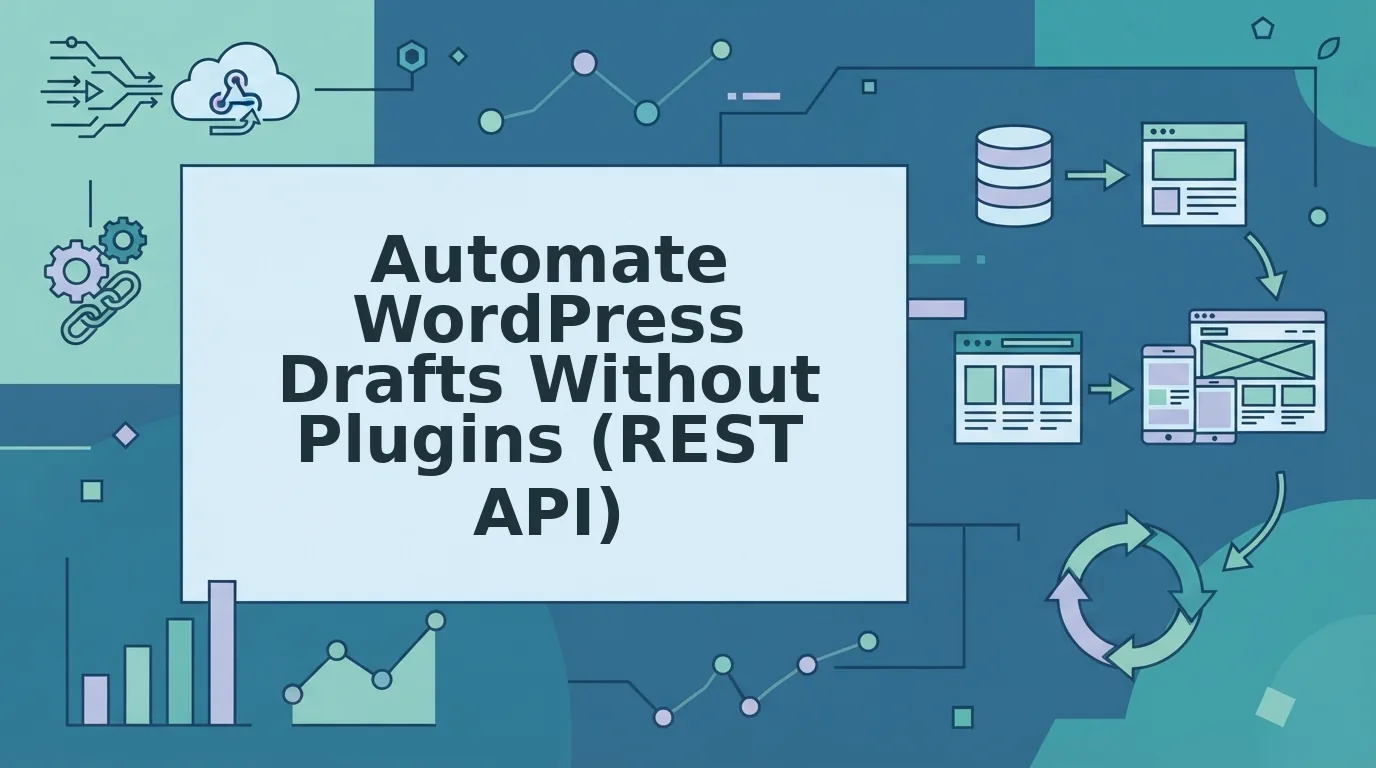
Every plugin you add to WordPress is another update to track, another compatibility risk, and another door for attackers. Yet most publishers still believe automating draft delivery requires installing something. It doesn't. You can automate draft delivery to WordPress without plugins using capabilities WordPress has shipped in core for years.
You're right to be frustrated. Stack sprawl is real: a plugin for SEO, a plugin for scheduling, a plugin for API access, each one a maintenance tax on content teams that just want to publish. Here's the promise: by the end of this guide, you'll have a native, plugin-free pipeline that pushes drafts straight into WordPress using the REST API and Application Passwords, with zero third-party dependencies.
We'll cover why skipping plugins is the safer architectural choice, how to set up secure credentials, and how to create draft posts programmatically. Along the way, you'll see why an AI SEO content engine that ships directly to WordPress fits this exact workflow, and one surprising limitation of the native API that most tutorials never mention.
Why Skip Plugins for Draft Automation?
Draft automation is the process of programmatically creating unpublished posts in WordPress so editors can review and schedule them without manual copy-paste. You don't need a plugin to do it.
Think of WordPress plugins like aftermarket car modifications. Each one adds horsepower, but every new part introduces another failure point, and when two mods conflict, diagnosing the problem gets expensive. The same applies to your publishing stack. Plugins expand your security surface, demand updates, and occasionally break each other after a core release.
The contrarian truth competitors ignore: every WordPress site since version 4.7 ships with the REST API built in. That means draft creation is a native capability, not a feature you bolt on. The REST API is a set of URLs that let external tools read and write WordPress content using standard HTTP requests, no plugin installation required.
Authentication is the piece that trips people up. Since WordPress 5.6, Application Passwords provide scoped, revocable credentials tied to a specific user account. You generate a password for API use only, and revoke it anytime without touching your main login. This is the same mechanism an AI blog generator with direct WordPress publishing uses to push content securely.
Skip the plugin, and you skip the update treadmill, the conflict debugging, and the extra attack surface, while gaining full control over exactly what your automation can and cannot touch.
Set Up Application Passwords for Secure API Access
Application Passwords let you grant API access to WordPress without exposing your main login credentials. You'll need administrator access to your WordPress site and about three minutes to complete setup.
- Create a dedicated user account. In your WordPress admin, go to Users to Add New User. Set the role to Author or Editor, not Administrator. This limits what a compromised API credential can do. You should see the new user appear in your user list immediately.
- Log in as that user. Open an incognito window and sign in with the dedicated account credentials. This ensures the Application Password you generate is tied to the right account, not your admin profile.
- Navigate to the Application Passwords section. Go to Users to Profile and scroll down until you see the Application Passwords heading. This section exists in WordPress core since version 5.6, no plugin required.
- Generate a new password. Type a descriptive name like "Draft Automation Script" into the New Application Password Name field, then click Add New Application Password. WordPress will display a 24-character password with spaces. You should see a success notice confirming the password was created.
- Store the password securely. Copy the generated password immediately. WordPress shows it only once. Store it in a secrets manager or environment variable, never in plain text inside your codebase or a shared document. The password will now appear in your list of active application passwords.
Application Passwords are scoped to the user account you generate them from, which means a dedicated Author account can create drafts but cannot install plugins, edit themes, or modify other users' content. This scoping is what makes the no-plugin approach safer than many plugin-based automation tools that request broad administrator privileges. If you ever suspect a credential leaked, return to Users to Profile and click Revoke next to the password, access is cut off instantly without affecting your main login.
With your Application Password in hand, you're ready to send your first authenticated request to the WordPress REST API.
Create a Draft Post via the WordPress REST API
You can create a WordPress draft without any plugin by sending a single authenticated POST request to the /wp-json/wp/v2/posts endpoint with status=draft. This works on any WordPress site running version 4.7 or later, where the REST API is enabled by default.
Prerequisites: A WordPress site with the REST API enabled (default since WordPress 4.7), an Application Password generated from your user profile (see Section 3), and a terminal or API client like Postman or cURL. The entire process takes under 5 minutes.
- Open your terminal or API client. Launch Terminal on macOS/Linux, Command Prompt or PowerShell on Windows, or open Postman in your browser. You should see a blank command line or request builder ready for input.
- Type the curl command with your site URL and credentials. Enter
curl -X POST https://yoursite.com/wp-json/wp/v2/posts -H 'Authorization: Basic base64(user:app_password)' -d 'title=My Draft&content=Hello&status=draft', replacingyoursite.comwith your domain andbase64(user:app_password)with the Base64-encoded string ofusername:application_password. You can generate the Base64 string atbase64encode.orgor withecho -n 'user:pass' | base64in your terminal. - Press Enter to send the request. The API processes the POST and returns a JSON response. You should see a
201 Createdstatus code and a JSON object containing the new post'sid,status: "draft", andlinkfields, confirming the draft exists in WordPress. - Verify the draft in your WordPress admin. Open
yoursite.com/wp-admin/edit.php?post_status=draftin your browser. You should see "My Draft" listed under Drafts, with the content "Hello" intact and no publish date assigned.
The status parameter accepts four values that control where the post lands in your editorial workflow. draft saves the post as unpublished and visible only to editors. pending marks it as awaiting review by an editor or admin. publish makes the post immediately live on your site. future schedules the post to publish at a date you specify with the date parameter. Choosing draft for automated delivery keeps every AI-generated article in a review queue before it goes live, which is the safest default for citation-optimized articles that need human fact-checking.
Automate Recurring Draft Delivery with Cron or a Script
A cron job can run the same curl command on a fixed schedule, delivering drafts to WordPress automatically without any manual intervention or plugin installation. This turns the one-off API call from Section 4 into a hands-free content pipeline.
Prerequisites: A server or local machine with cron (Linux/macOS) or Task Scheduler (Windows), the curl command from Section 4 saved in a shell script, and your Application Password stored securely. Setup takes roughly 10 minutes.
- Create a shell script file. Open a text editor and paste your curl command from Section 4 into a new file named
deliver-draft.sh. Save the file to your home directory. You should see the file listed when you runls ~/deliver-draft.sh. - Make the script executable. Run
chmod +x ~/deliver-draft.shin your terminal. You should see no error output, and the file permissions should now include anxflag when you runls -l. - Open your crontab for editing. Type
crontab -eand press Enter. You should see your cron configuration file open in the default editor, ready for a new schedule entry. - Add a schedule line for your script. Type
0 9 * * 1 ~/deliver-draft.shto run the script every Monday at 9:00 AM, then save and exit. You should see the message "crontab: installing new crontab" confirming the schedule is active. - Add error handling to the script. Reopen
deliver-draft.shand wrap the curl command with a response code check: capture the HTTP code with-w '%{http_code}'and retry once if the code is not 201. You should see the script exit with a success message only when WordPress confirms the draft was created.
WordPress REST API rate limits are generous but not unlimited, so checking HTTP response codes and adding a retry with a short delay prevents silent failures when a scheduled run hits a temporary server issue or authentication expiry. A 401 response means your Application Password was revoked or mistyped; a 429 means you hit the rate limit and should wait before retrying.
The No-Code Alternative: BloGoose's Built-In WordPress Integration
BloGoose ships drafts directly to WordPress using the same REST API endpoint covered in Sections 4 and 5, but removes the need for curl commands, cron configuration, and manual credential management. The platform handles authentication, scheduling, and error retries automatically after a one-time connection.
| Capability | Manual REST API + Cron | BloGoose Built-In Integration |
|---|---|---|
| Draft creation | Hand-written curl command | Automatic after content generation |
| Scheduling | Manual cron setup and maintenance | Built-in calendar and cadence controls |
| Credential management | Base64 encoding and secure storage on your server | Encrypted connection handled by BloGoose |
| Brand voice alignment | Manual prompt writing per article | Extracted from your site structure before drafting |
| Error handling | Custom retry logic in your script | Automatic retries and status monitoring |
The manual approach is best for developers and technical operators who want full control over the delivery pipeline and already maintain server infrastructure. It costs nothing beyond hosting and gives you complete transparency into every request. The tradeoff is ongoing maintenance: cron jobs break silently, Application Passwords expire, and every new content type requires a new script.
BloGoose's built-in WordPress integration is best for founders, content leads, and solo operators who want draft delivery without touching a terminal. Because BloGoose extracts brand voice and site structure before drafting, delivered drafts arrive on-brand and ready for editorial review, and the platform can produce citation-optimized articles that target both search rankings and AI answer engines. If you would rather spend your time reviewing drafts than debugging cron jobs, the no-code path removes the entire operational layer while keeping the same plugin-free delivery mechanism underneath. Read on for answers to the most common questions about automating WordPress drafts.
Frequently Asked Questions About Automating WordPress Drafts
Automating WordPress draft delivery without plugins is possible using the REST API, Application Passwords, and a scheduled script or no-code integration. These answers address the most common security, status, and workflow questions from real user research.
Can I automate WordPress drafts without any coding?
Yes. BloGoose's built-in WordPress integration handles the API calls, authentication, and draft delivery for you, so no manual scripting is required. You connect your site once, and finished articles arrive as drafts automatically. This removes the need to write or maintain custom cron jobs.
Is the WordPress REST API secure for draft delivery?
Yes, when you use Application Passwords over HTTPS and assign a scoped user role such as Author or Editor. Application Passwords are revocable per integration, and HTTPS encrypts credentials in transit. Avoid using your main account password in scripts or third-party tools.
What's the difference between draft and pending status?
A draft is private and editable only by the author and administrators. Pending status submits the post for review by an editor or administrator before publishing. Use draft for work-in-progress content and pending when your workflow requires an approval step before content goes live.
Can I schedule a post to publish later via the API?
Yes. Set the status field to future and include a date field with the desired publication timestamp. WordPress will automatically publish the post at that time. This works without plugins and is useful for batching content delivery ahead of a publishing calendar.
Why does my API request return a 401 error?
A 401 error means authentication failed. Check that your Application Password is correct, that the username matches the account that generated it, and that your site uses HTTPS. Also verify the user role has the edit_posts capability required to create draft content.
From Manual API Calls to Fully Automated Draft Delivery
The manual REST API flow proves a critical point: no plugin is required to automate WordPress draft delivery. Application Passwords, a single POST request, and a scheduled script give you complete control over content intake without adding another dependency to your stack.
What changes is the maintenance burden. Hand-rolled cron jobs need monitoring, error handling, and updates. BloGoose automates the same flow end-to-end, from site crawl and brand voice extraction to draft delivery, so you skip the scripting entirely while keeping the plugin-free architecture.
Your next step: start with BloGoose's WordPress integration and connect your site once. Drafts arrive on schedule, ready for review, with no API code to maintain. The no-plugin path works, and now you can take it without building it yourself.