
How to Automate Search Console URL Inspection for New Posts
You just published a new post, and now you're staring at Google Search Console, pasting URLs one by one into the inspection bar, waiting for the spinner, copying the result into a spreadsheet, and repeating the process for the next 40 articles. That manual loop is exactly why smart publishers automate search console url inspection with a few dozen lines of code instead of burning an afternoon on GUI clicking.
Agree: if you run a content-heavy site, you already know the pain, every new post needs verification that Google actually crawled it, indexed it, and didn't flag a coverage error. Promise: in this guide, you'll learn how to replace that manual ritual with a scripted pipeline that inspects every new URL automatically and reports exactly which posts need your attention. Preview: we'll cover how the URL Inspection API actually works, then walk through a complete Python implementation, and finally tackle quota limits and error handling.
One thing most tutorials won't tell you: the Inspection API cannot request indexing, it only reports what Google already knows. That distinction changes everything about how you build the workflow, and we'll resolve it before you write a single line of code.
How Google Search Console URL Inspection Automation Works
The Google Search Console URL Inspection API is a read-only programmatic interface that returns the current indexing, crawl, and rich snippet status of any fully-qualified URL you own. You send a URL, Google responds with structured data about whether the page is indexed, when it was last crawled, and what coverage state it currently holds.
Think of the Inspection API like checking a package tracking number: you can see exactly where your parcel is and whether it was delivered, but you cannot tell the courier to go pick up a new package. That's the job of a separate tool.
The Indexing API, by contrast, accepts Publish and Delete notifications that actively prompt Google to crawl a new or updated URL. The Inspection API only reports status, it never triggers a crawl. Confusing these two is the most common mistake in automation projects, and it leads to scripts that "run successfully" while doing nothing to speed up indexing.
To use the Inspection API, you need an OAuth 2.0 service account with the webmasters. readonly scope enabled in Google Cloud Console, plus the service account's email address added as a user in your Search Console property. Without both pieces, every API call returns a 403 permission error.
Here is the workflow most publishers overlook: after publishing a batch of new posts, you can inspect all 50 URLs in sequence, extract the coverageState field from each response, and filter for any value other than Indexed. That single pass tells you which posts Google skipped, blocked, or hasn't discovered yet, without opening the Search Console dashboard once.
| Feature | URL Inspection API | Indexing API |
|---|---|---|
| Primary function | Report indexing and crawl status | Request a crawl via Publish/Delete |
| Can trigger crawling | No, read-only | Yes, sends notifications |
| Required OAuth scope | webmasters. readonly | indexing (write access) |
| Best use case | Audit, verify, monitor coverage | Accelerate new post discovery |
In practice, a complete automation stack uses both APIs together: the Indexing API to nudge Google toward new content, and the Inspection API to confirm whether the nudge worked. An AI SEO content engine can orchestrate both calls automatically after each publish event, closing the loop between publishing and verification.
Step-by-Step: Automate URL Inspection with Python and Google APIs
This workflow inspects any batch of URLs and returns their indexing status in under two minutes. You'll need a Google Cloud project, a service account with the webmasters. readonly scope, the service account email added to your Search Console property, and Python 3.9+ with the google-api-python-client and google-auth packages installed.
- Create a service account and download its JSON key. Open Google Cloud Console, select your project, navigate to IAM & Admin to Service Accounts, click Create Service Account, name it
gsc-inspector, and download the JSON credentials file. You should see the key saved to your local machine. - Grant Search Console access. Open Google Search Console, click Settings to Users and permissions to Add user, and paste the service account email from the JSON file's
client_emailfield. Select Restricted permission. You should see the service account listed as a user immediately. - Enable the Search Console API. In Google Cloud Console, go to APIs & Services to Library, search for "Google Search Console API," and click Enable. You should see a green checkmark confirming the API is active.
- Write the inspection script. Copy the Python script below, replacing
service_account. jsonwith your key path andyour-site. comwith your verified property. The script authenticates, loops through a URL list, and prints each URL'scoverageState.
Here is the part most tutorials overlook: quota handling. The Inspection API enforces a per-minute request limit, and when you exceed it, Google returns HTTP 429 with a Retry-After header. A production script must read that header and sleep accordingly, not just retry blindly. The script below includes exponential backoff for 429 responses, which prevents your batch job from crashing halfway through a 50-URL inspection run.
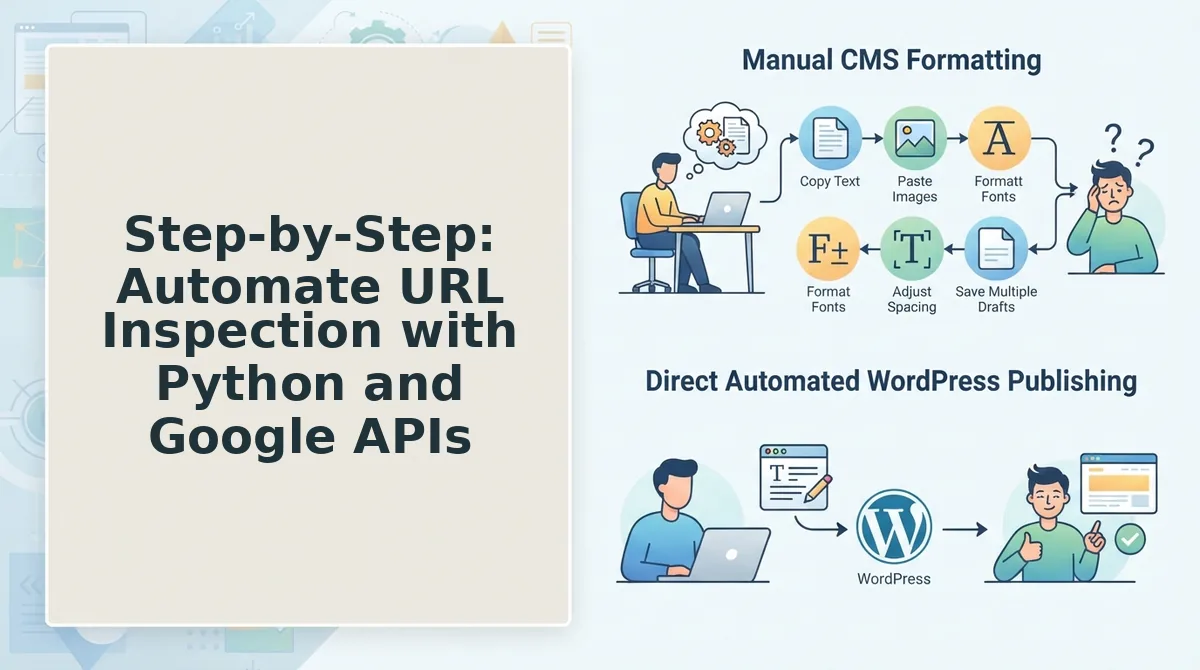
To inspect a batch of 50 new articles post-publish, you would collect the URLs from your CMS webhook or sitemap diff, feed them into the script, and parse the output for any coverageState value other than Indexed. Those outliers are the posts that need manual review, a redirect chain, a noindex tag left in place, or a canonical pointing to the wrong URL. If you publish through an AI blog generator with direct WordPress publishing, you can trigger this inspection script automatically on every publish event, giving you a real-time indexing audit without touching the Search Console dashboard.
Once your script runs cleanly on a small batch, the next challenge is scaling it without hitting rate limits, which brings us to managing quotas, batch limits, and error 429 responses.
Managing Quotas, Batch Limits, and Error 429 Responses
Google caps URL Inspection API usage at 2,000 requests per day per project and 600 queries per minute, so automation must respect hard limits or fail silently mid-batch. The three realistic approaches, raw API with custom backoff, a wrapper library, or a managed content engine, differ mainly in how much retry logic you maintain yourself.
| Approach | Quota Handling | 429 / Rate-Limit Recovery | Best for |
|---|---|---|---|
| Raw URL Inspection API + custom Python | Manual counter or queue; you track the 2,000/day ceiling yourself | You implement exponential backoff with jitter; no built-in retry | Developers who want full control and already run cron jobs |
| Wrapper libraries (e. g., google-api-python-client with retry config) | Still manual per-project tracking, but client handles auth and batching | Configurable retry with exponential backoff; jitter optional via parameters | Python shops that want less boilerplate but still own the pipeline |
| Managed SEO content engines with built-in inspection (e. g., BloGoose) | Platform-side queueing and quota pacing; no per-request bookkeeping | Handled automatically; failed inspections retried without user intervention | Content teams and solo operators who want zero-touch publishing |
A 429 response does not mean your key is broken, it means you exceeded the per-minute or per-day window. The correct recovery pattern is exponential backoff with jitter: wait 2^n + random(0 - 1000ms) seconds before retrying, where n starts at 1 and doubles each failure. Video tutorials rarely show this because demo scripts run once; production pipelines hit it within the first 500 URLs.
One critical limitation: inspecting a URL does not force Google to re-crawl or re-evaluate it. The API only returns the last known indexing state. If you need an actual crawl request, pair inspection results with the separate Indexing API, or use a platform that maps your internal link map and sitemap crawl to decide which URLs deserve a push.
For teams publishing under 50 posts per month, raw API with a simple backoff function is sufficient. For anyone shipping daily content clusters, the quota math alone, 2,000 inspections minus retries and re-checks, favors a managed queue.
Connecting Inspection Results to Automated Crawl Requests
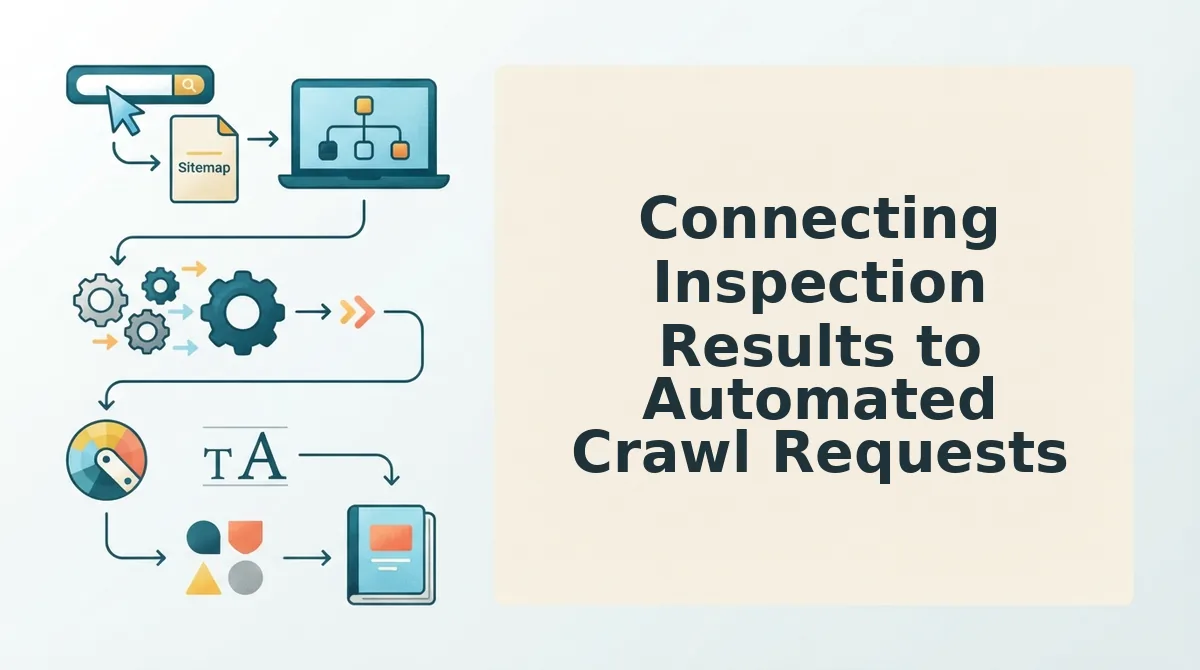
The highest-leverage automation is a closed loop: publish triggers inspection, inspection results trigger indexing requests, and nothing waits for a human. Here is the end-to-end pipeline, ordered by impact.
- CMS publish webhook starts the inspection automatically. WordPress and most headless CMS platforms can fire a webhook on post publish. Route that webhook to your inspection worker so every new URL enters the queue within seconds of going live, no manual paste, no spreadsheet.
- Parse
indexStatusResult. coverageStateto decide the next action. The inspection response tells you whether Google already knows the URL. If coverageState is "Submitted and indexed" or "Indexed," no further action is needed. If it returns "Discovered - currently not indexed" or "Crawled - currently not indexed," the URL is a candidate for an Indexing API Publish request. - Trigger a conditional Indexing API call only for URLs Google has not indexed. Blindly pinging the Indexing API for every post wastes your daily quota on URLs Google already knows. Gate the Indexing API behind the coverageState check so you spend requests only where they change outcomes.
- Log failures to a retry queue with exponential backoff. Inspection calls that return 429 or 500 should not block the pipeline. Push them to a dead-letter queue and retry with backoff so a temporary Google hiccup does not silently drop posts from your indexing workflow.
- Re-inspect after 48 - 72 hours to confirm indexing. A single inspection right after publish often shows "Discovered - currently not indexed" simply because Google has not crawled yet. Schedule a follow-up inspection two to three days later to verify whether the Indexing API request actually moved the needle.
- Feed confirmed-indexed URLs back into your content calendar. Once a URL flips to indexed, mark it complete in your tracking sheet or CMS. This closes the loop and gives you a clean report of which automated SEO content actually entered Google's index versus which posts need a stronger internal link push.
This pipeline is what a zero-touch indexing workflow looks like in production. If you are already generating content through an automated engine, wiring inspection results into crawl requests removes the last manual step between publish and rank.
Frequently Asked Questions About GSC Automation
The URL Inspection API answers what Google knows about a URL today; it does not request indexing. Here are the questions operators ask most when moving from manual checks to automation.
Is there an API for Google Search Console URL inspection?
Yes. Google provides the URL Inspection API as part of the Search Console API suite. It returns the current indexing status, coverage state, and any detected issues for a given URL in your verified property. It is read-only and does not trigger a crawl.
What is the daily quota for the URL Inspection API?
The quota is 2,000 requests per day per project, with a rate limit of 600 queries per minute. Exceeding either limit returns an HTTP 429 response. You must implement exponential backoff with jitter to recover without manual intervention.
Can you automate indexing requests using the URL Inspection API?
No. The URL Inspection API only reports indexing state. To request indexing, you must use the separate Indexing API, which accepts Publish and Update requests for pages with JobPosting or BroadcastEvent structured data, or for pages verified via the same Search Console property.
How do I bulk inspect URLs without custom code?
Use a managed SEO content platform that includes inspection automation, or a third-party tool that wraps the API with a queue and retry layer. For small batches, Google's Search Console interface supports manual inspection, but it does not offer a native bulk-inspect feature.
Once you understand the quota, the backoff pattern, and the inspection-versus-indexing distinction, you are ready to build the full pipeline.
Build Your Zero-Touch Indexing Pipeline Today
The entire workflow reduces to one distinction: Inspect tells you what Google sees right now, while Index tells Google what to crawl next. Automating both closes the gap between publishing and visibility.
You now have the architectural clarity, the Python script, the quota survival guide, and the trigger pipeline. The missing piece is execution discipline. Here is the synthesis that matters:
- Start with Inspect, not Index. Validate that Google can render and parse your page before requesting a crawl. Skipping this step wastes quota on pages that would fail indexing anyway.
- Batch by priority tier. New posts that target high-value keywords get immediate inspection. Archive updates and tag pages go into a daily digest batch.
- Log every 429 response. Your quota survival strategy is only as good as the data you collect from rate-limit events. Treat each 429 as a signal to recalibrate your batch size.
The open loop from the introduction resolves here: manual URL inspection does not scale because it treats every page as equally urgent. Automation works because it lets you encode urgency as logic.
If you are ready to stop stitching together scripts, spreadsheets, and manual publishing loops, the next step is consolidating your content pipeline. An AI SEO content engine handles the full stack, from site crawl and brand voice extraction to publishing rank-ready articles, so your indexing automation has a steady stream of properly structured pages to inspect.
Indexing automation is not a growth hack; it is the difference between content that exists and content that competes.