
Automated Crawl Request Checklist for Newly Published Articles
Your publishing pipeline just pushed a live article with a broken canonical tag, and your automation already pinged Google to crawl it. Congratulations, you've just asked the world's largest search engine to index a page that tells it to ignore itself. This is the silent killer in automated content workflows, and it's exactly why an automated crawl request checklist needs to sit between your CMS and every indexing signal you send.
You're not alone if this sounds familiar. You've built a content engine that drafts, optimizes, and publishes without manual intervention, but the moment a page goes live, the crawl request process still relies on guesswork, scattered browser tabs, and a prayer that the technical foundation holds.
Here's the fix: this guide walks you through the exact pre-ping audit sequence, then compares the three crawl request methods so you stop wasting Google Indexing API quota, which defaults to just 200 URLs per day, on pages that aren't ready. You'll also see why the Crawl Stats report in Search Console is the validation layer most competitors ignore, and how an automated SEO content engine can run these checks before a single request fires. One surprising finding ahead: the order of your technical checks matters more than the checks themselves.
The Pre-Ping Audit: 7 Technical Checks Before Any Crawl Request
A pre-ping audit is a seven-step technical sequence that verifies a newly published page is crawlable, indexable, and correctly structured before you send any crawl request to Google. Run these checks in order, each one builds on the previous, and skipping ahead can mask errors that waste your indexing quota.
Prerequisites: Access to Google Search Console for the property, your CMS or publishing platform's page settings, and either a browser-based inspection tool or a lightweight crawler like Screaming Frog. Budget 5 - 7 minutes per page for manual checks; automation reduces this to seconds.
- Verify the canonical tag points to the self-referencing URL. Open the page source (right-click to View Page Source) and search for
rel="canonical". The href value must match the page's own URL exactly, same protocol, domain, path, and trailing slash. Pass condition: canonical equals the live URL. If your canonical tags point to a staging domain or omit the trailing slash, Google may consolidate signals to the wrong page. You should see one canonical tag only, with no conflicting directives. - Confirm the page is not noindexed. In the same page source, search for
name="robots"and check the content attribute. Pass condition: nonoindexvalue present. A single leftover robots meta tag from a draft template will silently block indexing even when every other check passes. If you're using a CMS, check both the page-level setting and any global template defaults. - Check robots. txt for path-level blocks. Navigate to
yourdomain. com/robots. txtand scan theDisallowdirectives. Pass condition: the article's URL path is not blocked. ADisallow: /blog/drafts/rule that catches your published article is a common automation failure, the page is live, but crawlers are told to stay away. - Confirm the URL appears in your XML sitemap. Open your XML sitemap and search for the article's URL. Pass condition: the URL is listed with a
lastmoddate matching today's publish date. If your sitemap is generated on a schedule, a freshly published article may not appear for hours, and pinging Google before it's listed delays discovery. - Verify at least one internal link points to the new page. Search your site for the article's URL in the body of another published page. Pass condition: one or more contextual internal links exist outside the sitemap and navigation. Orphan pages, those with zero internal links, are technically crawlable but deprioritized by Google's crawler. Your pillar page or category archive should reference the new article.
- Confirm the page returns a 200 status code. Use a status code checker or your browser's developer tools (Network tab) to load the URL. Pass condition: HTTP 200. A 301 redirect, 404, or soft-404 means the crawl request will resolve to a different page or fail entirely. This check catches CMS redirect rules that silently rewrite URLs after publishing.
- Validate structured data with zero errors. Paste the URL into Google's Rich Results Test. Pass condition: all detected structured data types show "Valid" with no errors. Warnings are acceptable; errors are not. Broken JSON-LD, a missing comma, an unclosed bracket, invalidates the entire schema block and forfeits rich result eligibility.
BloGoose's site crawl runs this exact sequence automatically during setup: it detects your CMS stack, extracts your publishing patterns, and validates each check against your live pages before any content ships. That means the pre-ping audit becomes a background process, not a manual ritual.
If you're running an automated pipeline, the seven checks above answer one specific question: Is this page ready for Google to evaluate it as a finished, indexable asset? The order matters because canonical errors mask indexing intent, robots blocks override sitemap entries, and structured data failures only surface after the page is otherwise crawlable. Run the sequence top to bottom, and you'll catch the failure mode that would otherwise waste a crawl request on a page Google can't or shouldn't index.
Indexing API vs. Sitemap Ping vs. URL Inspection: Which Should You Use?
The three crawl request methods serve different purposes: the Indexing API notifies Google about new or updated pages for near-immediate crawling, a sitemap ping signals that your sitemap file has changed, and URL Inspection manually requests indexing for a single URL from Search Console. Choosing the wrong one wastes quota, delays indexing, or both.
Each method has legitimate strengths. The Indexing API is the fastest and most direct. Google processes requests within minutes, making it ideal for time-sensitive content. Sitemap pings are effortless to automate and cost nothing in quota, since they only tell Google to re-read your sitemap file rather than crawl a specific URL. URL Inspection requires no API setup and gives you immediate diagnostic feedback alongside the request, which is invaluable when troubleshooting a single page.
The decision matrix below maps the right method to your situation. The key variable is whether the page is new or updated, and whether it's high priority (revenue pages, breaking content, major rewrites) or standard priority (routine blog posts, minor edits).
| Method | Best for | Quota / Limit | Speed | Key Strength |
|---|---|---|---|---|
| Indexing API | High-priority new articles and major updates | 200 URLs per day default | Minutes | Direct URL-level notification with fastest processing |
| Sitemap Ping | Standard content published in batches | No practical daily limit | Hours to days | Zero quota cost; signals entire sitemap refresh at once |
| URL Inspection | One-off manual requests and diagnostics | Manual, rate-limited per user | Minutes to hours | Built-in diagnostics show exactly why a page isn't indexed |
Best for high-volume publishers: Use the Indexing API only for pages that genuinely need immediate indexing, new product launches, time-sensitive announcements, or major content overhauls. Reserve sitemap pings for your standard publishing cadence. This preserves your 200-URL daily quota for the pages that actually move revenue.
Best for solo operators and small teams: Sitemap pings cover most needs without any API configuration. When a specific page underperforms, use URL Inspection to request indexing and read the diagnostic output in the same screen. You'll learn more from one URL Inspection session than from a week of blind pings.
Best for agencies managing multiple client sites: The Indexing API's per-property quota applies separately to each verified site, so 200 URLs per day per client is workable, but only if you automate the pre-ping audit. Sending Indexing API requests for pages that fail canonical or robots checks burns quota and signals poor quality control to Google. For step-by-step setup, see the Google Indexing API setup guide.
Treating every page the same is the fastest way to exhaust your quota on content that would have been crawled anyway. The 2×2 matrix, new vs. updated on one axis, high vs. standard priority on the other, keeps your crawl requests proportional to the page's actual value.
Once you've matched the method to the page, the next challenge is scaling this decision across hundreds of articles without manual triage.
How to Automate Crawl Requests Without Hitting Quota Limits
Quota-aware batching is the practice of grouping crawl requests into prioritized tiers so you never exhaust your daily submission allowance on low-value URLs. The Google Indexing API enforces a default limit of 200 URLs per day, which sounds generous until a content-heavy site publishes 50 posts in a single batch and burns through the entire allocation before lunch.
Think of your crawl request quota like a restaurant reservation system: you don't call the host for every single diner walking past the window. You reserve tables for the guests who actually ordered the tasting menu. Low-priority content doesn't need an API call because your XML sitemap already tells Google the page exists. The sitemap is the open sign on the door; the Indexing API is the phone call that says "this table matters tonight."
Start with a simple rule: only ping URLs that generate revenue or expire quickly. Product pages, pricing updates, limited-time offers, and breaking news all qualify. Evergreen blog posts that can wait a week for natural discovery should rely on sitemap crawling alone. This single filter keeps most publishers under 50 requests per day without any technical overhead.
For intermediate automation, group submissions into a daily batch job that runs once, not per-publish. A script that collects newly published URLs into a queue and submits them at a fixed time each morning lets you monitor quota usage in one place. Track the API's error responses: a 429 status means you hit the rate limit, while a 403 often signals an authentication problem. Both are signals to adjust your batch size rather than retry blindly.
Advanced setups tie batching directly to crawl budget management by assigning each URL a priority score based on revenue potential, freshness, and historical crawl frequency. Pages scoring above a threshold get an API ping; everything else waits for the sitemap. This keeps your crawl budget focused on pages that actually move the needle while preserving quota for time-sensitive launches.
How many URLs can you submit to the Google Indexing API per day? The default quota is 200 URLs per project per day, shared across all request types including page updates and removals. Exceeding this limit returns a 429 rate-limit error, and Google does not automatically increase the quota for most users. Publishers who need more capacity must request a quota increase through the Google Cloud Console, which requires a justification tied to legitimate use cases like job postings or live event streams. For most content sites, staying under 200 requires batching submissions and reserving API calls for revenue-critical or time-sensitive pages rather than every new blog post.
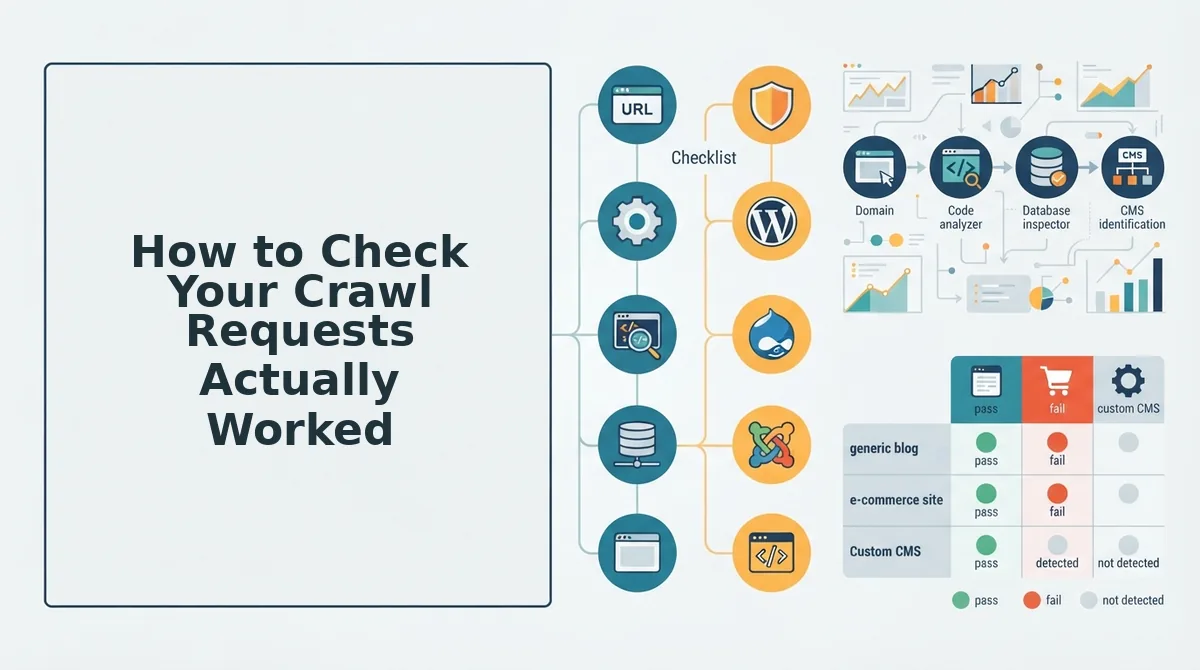
How to Check Your Crawl Requests Actually Worked
A crawl request is only half the job. Validation confirms Google actually fetched the page, parsed it correctly, and stored it in the index. Here are the five checks to run after every ping, ordered by how quickly they reveal a problem.
- Check the Crawl Stats report for response codes. Open Google Search Console's Crawl Stats report and filter by the date range of your ping. Look for a spike in crawl requests matching your submitted URLs, then verify the response codes are 200 or 301. Any 404, 410, or 500 responses mean Google tried to fetch the page and failed, which wastes your crawl budget on a broken request.
- Run the URL Inspection tool on a sample of submitted pages. Pick three to five URLs from your batch and run them through the URL Inspection tool. The tool shows whether the page is indexed, when Google last crawled it, and whether any rendering issues blocked content extraction. If the tool reports "Discovered, currently not indexed," your ping registered but Google deprioritized the page, usually due to thin content or duplicate signals.
- Watch for soft 404 errors in the Page Indexing report. A soft 404 error occurs when Google crawls a page that returns a 200 status code but contains no meaningful content, like an empty search results template or a deleted product page that redirects to the homepage. Soft 404s waste crawl budget because Google keeps re-crawling pages it will never index. Fix them by returning a real 404 or adding substantive content before re-pinging.
- Monitor download time in Crawl Stats. The Crawl Stats report includes average download time for pages Google fetches. If your newly submitted pages show download times above 2 seconds, Google may reduce crawl frequency for your entire site. Slow responses signal server strain, oversized images, or render-blocking scripts that make Googlebot work harder than necessary.
- Compare indexed page count before and after the ping. Note your total indexed pages in the Page Indexing report before submitting a batch, then check again 48 to 72 hours later. A flat count despite successful crawl requests suggests Google fetched the pages but chose not to index them, which points to content quality issues rather than technical crawl problems.
How do you verify a Google crawl request actually worked? Start with the Crawl Stats report in Search Console, which shows whether Googlebot fetched your submitted URLs and what response codes it received. A successful request produces a 200 status code and a crawl timestamp matching your ping window. Next, run the URL Inspection tool on individual pages to confirm indexed status and check for rendering issues. If the page shows "Crawled, currently not indexed," Google fetched it but withheld indexing, usually due to quality or relevance signals. Finally, watch for soft 404 errors and slow download times, both of which indicate Googlebot reached the page but couldn't extract usable content.
If manual validation feels like a second full-time job, an automated content engine like BloGoose handles the ping-and-verify loop as part of its publishing workflow, so every article ships with crawl confirmation built in.
Automated Crawl Request Checklist FAQ
Automated crawl requests trigger Googlebot to fetch newly published pages faster than waiting for natural discovery. Here are direct answers to the questions publishers ask most often after setting up their first ping workflow.
How do I automate Google crawl requests for WordPress?
Install a plugin that hooks into WordPress's publish action and submits new URLs to the Google Indexing API automatically. The plugin stores your API credentials, fires a ping when a post transitions to published status, and logs the response code for validation. Alternatively, use an AI blog generator for WordPress that includes crawl request automation as part of its publishing pipeline, eliminating the need for a separate plugin.
What's the difference between the Indexing API and sitemap pinging?
The Indexing API sends a direct request for Google to crawl a specific URL immediately, while sitemap pinging only notifies Google that your sitemap file has changed. Sitemap pings are passive signals that enter a queue; Indexing API calls are active requests that typically trigger a crawl within minutes to hours. Use the API for time-sensitive or revenue-critical pages and sitemaps for everything else.
How many URLs can I submit to the Indexing API per day?
The default quota is 200 URLs per day per Google Cloud project. This limit applies across all request types, including page updates and removals. Exceeding it returns a 429 rate-limit error. Most publishers stay under the limit by batching submissions and reserving API calls for pages that need immediate indexing rather than pinging every new blog post.
Why isn't Google indexing my new posts after I pinged it?
A successful ping only guarantees Googlebot fetched the page, not that Google indexed it. Common blockers include thin content, duplicate copy, soft 404 responses, slow download times, or pages blocked by robots. txt directives. Run the URL Inspection tool to see the specific reason Google withheld indexing, then fix the underlying issue before re-submitting.
Automated Crawl Requests Are a System, Not a One-Off Task
The pre-ping audit catches technical failures before they cost you crawl budget. Method selection matches the request type to the page's importance. Quota strategy keeps you under limits while maintaining coverage. Validation confirms the loop actually closed.
What separates publishers who rank consistently from those who don't isn't a single perfect ping. It's the discipline of treating every publish as a monitored event, not a fire-and-forget action.
Here's the synthesis: crawl requests without validation are just hope with extra steps.
Your next move is to stop running this checklist manually. An automated SEO content engine handles the request, the quota pacing, and the validation loop in one pass, because BloGoose crawls your site, extracts brand context, and ships rank-ready articles with indexing built in.
Every article you publish either earns its place in the index or quietly disappears. The checklist decides which one happens.