
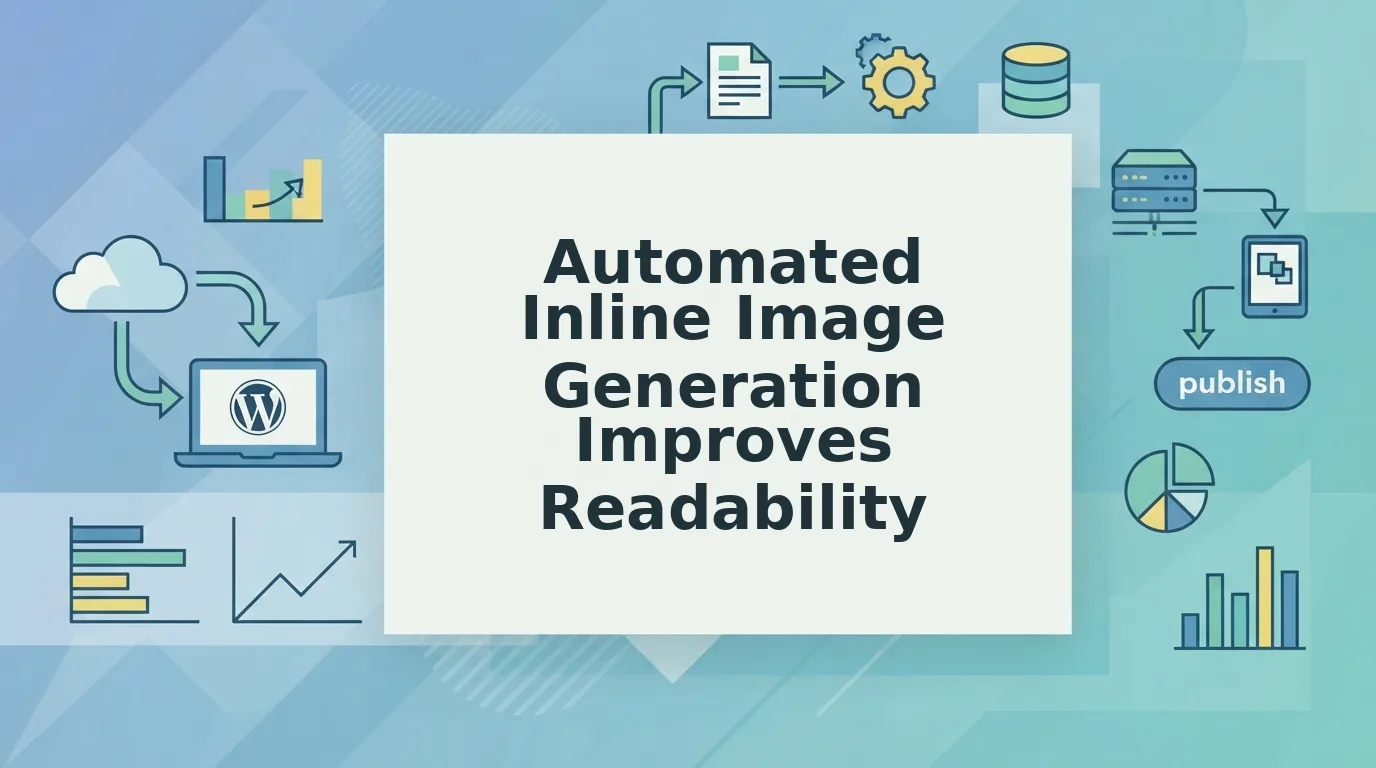
How Automated Inline Image Generation Improves Readability
If your bounce rate climbs on every article over 1,500 words, you're not alone. The problem isn't image count; it's image relevance and timing.
Here's the good news: automated inline image generation improves readability by placing the right visual at the exact moment a reader's attention starts to drift. You don't need a designer, a stock photo subscription, or hours of manual placement work.
In this article, you'll learn what automated inline image generation actually does, why visual cadence matters more than image volume, and a three-point placement framework you can apply to any article today. You'll also see how platforms like BloGoose handle this automatically during content generation, so your posts ship with readability built in.
But before the framework, one counterintuitive finding: the images that improve readability most are rarely the ones you'd pick by hand. We'll get to why in a moment.
What Is Automated Inline Image Generation?
Automated inline image generation is the process of using AI to create and place contextually relevant images at specific points within an article, without manual sourcing, editing, or upload steps. It turns image placement from a design task into a content-generation feature.
Think of it like a smart thermostat for your article's visual temperature. A manual system requires you to check the room, decide it's too cold, and adjust the dial yourself. An automated system senses the temperature drop, in this case, a reader's waning attention, and adjusts before you even notice.
At a basic level, the system scans your article's structure and identifies where readers are most likely to disengage. It then generates an image that matches the surrounding text's topic and inserts it at that exact point. No stock photo libraries, no alt-text guesswork, no drag-and-drop in a CMS.
At an intermediate level, the generation engine considers semantic context. An image next to a paragraph about churn metrics should show something related to churn, not a generic office photo. The system reads the text, extracts the core concept, and renders a visual that reinforces it.
At an advanced level, automated inline image generation integrates with your publishing pipeline. BloGoose, for example, generates images during the drafting phase and ships them directly to WordPress or your custom API as part of the finished article. The automated inline image generation capability works alongside brand voice extraction and content calendar planning, so every post arrives with visuals already positioned.
Here's the readability mechanism most publishers miss: visual breaks give the reader's eyes a place to rest, offload working memory, and create scanning affordance. A reader who can glance at an image and confirm they understand the section is more likely to continue than one who faces an unbroken wall of text. Automated placement targets these attention-drop points without requiring you to identify them manually.
This matters because long-form posts lose readers at predictable scroll depths. The fix isn't more images. It's the right images at the right moments, and automation removes the guesswork from both halves of that equation.
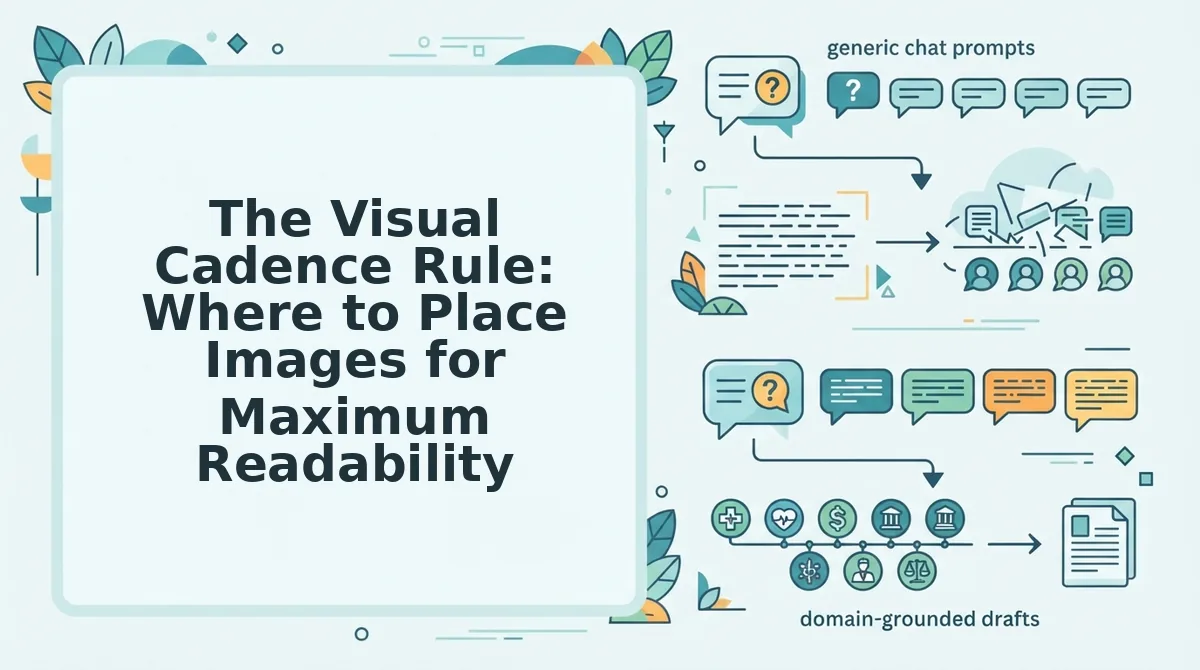
The Visual Cadence Rule: Where to Place Images for Maximum Readability
Apply this framework to any long-form post to reduce bounce and increase time on page.
Prerequisites: A drafted article of at least 1,200 words, an image generation tool (or a platform like BloGoose that handles this automatically), and a basic understanding of your article's structure. No design skills required.
- Place a hook image at the 10% scroll depth. Open your article and scroll to roughly one-tenth of the total page length, typically right after the introduction. Insert an image that visualizes the article's core promise or stakes. This image captures attention before the first scroll abandonment, which happens when readers decide whether the article is worth their time. You should see the image appear immediately after your opening paragraphs, giving readers a visual anchor before the first subheading.
- Place an explanatory image at the 40% scroll depth. Scroll to the densest section of your article, usually where you explain a concept, present data, or walk through a process. Insert an image that diagrams, illustrates, or summarizes that section's key point. This offloads working memory at the moment cognitive load peaks, letting readers process the visual instead of holding every detail in their head. You should see the image break up the longest text block in your article, making the section feel shorter than it is.
- Place a reinforcement image at the 70% scroll depth. Scroll to the section just before your conclusion or final takeaway. Insert an image that echoes the article's main argument or shows the end result of following your advice. This re-engages readers who have made it past the midpoint but are losing momentum before the finish. You should see the image appear right as your article transitions from explanation to resolution, giving readers a second wind for the final stretch.
Each placement takes under a minute when using an automated tool. Manual placement with stock photos can take 10-15 minutes per image once you factor in searching, downloading, uploading, and alt-text entry. The automated blog image generation workflow collapses that to seconds by generating and inserting images during the drafting phase itself.
BloGoose applies this cadence automatically as part of its content generation pipeline, so every published article arrives with hook, explanatory, and reinforcement images already positioned at the right depths. You don't need to remember the percentages, the system bakes them into the output.
But placement is only half the equation. The other half is getting the right image at each point without manually reviewing dozens of candidates, which is where automation earns its keep.
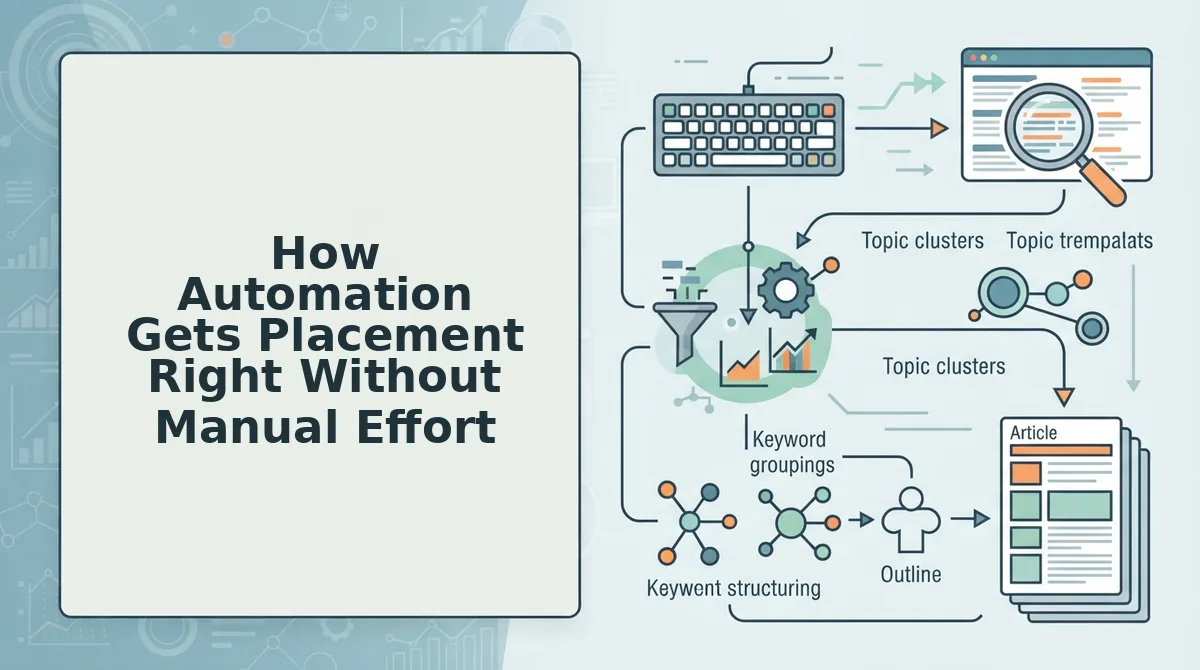
How Automation Gets Placement Right Without Manual Effort
Automated inline image generation places relevant visuals at the correct points in your article by analyzing text context, not by counting paragraphs. The problem with doing this manually isn't effort, it's consistency. A content engine that crawls your site context and applies the Visual Cadence Rule automatically removes the guesswork from every post.
Prerequisites: A BloGoose account with your domain connected, at least one published article or page for brand context extraction, and a target post ready for drafting.
- Connect your site domain in the setup wizard. Type your URL into the onboarding field and click Continue. BloGoose crawls your XML sitemap and inspects existing pages to extract brand voice rules, tone, and visual style preferences. You should see a confirmation screen listing the pages scanned and a green checkmark next to Brand Context Extracted.
- Open the Content Calendar and select a draft. Click Calendar in the left sidebar, then click any draft post to open the editor. The draft already contains a pillar-focused outline generated from your site structure. You should see the full article text on the left and an Image Placement panel on the right.
- Enable automated inline image generation. Toggle Auto-Place Images to On in the right panel. The engine scans each section's text for concrete nouns, data points, and transition moments, then inserts images at cadence points matching the Visual Cadence Rule, typically after introductions, before complex explanations, and at section breaks. You should see image thumbnails appear inline within 30-60 seconds.
- Review the placement map before publishing. Click Preview Placement to see a visual outline showing where each image sits relative to surrounding text. Automation matches images to the surrounding text context, not just volume, so each visual should reinforce the adjacent paragraph's meaning. You should see a relevance score next to each image; scores above 80 indicate strong contextual fit.
- Adjust density or regenerate individual images. Use the Density slider to increase or decrease images per section, or click Regenerate on any thumbnail to swap it for a new contextual match. Changes apply instantly across the draft. You should see the updated placement map reflect your adjustments within seconds.
- Publish or schedule the post. Click Publish to send the article with inline images directly to WordPress or your connected API endpoint. You should see a success notification with the post URL and a preview of the live page.
This workflow eliminates the manual loop of finding, resizing, and inserting images one by one. If you want to see how the site crawl and brand context extraction work before enabling image automation, read the site crawl and brand context extraction walkthrough. When your content engine handles placement automatically, every post follows the same readability rules without you touching a single image file.
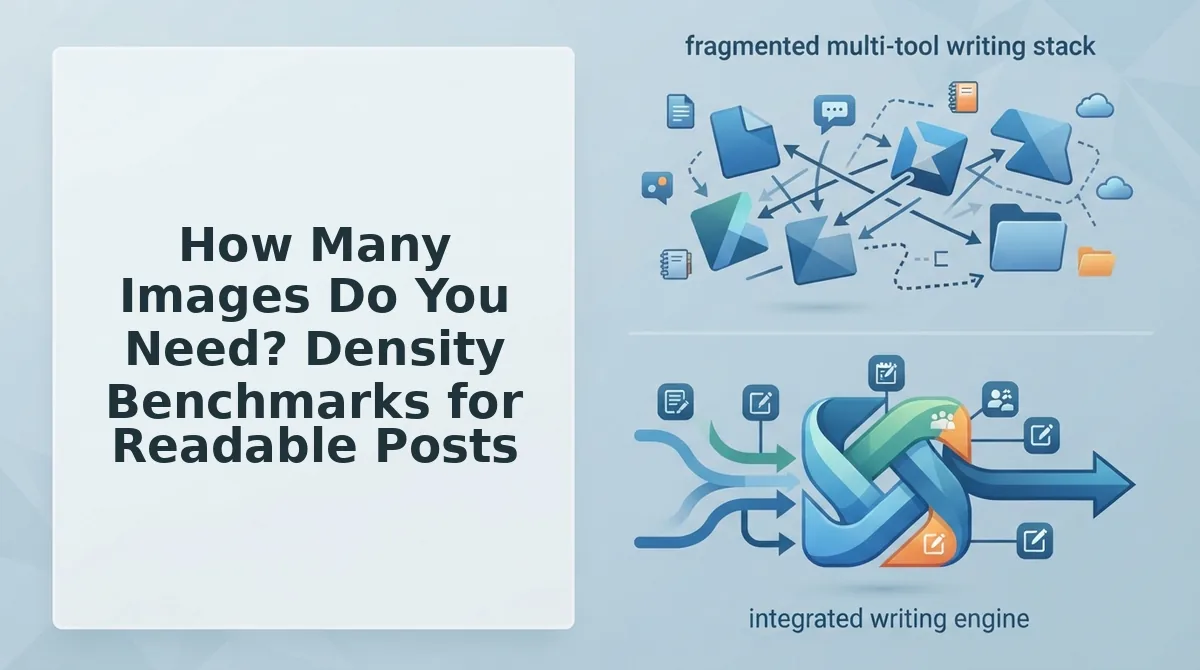
How Many Images Do You Need? Density Benchmarks for Readable Posts
For long-form content, aim for one inline image per 250-350 words [est.]. This density gives readers a visual break at natural attention intervals without fragmenting the text or slowing page load. Density should support the Visual Cadence Rule, not replace it, placement matters more than raw count.
- 1 image per 250-350 words for posts over 1,000 words [est.]. This ratio maps to the average reader's attention span between visual anchors. A 1,500-word post gets 4-6 images; a 3,000-word pillar page gets 8-12. Use the lower end for dense instructional content and the higher end for narrative or case-study posts.
- 1 image per section, minimum. Every H2 or H3 section should contain at least one visual break. Sections longer than 400 words need a second image placed after the midpoint. This prevents wall-of-text fatigue at the exact moments readers decide whether to keep scrolling.
- 1 image per 3-4 data points or statistics. When a section cites multiple numbers, insert a chart-style or illustrative image after the third data point. Visualizing data gives readers a processing pause and improves retention of the specific figures you want them to remember.
- 0 images for sections under 150 words. Short transitional sections don't need visuals. Adding images to brief paragraphs creates clutter and interrupts flow. Let the cadence rule skip these automatically.
- 1 hero image at the top, always. The first image sets visual expectations and reduces immediate bounce. Place it within the first 100 words, before the first subheading. This is non-negotiable for readability and social sharing.
- 1 image per 500 words for listicles and how-to guides. Step-by-step content already has built-in visual breaks through numbered items and subheadings. Lower density prevents the page from feeling padded. Use images only where they clarify a step or show a result.
- Cap total images at 15 for any single post [est.]. Beyond 15 images, page weight and cognitive load start working against readability. If your post needs more visuals, consider splitting it into two articles or moving supplementary images into a gallery.
These benchmarks are starting points, not rigid rules. Automated placement tools apply density targets while still respecting context, so you get the right number of images at the right moments without manual counting.
Frequently Asked Questions About Automated Inline Images
Automated inline image generation improves readability by inserting contextually relevant visuals at strategic points in an article, breaking up long text blocks and giving readers natural pause points that reduce cognitive fatigue and keep them scrolling.
How does automated inline image generation improve readability?
It analyzes the text around each insertion point and places images where readers naturally need a visual break, after introductions, before complex explanations, and at section transitions. This reduces wall-of-text fatigue and keeps attention anchored to the content.
Does adding images actually keep people reading?
Yes. Visual breaks reset attention spans and give readers a moment to process what they just read. Posts with consistent inline images see lower bounce rates and longer time-on-page because readers encounter fewer overwhelming text blocks.
Won't automated images look generic and hurt my brand?
Not when the tool extracts brand context first. Automation matches images to the surrounding text context and your site's visual style, not just volume. Relevance-first placement means each image reinforces the adjacent paragraph instead of feeling like stock filler.
Do inline images affect SEO or AI answer citations?
Yes. Well-placed images improve engagement signals like dwell time, which search engines interpret as content quality. For AI citations, structured content with clear visual anchors is easier for answer engines to parse and quote. Learn more about getting cited in AI answers.
How many images should a 1,500-word post have?
Four to six images [est.]. That's one per 250-350 words, plus a hero image at the top. This density provides consistent visual breaks without overwhelming the reader or slowing page load.
Can I control where automated images are placed?
Yes. Most automated tools include a placement map and density controls. You can review suggested positions, adjust the image-to-text ratio, and regenerate individual images before publishing. Automation handles the consistency; you keep final control.
Ready to see the difference consistent placement makes? Start placing images that keep readers on the page.
Start Placing Images That Keep Readers on the Page
Relevance-matched placement beats bulk generation every time. The articles that hold attention aren't the ones with the most images, they're the ones with images exactly where attention drops.
The Visual Cadence Rule gives you that placement framework: one image at every scroll-depth breakpoint, one at every conceptual shift, one before every dense block. No guessing. No over-stuffing.
Here's the sequence that makes it stick:
- Audit one underperforming post. Find where readers bounce using your analytics, then mark every attention-drop point.
- Apply the cadence. Place or generate images at those exact spots, not where they're convenient, but where they're needed.
- Automate the repeat. Use BloGoose's automated inline image generation to apply the same rule across every future post without manual placement work.
The payoff is measurable: longer time-on-page, lower bounce, and content structured well enough for AI answer engines to cite. You're not just decorating posts, you're engineering attention.
Images don't rescue weak writing. They rescue wandering readers, one well-placed visual at a time.