How Do Generated Images Get Into WordPress When Posts Auto Publish?
You have the loop memorized. Generate the image, download it, rename it to something a human would recognize, drag it into the media library, set it as the featured image, paste alt text into the field, save. Five steps that cost about the same effort as writing one paragraph â which is precisely why featured-image automation is the first thing people go looking for once text drafting has moved off their plate.
That loop feels unavoidable because of one buried assumption: that the picture travels inside the post body. It doesn't. A generated image becomes its own media library attachment, and the post stores nothing but that attachment's numeric ID. Getting generated images to auto publish to WordPress is a routing problem, not an attachment problem â put the file in the right place, then carry the ID it returns into the post payload.
What follows is what actually lands where, then the request-by-request sequence that produces a post with a featured image already set. There is also a quiet failure on re-publish that doubles your media library without throwing a single error â it gets resolved before the end. The same discipline you would apply in live SERP analysis applies here: verify the field, not the preview.
What Actually Lands in WordPress When an Image Auto Publishes?
Three separate records get written, never one file. WordPress stores the image as a media library attachment, stores a numeric pointer to that attachment on the post object, and â only if you explicitly ask for it â stores an img tag inside the post content itself.
An auto-published image handoff is the sequence that writes a generated file into the media library as an attachment, references it by ID from the post, and optionally embeds it inline. It has three destinations, and when one hop is skipped the failure is silent rather than loud.
Think of the media library as a warehouse and the post as a shipping manifest. The manifest doesn't carry the goods; it records a box number. Delete the box and the manifest still reads as complete.
At the base level an attachment is a database row plus a file on disk. Upload through the REST API media endpoint, and WordPress returns an attachment id, generates the resized variants, and builds the srcset a browser will choose from.
One level up, the post object carries featured_media â a single integer. Theme templates read it to render the hero image, and most SEO plugins read it as the default social image.
Alt text is where pipelines quietly fail. It isn't a field on the post at all; it lives in attachment meta under _wp_attachment_image_alt, which is why deleting an image and re-uploading it wipes alt text you already wrote. The OG image is a fourth hop living in SEO plugin meta, so a featured image set through featured_media does not automatically become the social card.
Here is the map that stops those hops from getting lost.
| Generated asset | WordPress destination | What breaks if skipped |
|---|---|---|
| Image file | Media library attachment via /wp-json/wp/v2/media | No attachment ID, so nothing downstream can reference it |
| Featured image | featured_media field on the post | Post publishes with a null featured image and a theme placeholder |
| Inline body image | img tag inside post content HTML | Image sits in the library but never appears in the article |
| Alt text | _wp_attachment_image_alt attachment meta | Accessibility failure and no image search visibility |
| Filename | Attachment slug | URLs default to image-1.webp with no descriptive signal |
| OG image | SEO plugin meta field | Featured image silently fails to become the social card |
The prerequisites are unglamorous but fixed: upload_files and edit_posts capability through an application password or an MCP-connected account, a web-safe generated format such as WebP or JPEG, a sensible filename chosen before upload because the filename becomes the attachment slug, and a publish pipeline that owns both the text call and the media call. The same way sitemap context extraction settles a site's structure before drafting starts, the media handoff needs the storage model settled before the first upload.
Why does my alt text disappear when I re-upload an image? Because alt text is stored in attachment meta on the attachment record, not in the post that displays it. Deleting the image removes the attachment record and its meta row together; the new upload creates a fresh record with an empty alt field, and WordPress has no way to know the two files were meant to be the same image. The fix is to update the existing attachment through a PATCH request rather than deleting and replacing it, so the alt text already written survives every re-publish and never needs retyping.
BloGoose handles all four hops in a single publish pass â generating the image, writing the alt text into attachment meta, and setting featured_media on the post before it ships to WordPress.
The Publish Sequence Step by Step, From Prompt to Featured Image
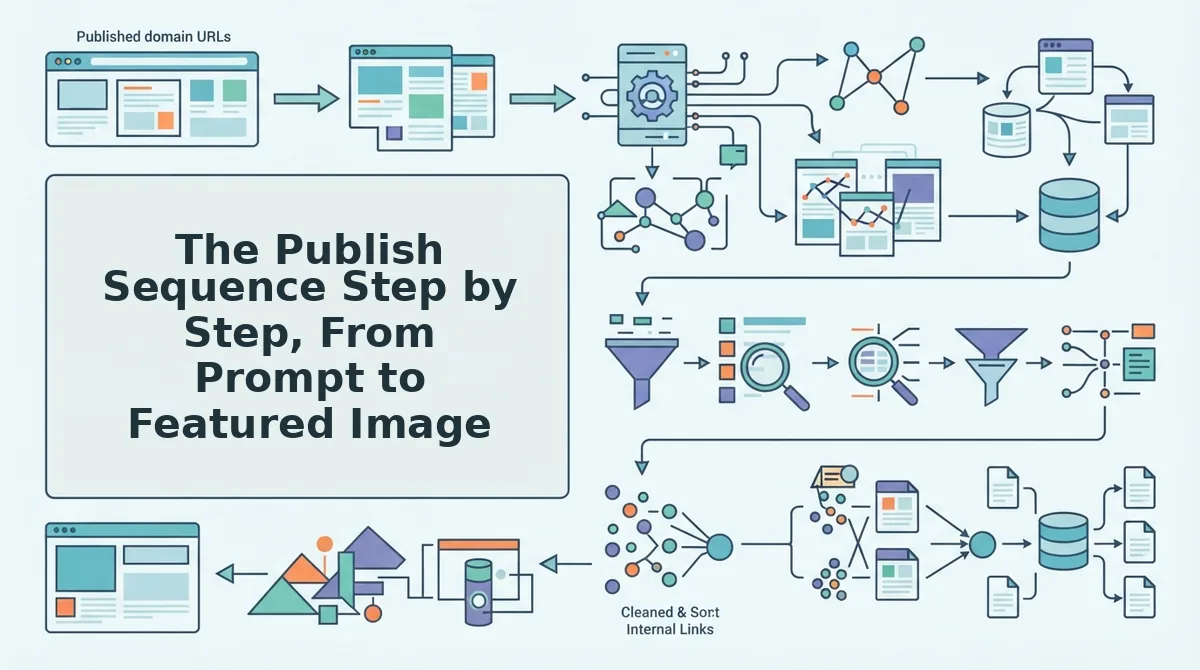
Order is the whole trick: media first, post second, and the returned ID carried from the first call into the second. A pipeline that fires both calls asynchronously is the most common reason articles go live with no featured image at all.
- Generate the image and normalize it before upload. Export as WebP or JPEG, name the file descriptively rather than image-1.webp since the filename becomes the slug, and size its width to the slot it will occupy.
- POST multipart/form-data to /wp-json/wp/v2/media. Include a Content-Disposition header carrying the filename. The response body returns an attachment id â the single value everything downstream depends on.
- Send alt text in that same media POST. Use the alt_text field, or PATCH the media item afterward to write _wp_attachment_image_alt. Do it now, because a later re-upload erases it.
- Create the post with featured_media set to that returned ID. Omit it and WordPress accepts the post happily with a null featured image â the failure mode that looks exactly like success.
- Embed inline images by referencing the same attachment URL in the post content HTML, so the srcset and dimensions WordPress generated at upload time reach the browser.
- Log the attachment ID against the post ID. On the next publish, update that attachment instead of uploading a new one.
Here is the re-publish catch the videos never show. Running a fresh media POST for an article you already published creates a second attachment, a second file on disk, and a second slug such as hero-2.webp â while the live post keeps pointing at the original. Ten edits later the library holds ten near-identical hero images and nobody can tell which one the page actually uses. Storing the attachment ID alongside your post ID and updating on match is what keeps re-publishing idempotent â meaning the same request repeated produces the same state rather than a duplicate.
How do I set a featured image programmatically without a plugin? Upload the file to the media endpoint, read the id from the response, then include that integer as featured_media in the post creation payload. Two calls, in that order, authenticated with an application password. No plugin touches the post, no manual media screen is opened, and the featured image is set before the article is ever visible to a reader.
If you are wiring this by hand, the next step is one call: authenticate with an application password, POST a test image to your media endpoint, and confirm the returned ID shows up in a post's featured_media field. If you would rather not maintain that plumbing, connecting an AI content engine to WordPress covers the full handshake from crawl to publish. What separates a working pipeline from a broken one is rarely the image generation â it is whether the ID survived the trip.