
CMS formatting errors in automated publishing to fix
Your CMS handles manual posts flawlessly, yet the moment automation kicks in, raw markdown asterisks, mangled headings, and broken image tags appear on your live site. If that scenario sounds familiar, the problem isn't your platform. It's your pipeline.
CMS formatting errors in automated publishing are rarely random. They follow a predictable failure chain, and once you can trace where formatting breaks, you can fix it permanently. This guide walks you through the exact stages where corruption happens, the five most common errors and their origins, and a four-step troubleshooting framework you can apply today.
Along the way, you'll discover why the same draft that renders perfectly in your editor can arrive at your database already broken, and how an AI SEO content engine with a native publishing pipeline sidesteps the entire problem.
The Formatting Failure Chain: Where Automated Publishing Breaks
The formatting failure chain is the four-stage path every automated article travels, source, parser, database, render, and formatting corruption can enter at any stage. Understanding this chain is the fastest way to stop guessing and start diagnosing.
Think of the chain like a game of telephone at a loud party: each stage hears the message slightly differently, and by the final whisper, the original sentence is unrecognizable. Your draft is the original message. The published post is the final whisper.
Here's a worked example. You write a draft containing bold text in markdown. In the source stage, your writing tool stores that raw markdown exactly as typed, no problem yet. In the parser stage, the automation tool must convert markdown to HTML. If the parser is misconfigured or the tool skips conversion entirely, the asterisks survive as literal characters. In the database stage, WordPress or your CMS stores whatever the parser produced, including those stray asterisks. Finally, in the render stage, the browser displays the stored content verbatim, and your readers see bold text instead of bold text.
Each stage has a distinct failure signature. Parser failures produce raw markdown and collapsed heading hierarchies. Database failures corrupt whitespace and line breaks. Render failures turn HTML entities like & amp; into visible code. Mapping an error to its stage tells you exactly where to intervene.
For teams running an automated publishing pipeline, the fix is rarely a single setting. It's designing each stage to validate output before passing it downstream, a principle that applies whether you're using a no-code tool or a custom API integration.
The 5 Most Common CMS Formatting Errors (and Where They Originate)
These five formatting errors account for the majority of automated publishing failures, and each one maps to a specific stage in the failure chain. Identifying the stage is half the fix.
- Raw markdown showing as literal text. Asterisks, underscores, and hash symbols appear in your published post exactly as typed. This originates in the parser stage, the automation tool failed to convert markdown to HTML before sending content to your CMS. Fix it by confirming your tool has markdown parsing enabled or by writing drafts in plain HTML.
- Heading hierarchy collapse. Your H2s become H3s, or every heading flattens to plain paragraph text. This also maps to the parser stage, where the tool misinterprets heading levels or strips them during conversion. A flattened hierarchy destroys scannability and weakens your on-page SEO signals.
- Missing image tags and broken alt text. Images fail to embed, or alt attributes arrive empty despite being written in the draft. This originates in the source or database stage, either your writing tool didn't attach image metadata, or the CMS stripped it during storage. For teams relying on automated blog image generation, verifying alt text survives the full pipeline is essential for accessibility and image SEO.
- Whitespace and line-break corruption. Paragraphs merge into walls of text, or random line breaks split sentences mid-thought. This maps to the database stage, where the CMS sanitizes or reformats content on save. WordPress's
wpautopfilter is a frequent culprit when it double-processes already-formatted HTML. - HTML entities rendering as code. Readers see
& amp;or& nbsp;instead of an ampersand or a space. This originates in the render stage, where the browser displays escaped entities literally because the content was double-encoded earlier in the chain. It's a telltale sign that two stages both applied encoding without checking what the previous stage already did.
Each error above leaves a distinct fingerprint that points to one stage in the failure chain. Once you know which stage is breaking, the fix becomes mechanical rather than mysterious, which is exactly what the next section covers.
How to Fix CMS Formatting Errors: A 4-Step Troubleshooting Framework
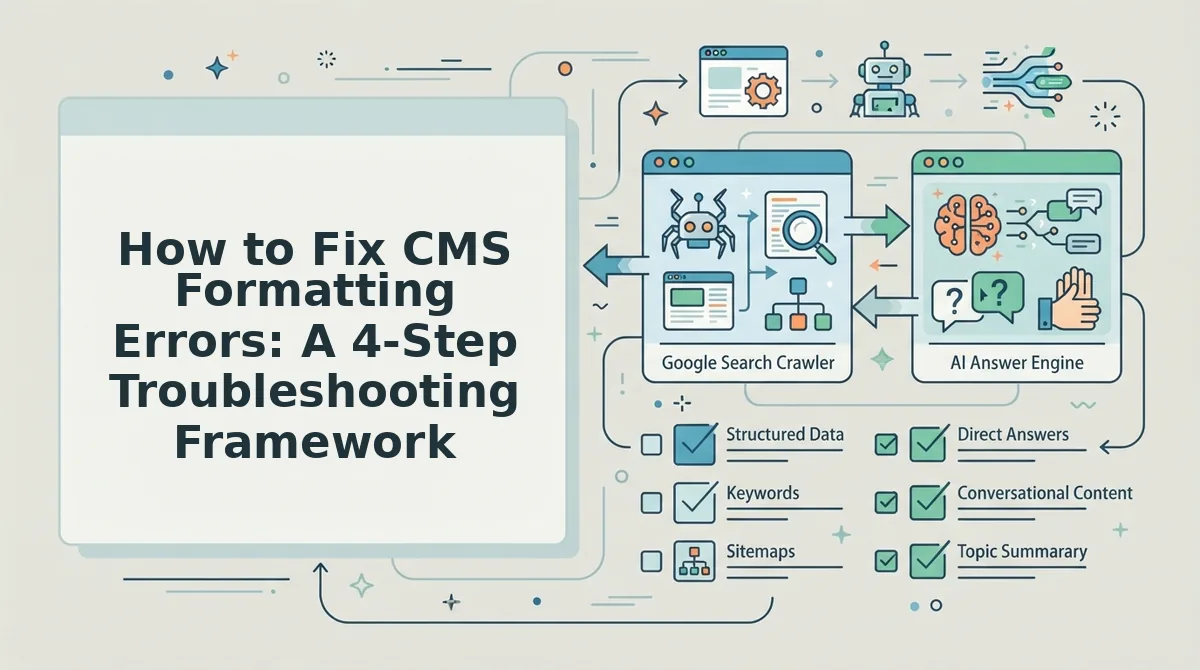
Fixing CMS formatting errors in automated publishing follows a four-step sequence: detect the symptom, isolate the failure point in your pipeline, apply the targeted fix, then add a validation gate so the same error cannot ship again.
Prerequisites: access to your CMS admin panel, your automation tool's logs or activity feed, and a staging or draft environment. Budget 20 - 40 minutes per error type.
- Open your CMS post editor and switch to the code or HTML view. Compare the rendered output against the raw source your automation tool sent. If you see raw markdown symbols like
##orboldin the published post, the parser never converted them, proceed to step 2. If the text is clean but images or headings are wrong, skip to step 3. - Select Settings, then API Keys or Integration in your automation tool, and verify the content format field. Confirm the tool is set to send HTML, not Markdown, to your CMS endpoint. Re-run a single test post. You should see clean headings and bold text render correctly in the draft preview.
- Upload a test image through your automation workflow and inspect the resulting
srcattribute in the CMS media library. If the image tag disappears or shows a broken link, check whether the source URL is absolute (starts withhttps://) and whether the image was transferred to your CMS database rather than hotlinked. Correct the path, then re-publish. You should see the image appear in both the editor and the live preview. - Type a final validation pass into your workflow: render the post as HTML, check heading hierarchy (one H1, sequential H2/H3), and confirm no empty paragraphs remain. An automated content engine with built-in validation performs this check before the post ever reaches your CMS, catching parser, path, and whitespace errors in a single pass. You should see a clean, correctly formatted post publish with zero manual edits.
The Pre-Publish Validation Checklist for Automated Pipelines
Run these seven checks before any automated post reaches your CMS.
- Validate markdown syntax. Run the raw content through a markdown linter before conversion. Unclosed bold markers or malformed list syntax are the top cause of raw markdown appearing in published posts.
- Confirm image URLs are absolute. Check that every
srcattribute starts withhttps://and points to a live, accessible file. Relative paths break the moment content moves from your automation tool to the CMS database. - Verify alt text survives transfer. Inspect the rendered HTML for
alt=""attributes on every image. Alt text is frequently stripped during API serialization, which silently damages both accessibility and image SEO. - Test heading hierarchy. Confirm exactly one H1 per post and no skipped levels, such as jumping from H2 to H4. Broken hierarchy confuses both readers and search crawlers parsing your content structure.
- Inspect whitespace and empty paragraphs. Search the HTML for consecutive
< p></p>tags or trailing< br>elements. These artifacts inflate page length and make content look unpolished. - Preview rendered HTML in a staging environment. Push to a draft or staging post first, then view it in a browser. What looks correct in raw HTML often renders differently inside your CMS theme's CSS.
- Log every validation result. Record pass/fail status per check in your automated publishing pipeline. A persistent log lets you spot recurring failure patterns and fix the source instead of patching individual posts.
FAQ: CMS Formatting Errors in Automated Publishing
Automated publishing formatting errors occur when content passes through multiple conversion layers, markdown to HTML, API serialization, database storage, and one layer strips or mangles the markup. The fixes below address the most common failure points users report.
Why does my automated post show raw markdown?
Raw markdown appears when your automation tool sends Markdown syntax to a CMS endpoint that expects HTML. The parser conversion step either was skipped or is misconfigured. Check your tool's content format setting and switch it to HTML output, then re-test with a single draft post.
How do I stop image tags from disappearing?
Image tags disappear when the CMS sanitizes HTML during import or when source URLs are relative and break after transfer. Use absolute HTTPS image URLs and configure your CMS to allow < img> tags in imported content. Test with one image before publishing a full batch.
Can I fix formatting errors in bulk?
Yes, but only at the source. Bulk-fixing already-published posts requires a find-and-replace script or CMS plugin that targets specific patterns, such as stray markdown symbols or empty paragraphs. Preventing errors upstream in your automation pipeline is faster and safer than retroactive cleanup.
What's the best way to test formatting before publishing?
Push content to a draft or staging post first, then inspect the rendered HTML in your CMS editor's code view. Check heading hierarchy, image tags, and whitespace. Only approve the post for live publishing after the preview renders exactly as intended.
Stop Debugging Post-Publish. Automate Validation at the Source.
Every formatting error you fixed this week followed the same chain: a source field carried bad markup, the pipeline preserved it faithfully, and the CMS rendered it wrong. You did not have a content problem. You had a validation gap.
The 4-step framework works, but it is still reactive. The real fix is upstream: validate every article against your CMS schema before it leaves the drafting stage. That is the difference between fixing five errors per post and fixing zero.
Here is the shift that changes everything:
- Move your checklist into the pipeline. If a rule can be written down, it can be automated. Heading hierarchy, image dimensions, link protocols, shortcode syntax, all checkable programmatically.
- Treat your CMS as the source of truth, not the destination. Draft against the same schema, field types, and block rules the CMS enforces. Then publishing is a formality, not a gamble.
- Log every rejection. When a post fails validation, the error should tell you which field, which rule, and which fix, not just "publish failed."
An automated content engine that validates against your CMS schema before publishing eliminates the entire failure chain, no more broken headings, stripped embeds, or mangled shortcodes reaching your live site.
You cannot scale content by hand-checking every post. You scale by making the pipeline refuse to ship broken markup.
Formatting errors are not a publishing problem. They are a validation problem, and validation belongs at the source, not the aftermath.