
How to Coordinate Article Generation Without Spreadsheets
A content manager opens a spreadsheet, sees "In Review" from three weeks ago, and has no idea what actually happened. If that scene feels familiar, you already know the core problem: you're not managing content, you're managing the illusion of progress. The harder truth is that most teams don't need more discipline to coordinate article generation without spreadsheets; they need a system that removes the spreadsheet from the loop entirely.
You're right to be frustrated. A grid of cells was never designed to track live editorial stages, validate briefs against search results, or push a finished draft into WordPress. What you'll learn here is a five-stage dashboard workflow that replaces every spreadsheet step with an automated action, from crawling your site for brand context to publishing without a single manual copy-paste.
We'll walk through why spreadsheets break content coordination, the exact dashboard stages that replace them, and a side-by-side comparison of what actually changes. Along the way, you'll see the five failure modes that quietly kill spreadsheet-based workflows, including one that most teams don't discover until a duplicate article goes live. An AI SEO content engine handles this coordination natively, but the framework below works whether you adopt one or rebuild your stack manually.
Why Spreadsheets Break Content Coordination
Spreadsheets record work; they don't coordinate it. A status column is a static snapshot of what someone typed, not a live stage transition, which is why "In Review" can sit unchanged for weeks while the actual article is stuck, rewritten, or abandoned.
Content coordination is the process of moving an article through defined stages, research, drafting, validation, approval, and publishing, with clear ownership and automatic handoffs at each transition. Spreadsheets fail at this because they have no concept of a transition. They only store the last value someone entered.
Think of a spreadsheet like a whiteboard in a newsroom. It shows you what someone wrote down, but it doesn't move the story forward, alert the next editor, or stop two people from working on the same piece. A dashboard, by contrast, is like an assembly line: each station has a defined input, output, and trigger that advances the work.
To see exactly where spreadsheets break down, use The Five Failure Modes of Spreadsheet Content Ops:
| Failure Mode | Symptom | Root Cause | Dashboard Fix |
|---|---|---|---|
| Version conflicts | Two writers edit the same row or file; one version overwrites the other | No locking or single source of truth | Drafts live in one system with role-based access |
| Status drift | "In Review" from three weeks ago with no owner or next step | Status is manual, not event-driven | Stage changes trigger automatic notifications |
| Manual copy-paste | Briefs, drafts, and meta descriptions copied between sheets, docs, and CMS | No integration between planning and publishing tools | Draft flows directly from dashboard to CMS |
| No validation gate | Articles publish with thin content or missing keywords | No automated check before the publish stage | Validation rules run before a draft can advance |
| No publish trigger | Approved articles sit unpublished for days | Publishing is a separate manual step outside the sheet | Approval triggers a scheduled or immediate publish |
Most teams only notice the first two failure modes because they're visible. The last three are silent killers: an article can pass through a spreadsheet workflow with zero validation and still sit unpublished because no system was told to send it live. A dashboard workflow addresses all five by making each stage a real transition, with a trigger, a check, and a handoff; instead of a cell someone remembers to update.
The 5-Stage Dashboard Workflow That Replaces Sheets
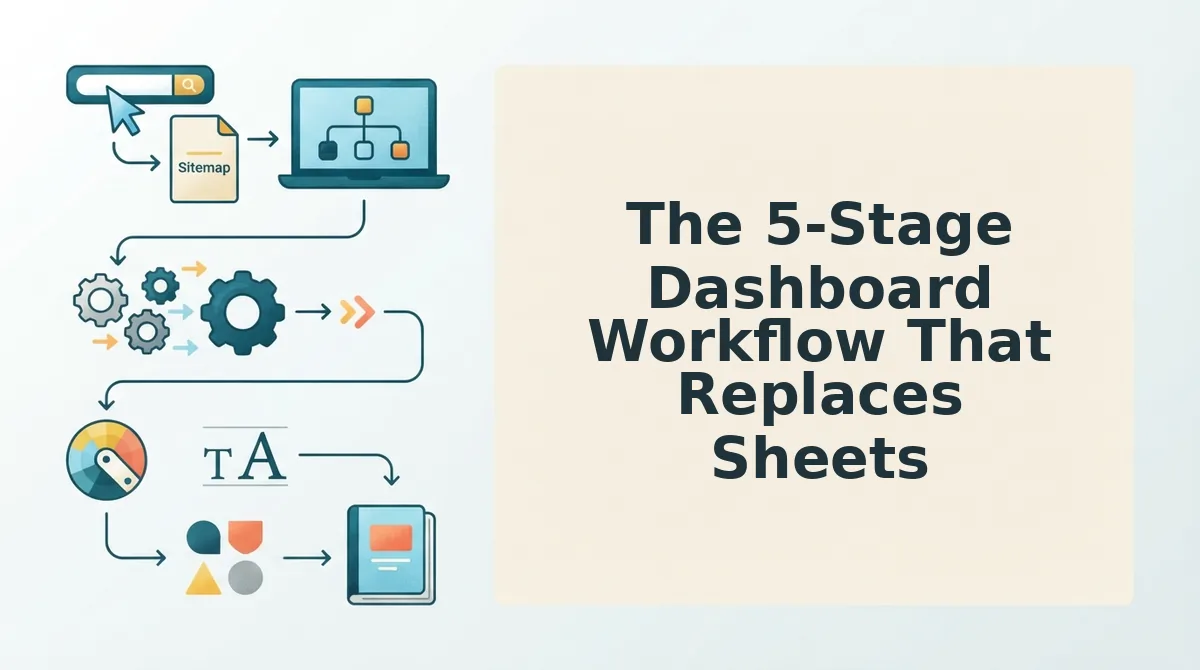
A dashboard workflow replaces spreadsheet tracking with five automated stages, crawl, validate, draft, review, and publish, where each stage advances the article automatically and every spreadsheet step becomes a system action.
Prerequisites: You'll need a content platform that can crawl your site, analyze search results, and publish to your CMS. If you're using an AI SEO content engine, all five stages run inside one dashboard. If you're assembling your own stack, you'll need separate tools for crawling, SERP analysis, drafting, and publishing, plus an integration layer to connect them.
- Crawl your site and extract brand context into Markdown files. Enter your domain in the setup wizard. The system locates your XML sitemap, inspects published pages, and pulls your brand voice rules, tone, and formatting conventions into reusable Markdown files. You should see a summary of detected pages and a generated voice profile. This replaces the spreadsheet column where you manually noted "tone: friendly, use short paragraphs", and forgot to update it for six months. For a deeper walkthrough, see sitemap context extraction.
- Validate topics against live SERP data, not a static sheet. Open the topic list generated from your crawl. Each topic shows current ranking pages, keyword gaps, and content depth signals pulled from live search results. You should see a relevance score and suggested angle for each topic. This replaces the spreadsheet tab where you pasted keyword volumes from a tool three months ago. Live live SERP analysis means your brief reflects what ranks today, not what ranked last quarter.
- Draft with voice rules already loaded. Select a validated topic and click Generate Draft. The system writes the article using the brand context extracted in Stage 1, no prompt engineering, no copying voice guidelines from a separate doc. You should see a complete draft with headings, meta description, and internal links. This replaces the spreadsheet row where you assigned a writer and pasted a brief link.
- Review and approve in one view. Open the draft in the review panel. Edit inline, leave comments, and check the validation score, which flags thin sections, missing keywords, and AEO content optimization gaps before you approve. You should see a green checkmark when the draft passes all gates. This replaces the spreadsheet status column where "Ready for Review" meant nothing until someone remembered to look.
- Publish directly to WordPress or your API. Click Approve & Publish. The system sends the article to your CMS with formatting, meta tags, and images intact, or pushes it to your custom API endpoint if that's your stack. You should see a live URL confirmation within seconds. This replaces the final spreadsheet step where an approved article waited days for someone to manually upload it.
Each spreadsheet step maps to a dashboard action: the status column becomes a stage transition, the brief link becomes an automated draft, and the manual CMS upload becomes a publish trigger. The result is a pipeline where articles move forward on their own, and you only touch the stages that genuinely need human judgment.
Here's what actually changes when you move from a spreadsheet to a dashboard.
Spreadsheet vs. Dashboard: What Actually Changes
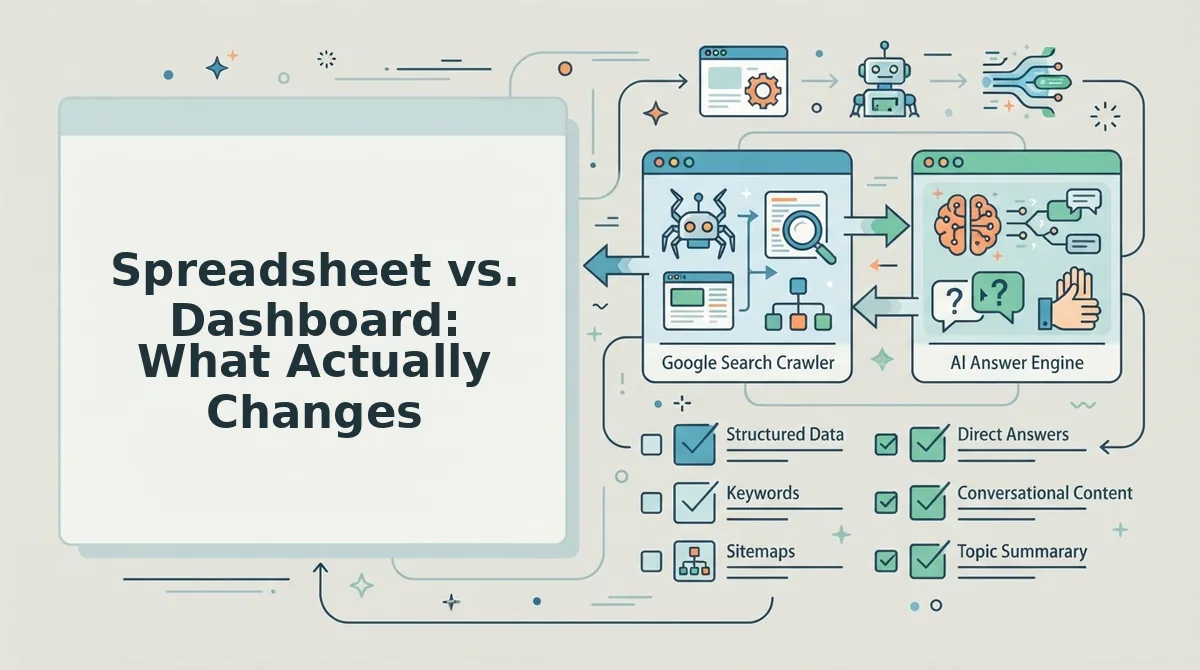
A spreadsheet records what happened; a dashboard drives what happens next. The core difference is that dashboards automate stage transitions, moving an article from "draft" to "in review" to "published" without a human updating a status cell, while spreadsheets require someone to manually change every field.
Spreadsheets remain genuinely useful for ad-hoc analysis, budget tracking, and one-off audits. They are flexible, universally understood, and require zero onboarding. A dashboard, by contrast, is purpose-built for a recurring pipeline: it enforces the workflow, surfaces blockers, and keeps every asset attached to the article it belongs to.
| Comparison Row | Spreadsheet | Dashboard (e.g., BloGoose) |
|---|---|---|
| Topic validation | Manual lookup of search volume and competition; copy-paste into cells | Validation runs automatically during calendar generation; results attached to each topic |
| Status tracking | Someone must update a status column by hand; stale data is common | Stage transitions fire automatically when a step completes |
| Voice consistency | Brand guidelines live in a separate doc; writers must remember to check it | Brand voice rules are extracted from the site and applied at draft time |
| Image handling | Image links pasted into cells; broken links discovered after publishing | Images generated and attached to the article before it ships |
| Publishing | Copy-paste from sheet to CMS; formatting breaks; manual upload | Article publishes directly to WordPress or a custom API from the dashboard |
Best for solo operators and small teams with irregular output: a spreadsheet. It costs nothing, and if you publish twice a month, the manual overhead is tolerable.
Best for content managers, SEO leads, and agencies publishing weekly or daily: a dashboard connected to an AI SEO content engine. When volume rises, the cost of manual status updates and copy-paste publishing compounds faster than most teams expect.
What a Publishing Dashboard Actually Shows
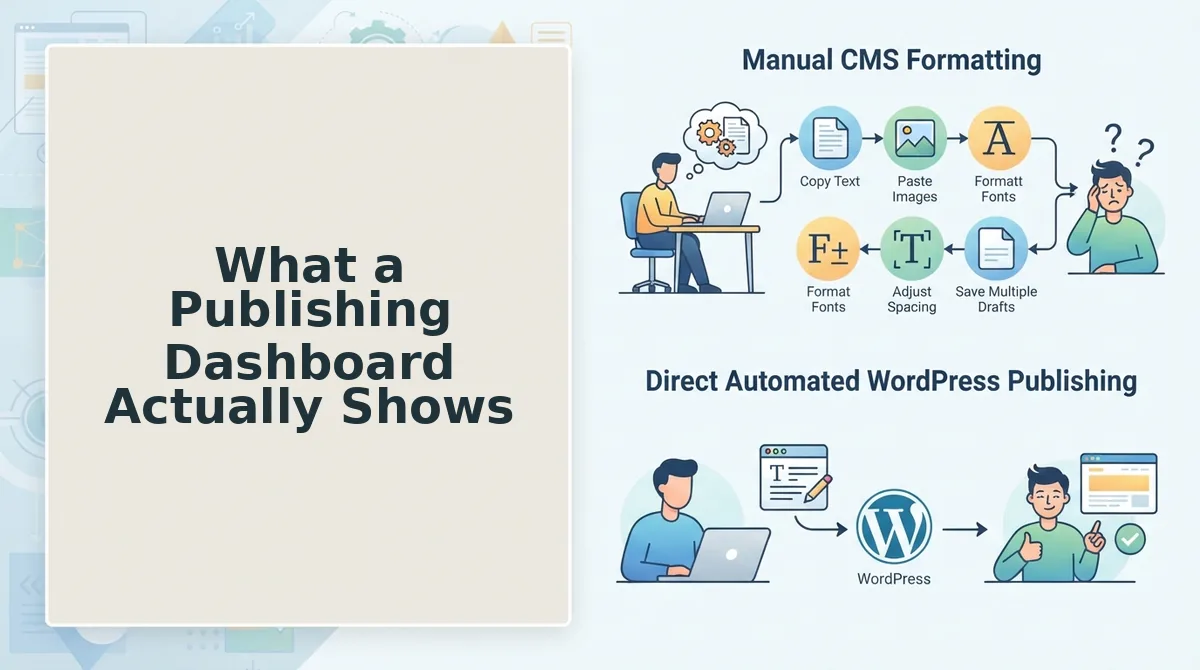
A publishing dashboard surfaces the five data points that spreadsheets bury: where an article is in the pipeline, whether its topic is validated, what voice rules apply, what the draft looks like, and what happens when it is approved. Each element maps directly to a spreadsheet failure mode from Section 2.
- Pipeline stage. Shows every article's current position, research, drafting, review, or published, without anyone updating a status cell. Use it to spot bottlenecks before they delay a scheduled post.
- Topic validation status. Displays whether a topic passed search-demand and competition checks during calendar generation. Use it to skip weak topics instead of discovering them after writing 1,500 words.
- Brand voice context. Lists the voice rules extracted from your site, tone, terminology, formatting preferences, so every draft matches without a separate style guide tab. Use it to keep AI output consistent across authors and weeks.
- Draft preview. Renders the article as it will appear on your site, with images attached, before publishing. Use it to approve content in context rather than reading raw text in a cell.
- Publish trigger. Shows the destination. WordPress or a custom API, and fires automatically on approval. Use it to eliminate the copy-paste step where formatting breaks and links get lost.
If you are evaluating a content operations dashboard, check that all five elements appear on one screen. If you still need a second tab to answer "what happens next," you have not actually left the spreadsheet.
FAQ: Coordinating Article Generation Without Spreadsheets
A publishing dashboard replaces spreadsheet coordination by automating stage transitions, attaching brand voice rules to every draft, and shipping finished articles directly to your CMS. The questions below cover the most common gaps teams hit when making that switch.
How do I coordinate regular article generation without spreadsheets?
Use a publishing dashboard that tracks pipeline stage, topic validation, draft status, and publish triggers automatically. Each article moves through research, drafting, and review without manual status updates, and approved drafts publish directly to WordPress or a custom API.
What breaks when a content team tracks work in sheets?
Status columns go stale, brand guidelines get ignored, image links break, and publishing requires manual copy-paste into the CMS. The failure is not the spreadsheet itself, it is that sheets record work but do not enforce or automate any step of the content pipeline.
Can an AI content engine replace a content calendar spreadsheet?
Yes. An AI content engine generates a validated 30-day calendar, drafts articles with brand voice applied, creates images, and publishes on schedule. The calendar becomes a live pipeline view rather than a static grid someone must update by hand.
How do I keep brand voice consistent across AI-generated articles?
Extract voice rules from your existing site, tone, terminology, formatting, and apply them at draft time inside the content engine. This removes the "check the style guide" step that spreadsheets rely on and that writers routinely skip under deadline pressure.
For teams optimizing beyond rankings, AEO content optimization ensures articles are structured for AI chatbot citations as well as traditional search results, something a spreadsheet cannot track or enforce.
Spreadsheets record. Dashboards coordinate.
That distinction is the entire argument. A sheet stores rows of tasks, statuses, and due dates, but it never moves an article from outline to published. A dashboard does. The five-stage workflow you saw earlier replaces five manual spreadsheet steps with one continuous pipeline: crawl, plan, draft, optimize, publish. Teams stop tracking work in sheets and start shipping from one pipeline.
What changes isn't just tooling. It's the question you ask each morning. Instead of "Which cells need updating?" you ask "What's ready to publish today?"
Here's the payoff from the opening question: the bottleneck was never your writers, your SEO knowledge, or your tool budget. The bottleneck was coordination overhead, the invisible tax of copying data between tabs, chasing statuses in threads, and rebuilding context every Monday.
Your next step is concrete: start a BloGoose workflow with your own domain. The crawler extracts your brand voice, builds a 30-day calendar, and publishes automated SEO content directly to WordPress or your API. No spreadsheet migration required, just your URL.
Coordination isn't a documentation problem. It's a pipeline problem, and pipelines ship.