
How to Create an Internal Link Map from a Sitemap
Most sites treat their XML sitemap as a submission file for Google and then forget it exists, yet that same file already contains the blueprint for a smarter internal linking strategy. If you want to create an internal link map from a sitemap, you're likely tired of guessing which pages deserve links and where those links should point. You're right to feel that manual linking is guesswork.
This guide will show you how to turn your sitemap into a structured internal link map that distributes ranking power and improves crawlability across every page worth indexing. You'll learn how to locate and crawl your sitemap, extract and classify URLs, assign anchor phrases, and build a reusable internal-links-map.md file that makes linking a byproduct of drafting, not an afterthought.
Along the way, you'll see why sitemaps are the canonical list of pages worth indexing, and why competitors who skip this step leave ranking power on the table. One surprising finding: the most valuable linking data often hides in a file you already have but never read.
What Is an Internal Link Map and Why Does Your Sitemap Already Have the Data?
An internal link map is a structured record of every URL on your site and the contextual links that should point to it. It tells you which pages need links, which pages should give them, and what anchor text to use, so linking becomes a repeatable system instead of a guess.
Think of an internal link map like a subway map for your website. Each station is a page, each line is a link path, and the map shows you exactly how authority flows from one stop to the next. Without the map, you're riding blind and hoping passengers find the right transfer.
Your XML sitemap already contains most of this data. It lists every URL you consider important enough to index, organized by section and priority. Most SEOs treat the sitemap only as a crawl submission file, but it doubles as a pre-built inventory of your linking targets, a perspective competitors skip entirely.
An internal-links-map.md is a Markdown file that pairs each URL with 2-3 anchor phrases and target page types, making linking a byproduct of drafting. When a writer creates a new post, they consult the map, find the relevant target pages, and insert links using the prescribed anchors. No spreadsheet coordination, no prompt engineering, no missed opportunities.
Internal links also help AI answer engines understand site structure. When crawlers and language models can trace clear paths between related pages, they're more likely to cite your content in generated answers, the same principle covered in our guide on getting cited in AI answers and chatbots.
An internal link map is a structured record of every URL on your site and the contextual links that should point to it. It lists each page, the anchor phrases to use when linking to it, and the page types that should carry those links. Building one from your XML sitemap means you start with a complete inventory of indexable URLs rather than reconstructing your site architecture from memory. The sitemap tells you what exists; the link map tells you how those pages should connect. This distinction matters because a sitemap alone doesn't distribute authority, only internal links do that. By pairing the sitemap's completeness with deliberate anchor assignments, you create a linking system that improves crawlability, clarifies topical relevance for search engines, and gives writers a reference they can use on every draft.
Step 1. Locate and Crawl Your XML Sitemap
Start by finding every sitemap your site publishes, then crawl each one to extract a complete URL list. You'll need a browser and either a crawler like Screaming Frog or Sitebulb, or a simple XML parser for a lightweight approach.
- Open your browser and check the three standard sitemap locations. Visit
/sitemap.xml,/sitemap_index.xml, and theSitemap:line in yourrobots.txtfile. You should see either a single URL list or an index file linking to multiple child sitemaps. - Download or copy the sitemap XML. If you see an index file, open each child sitemap and save its contents. This takes under two minutes for most sites.
- Run a crawl to extract every URL. Use Screaming Frog, Sitebulb, or a simple XML parser to pull all
<loc>values into a spreadsheet. You should end up with a single column of URLs, one per row, with no duplicates. - Verify the count against your expectations. Compare the extracted URL total to the number of pages you believe are indexable. If the count is far lower, check for a partial sitemap or a missing child file.
For a deeper walkthrough of sitemap structure and best practices, see our guide on XML sitemaps. Once you have the full URL list exported, you're ready to classify each page by type and purpose.
Step 2, Extract URLs and Classify Page Types
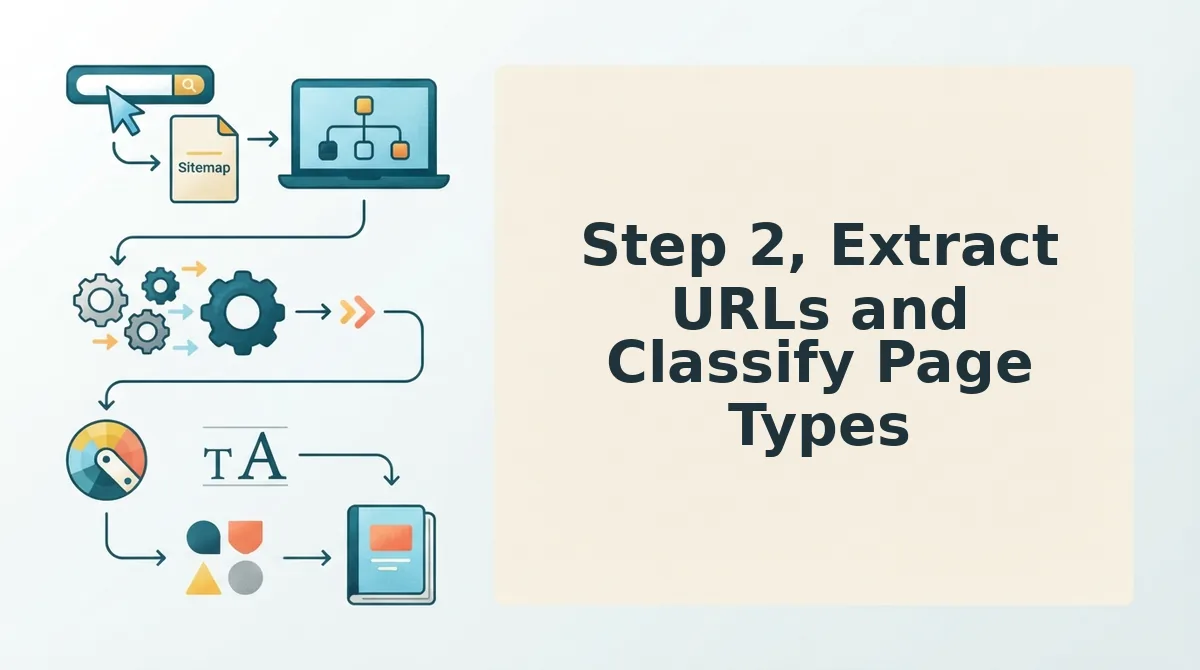
Extracting URLs from your crawl and classifying each one by page type turns a flat list into a structured map you can actually link from. You'll need your crawl export from Step 1 and a spreadsheet tool such as Google Sheets or Excel.
- Open your crawl export in your spreadsheet tool and delete all columns except URL, title, and HTTP status code. You should see a clean three-column list of every indexable page.
- Filter out non-200 status codes using the status column filter. Remove 301s, 404s, and 5xx rows, you should be left with only live, indexable URLs.
- Add a "Page Type" column and classify each URL into one of four buckets: pillar page, supporting post, product/service page, or utility page. Pillar pages target broad head terms; supporting posts target long-tail variations of those terms.
- Mark product and service pages as conversion URLs, these are the pages your internal links should ultimately drive traffic toward.
- Flag utility pages such as about, contact, and privacy. These rarely need contextual links from content pages, so exclude them from your mapping work.
This classification mirrors how topic clusters are structured: one pillar page surrounded by supporting posts that link back to it. Once every URL has a type, you're ready to map relationships.
Step 3, Map Relationships and Identify Orphan Pages
Mapping relationships means connecting every supporting post to its parent pillar page and flagging any URL that receives zero internal links. You'll need your classified spreadsheet from Step 2 and access to your site's link data from a crawler such as Screaming Frog or Sitebulb.
- Open your crawler's "Inlinks" report and export the count of internal links pointing to each URL. You should see a number next to every page on your site.
- Sort the export by internal link count ascending. Any URL with zero internal links is an orphan page, it exists on your sitemap but no other page links to it.
- Apply the Orphan Page Triage Rule to every orphan. Link it if the page has unique value and a clear parent topic. Consolidate it if the page overlaps with a stronger URL and can be 301 redirected. Delete it if the page is thin, outdated, or has no internal search demand.
- Record the parent-child relationship for every supporting post by adding a "Parent Pillar" column and entering the pillar URL each post should link to. You should see a complete hierarchy with no unassigned posts.
- Verify the map is bidirectional by confirming each pillar page links down to at least three supporting posts. You should see reciprocal connections in both directions.
Orphan pages are URLs that appear in your XML sitemap but receive zero internal links from any other page on your site. They are invisible to crawlers that rely on link discovery, which means search engines may index them slowly or not at all. The most common causes are site migrations, deleted navigation items, and content published without a linking workflow. To fix an orphan page, first determine whether it has unique value that no other URL covers. If it does, add contextual links from its parent pillar page and at least two supporting posts. If it duplicates a stronger page, consolidate it with a 301 redirect to preserve any accumulated authority. If it is thin or outdated, delete it and remove it from your sitemap so crawlers stop wasting budget on it.
Step 4, Assign Anchor Text for Every Target URL
Assigning anchor text before you write turns internal linking into a byproduct of drafting rather than a separate editing pass. You'll need your relationship map from Step 3 and your target keyword list for each URL.
- Open your map spreadsheet and add an "Anchor Text Options" column next to each target URL. You should see a blank field ready for input on every row.
- Type 2-3 descriptive anchor phrases for each URL that match the target page's primary keyword and read naturally in a sentence. For example, a pillar page about email marketing might use "email marketing strategy," "build an email marketing plan," and "email marketing fundamentals."
- Vary the anchor text across the rows so no two supporting posts use the exact same phrase when linking to the same target. You should see distinct but topically related phrases for each source page.
- Mark one anchor as the primary for the first contextual link from the parent pillar, and leave the others as alternates for supporting posts. You should see a clear priority order in each row.
With anchors assigned, every future draft has its linking instructions built in. Next, output the map as internal-links-map.md.
Step 5. Output the Map as internal-links-map.md
A single Markdown file turns your one-time analysis into a reusable linking system that every future article references before publishing.
Prerequisites: You need the URL list, page type classifications, orphan status, and anchor text assignments from Steps 2-4. Any plain-text editor works; VS Code or Obsidian make the table easier to scan.
- Create the file. Open your text editor and save a new file as
internal-links-map.mdin your site's content repository root. You should see an empty document ready for the structure below. - Add the header block. Type the site domain, crawl date, and total URL count at the top. You should see three metadata lines that make the file self-documenting for anyone who opens it later.
- Build the master table. Create a Markdown table with four columns:
URL,Page Type,Target Anchors, andOrphan Status. Paste one row per URL from your Step 2 and Step 3 outputs. You should see a complete inventory where every page has at least one target anchor assigned. - Add a priority section. Below the table, list orphan pages under an
## Orphan Queueheading, sorted by traffic potential. You should see a triage list that tells you which orphans to link first and which to consolidate or delete. - Commit and reference. Save the file to version control and add a note in your publishing checklist: "Check internal-links-map.md before drafting." Each new article should reference the file to find contextual linking opportunities for the target URL. You should see your writers or AI tools pulling anchor text directly from the map instead of improvising links.
This artifact is what competitors never produce: a living document that encodes your site's linking logic. Tools that automate site crawl and brand context extraction can generate this file for you, but the structure above works with manual data too. If you want the map maintained automatically as your site grows, BloGoose's crawl pipeline rebuilds it on every content run.
FAQ
Can I automate internal link mapping from a sitemap?
Yes. Tools that crawl your XML sitemap, classify page types, and extract brand context can generate an internal-links-map.md file automatically. BloGoose performs this crawl and classification during setup, then maintains the map as new pages publish.
What should I do with orphan pages found during mapping?
Triage them, don't auto-link everything. Orphan pages with search traffic or conversion value should receive contextual links from related pages. Orphans with thin content, duplicate intent, or zero traffic should be consolidated, redirected, or removed.
How do I choose anchor text for internal links?
Match the anchor to the target page's primary keyword, then vary it naturally across occurrences. Use descriptive phrases like "internal link mapping guide" rather than generic "click here." Avoid exact-match repetition on every link to the same URL.
Why does my sitemap have URLs that don't appear in search results?
Those are typically orphan pages, noindexed URLs, or pages blocked by robots.txt. A sitemap lists what you submit, not what Google indexes. Cross-reference your sitemap URLs against your crawl data to identify which pages actually receive internal links.
How often should I update my internal link map?
Update it whenever you publish new content, remove pages, or change site structure. A stale map produces broken links and missed opportunities. Automated crawls can refresh the file on every publish cycle.
From One-Time Audit to a Reusable Linking System
The five-step pipeline, crawl, classify, map relationships, assign anchors, output the file, is repeatable for any site, any CMS, any niche. What changes is what you do with the artifact. A static audit gets stale within weeks. A living internal-links-map.md file becomes the reference point every new article checks before publishing, which means your link equity compounds instead of decaying.
The open loop from the start closes here: your sitemap was never just a crawl aid. It was the raw material for a linking strategy you can now execute systematically. The next step is to run this pipeline on your own domain and produce your first map. If you want the crawl, classification, and file generation handled automatically, BloGoose's SEO content engine automates internal link mapping as part of every content run, so the map stays current without manual upkeep.
Your site already contains the data. The system is what turns it into rankings.