
How direct CMS publishing cuts post production time
Every time you hit "Publish" on a drafted article, you lose 15 - 40 minutes to copy-paste, reformatting, image re-uploads, and heading fixes that add zero ranking value. That's the hidden tax most content teams pay on every single post, and it compounds fast across a 20-article monthly calendar.
You already know the frustration: the draft looks perfect in your editor, then it lands in WordPress with broken image paths, stripped internal links, and H2s that turned into bold paragraphs. You didn't sign up for formatting triage. You signed up to rank.
Here's the promise: direct CMS publishing removes that formatting bottleneck entirely by sending finished, field-mapped articles straight from your content engine into WordPress, Webflow, or a custom API, no clipboard involved. In the next few minutes, you'll see exactly what this workflow replaces, how to set it up step by step, and the one failure mode that silently breaks most direct-publishing setups. An AI SEO content engine with native CMS publishing turns a 40-minute manual upload into a 2-minute review-and-schedule task.
What Direct CMS Publishing Actually Replaces
Direct CMS publishing is the automated transfer of finished, formatted content from a writing or content engine into a content management system via API, XML-RPC, or middleware, with headings, images, categories, and metadata already mapped to the correct fields. It eliminates the manual copy-paste-and-repair loop that eats most of a publisher's post-production time.
Think of it like moving into a furnished apartment versus hauling every box yourself. Manual publishing means unpacking each paragraph, rebuilding every heading, re-hanging every image, and hoping nothing breaks in transit. Direct publishing means the movers already placed the couch, plugged in the lamps, and labeled the rooms before you walked in.
Here's what the two workflows actually look like side by side:
| Step | Manual Publishing | Direct CMS Publishing |
|---|---|---|
| Transfer text | Copy from editor, paste into CMS, 5 - 8 min | API call sends full HTML body, 0 min |
| Fix headings | Re-apply H2/H3 formatting, 4 - 6 min | Heading tags preserved automatically, 0 min |
| Upload images | Download, re-upload, set alt text, 8 - 12 min | Image URLs mapped to media fields, 0 min |
| Set categories/tags | Manually select or create, 2 - 4 min | Taxonomy mapped during setup, 0 min |
| Fix internal links | Re-paste URLs, check for breakage, 3 - 5 min | Links transferred as structured HTML, 0 min |
| Total | 22 - 35 min per post | Under 2 min (review + schedule) |
At the intermediate level, direct publishing works through three connection paths: a REST API endpoint (the modern standard for WordPress and most headless CMS platforms), XML-RPC (the legacy WordPress protocol still supported by many tools), or middleware like Zapier or Make that bridges a content engine to a CMS without custom code.
The advanced layer is field mapping. When you map content fields, title, slug, meta description, featured image, category, author, once during setup, every future article arrives pre-formatted. Formatting drift, the slow degradation where pasted content gradually loses styling consistency across posts, becomes impossible because no human ever touches the raw HTML.
One self-contained answer worth bookmarking: direct CMS publishing reduces post-production time from roughly 22 - 35 minutes per article to under 2 minutes by replacing manual copy-paste, heading repair, image re-upload, and taxonomy assignment with a single API or middleware call that delivers field-mapped, fully formatted HTML directly into the CMS draft queue. The publisher's only remaining tasks are a visual review, a schedule decision, and an indexing request.
How to Set Up Direct CMS Publishing Step by Step
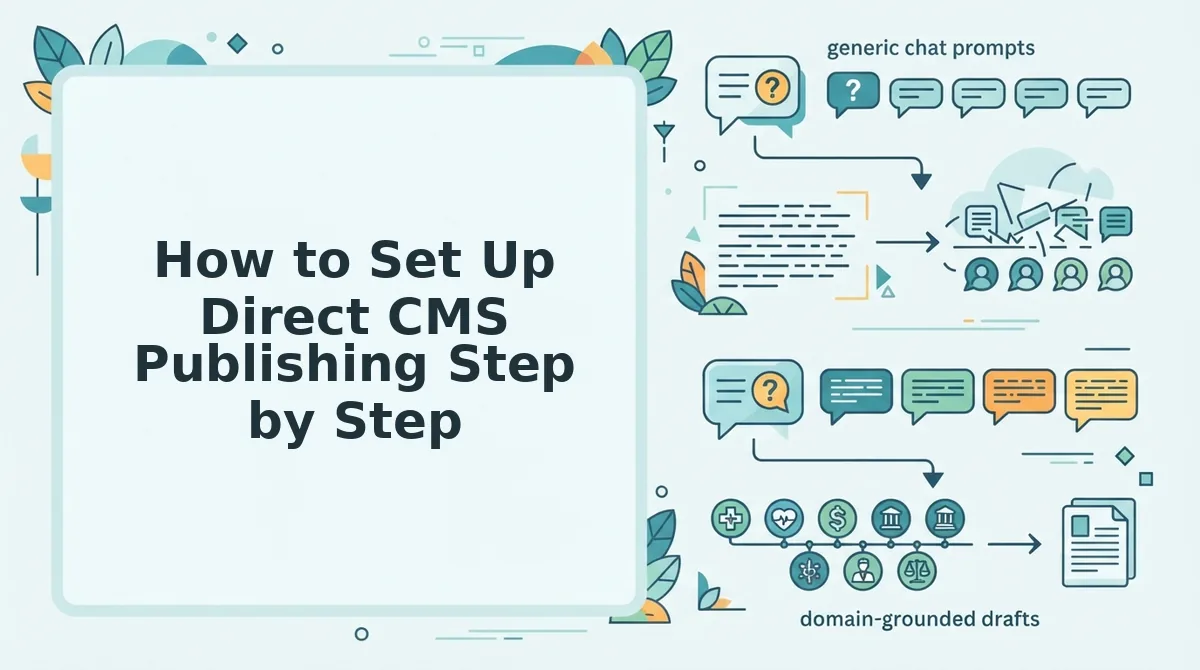
Direct CMS publishing connects your content source to WordPress, Webflow, or a custom API through three paths: a REST API, XML-RPC, or middleware. Setup takes 15 - 30 minutes once, and every article after that publishes in under 2 minutes.
Prerequisites: Admin access to your CMS, a content engine or writing tool that supports API publishing (like an automated blog publishing engine), and your site's API credentials or an application password.
- Open your CMS settings and locate the API or connection options. In WordPress, go to Users to Profile and scroll to Application Passwords. In Webflow, open Site Settings to Apps & Integrations and generate an API token. You should see a credential string or token displayed once, copy it immediately.
- Open your content engine's publishing or integrations tab. Look for a menu labeled Publishing, Destinations, or Integrations. Click Add Destination or Connect CMS.
- Select your connection type. Choose REST API for WordPress 5.6+ or headless CMS platforms, XML-RPC for older WordPress installs, or Middleware (Zapier, Make) if you need to route content through additional tools. Enter your site URL and the credential from step 1. You should see a green checkmark or "Connection successful" message.
- Map your content fields. Match each source field, title, body HTML, featured image URL, meta description, category, tags, author, to the corresponding CMS field. This one-time mapping prevents formatting drift on every future post. Save the mapping.
- Run a test publish. Send one draft article through the connection. Open your CMS draft queue and verify that headings render as H2/H3, images display with correct alt text, and categories are assigned. If anything looks off, adjust the field mapping and retest.
- Choose your publish mode. Set articles to Draft for manual review, or enable Publish immediately if your workflow allows. Most teams start with Draft mode and switch to auto-publish after two weeks of clean runs.
- Publish or schedule, then request indexing. Once a post goes live, request indexing immediately after publishing through Google Search Console's URL Inspection tool. This closes the loop: content created, delivered, live, and queued for crawling without a single copy-paste.
If your content engine supports native CMS publishing, the entire setup collapses into a single wizard: paste your domain, the engine detects your XML sitemap and CMS type, you approve the field mapping, and the first test draft lands in your queue within minutes. That's the workflow BloGoose automates end to end.
Next, let's look at what breaks when direct publishing goes wrong, and how to fix the most common failure mode before it costs you rankings.
What Breaks in Direct Publishing and How to Fix It
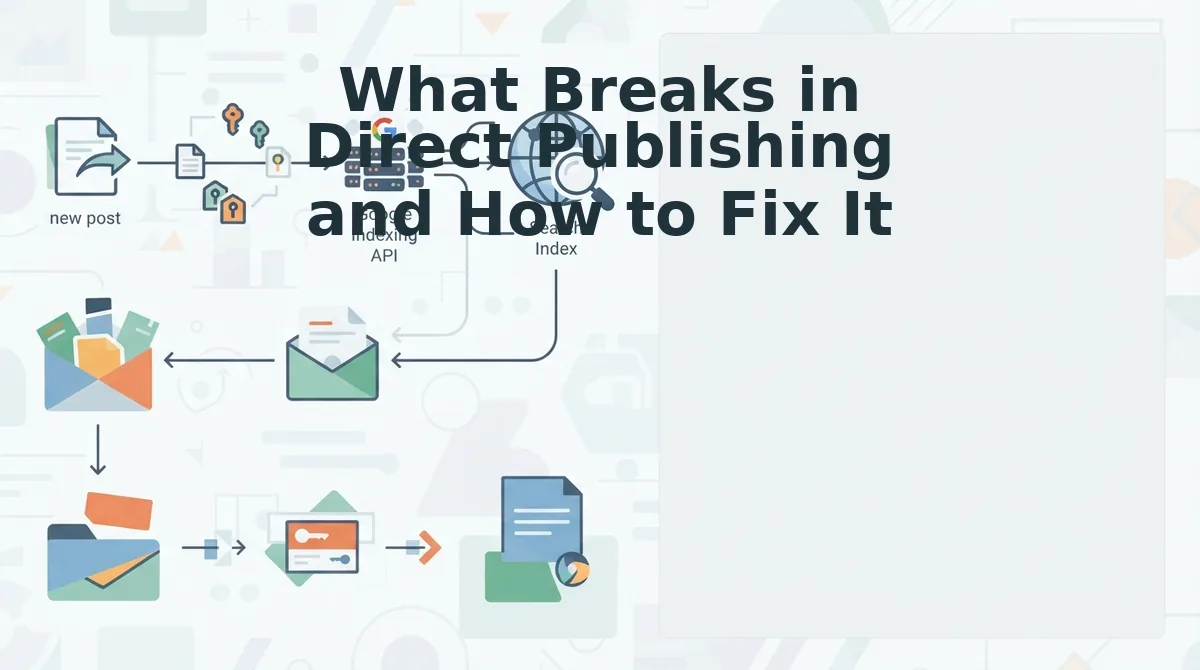
Direct CMS publishing fails most often at four specific points: formatting drift, publish-state errors, broken media URLs, and field-mapping mismatches. Each has a concrete fix you can implement in under an hour.
- Formatting drift after publishing. Content that looks correct in your editor renders differently on the live page because the CMS applies its own theme styles or strips inline markup. Fix this by mapping your content model consistently, send clean HTML blocks, not pasted rich text, and verify one test post against the live template before scaling.
- Items un-publishing or reverting to draft. A Webflow-specific failure mode occurs when the API payload omits the publish status field, causing items to save as drafts or unpublish themselves after a scheduled update. Fix this by explicitly setting the publish status in every API call and logging the response code to confirm the state change took effect.
- Image and media URL breakage. Relative image paths work in a local editor but resolve to 404s once content moves to a production domain. Fix this by using absolute URLs for all media assets and verifying that your CMS media endpoint accepts the file format before sending the payload.
- Field-mapping mismatches between source and CMS. When your content engine sends a field name the CMS does not recognize, the data silently drops or lands in the wrong place. Fix this by exporting your CMS content model first, matching every source field to a destination field, and rejecting posts that contain unmapped keys.
- Taxonomy and category failures. Posts publish without categories or tags when the API expects term IDs but receives slugs or names. Fix this by resolving taxonomy terms to their CMS-native identifiers before publishing, and add a validation step that flags missing or unmatched terms.
- Encoding errors in special characters. Apostrophes, em dashes, and non-Latin characters break when the payload encoding does not match the CMS expectation. Fix this by normalizing all content to UTF-8 and testing a post containing special characters as part of your pre-launch checklist.
- Rate-limit and timeout failures on bulk publish. Publishing 50 posts in one burst triggers CMS rate limits, causing partial failures that are hard to retry cleanly. Fix this by batching publishes in small groups with retry logic, and store the CMS response for every post so failures can be replayed individually.
If you are troubleshooting a direct publishing pipeline, start by checking the publish status field in your API payload and confirming all media URLs are absolute. These two issues account for the majority of silent failures where content appears to publish but never reaches the live site. A consistent content model, one where every post uses the same field names, taxonomy format, and media URL structure, eliminates most drift before it starts.
Choosing Your Integration Path: Native, API, or Middleware
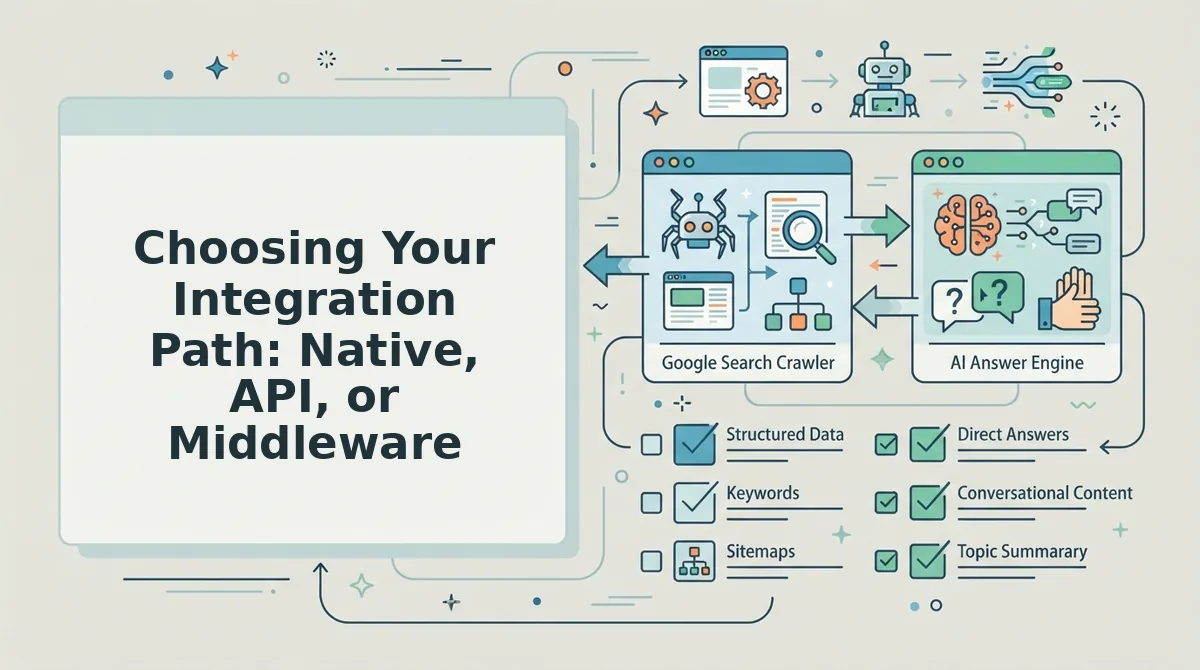
Your integration path determines how much setup effort you invest, how much maintenance you carry, and how much flexibility you retain. The right choice depends on your team size and technical tolerance.
| Integration Path | Setup Effort | Flexibility | Maintenance | Best For |
|---|---|---|---|---|
| Native CMS publishing | Low | Low | Low | Solo bloggers and small site owners who want a plug-and-play connection without touching code |
| Direct API publishing | Medium | High | Medium | Developers and technical teams who need custom fields, custom post types, and full control over the payload |
| Middleware (Zapier, Make, custom webhooks) | Low | Medium | Medium | Content teams who need to route posts across multiple platforms or add approval steps without writing code |
Native CMS publishing is the fastest to set up and the least flexible, you get what the platform's built-in connector supports, which is usually enough for standard blog posts. Direct API publishing requires more initial work but gives you full control over every field, status, and media asset, making it the strongest option for teams with a developer on hand. Middleware sits between the two: it is quick to configure and can transform data between systems, but it adds a dependency that can fail independently of your CMS or content engine.
If you publish to a single WordPress site and value simplicity, choose native. If you publish to multiple platforms or need custom logic, choose API. If you need human approval steps or cross-platform routing without engineering resources, choose middleware.
FAQ About Direct CMS Publishing
Do I need a headless CMS or will WordPress work?
WordPress works for direct publishing through its REST API, which supports creating, updating, and scheduling posts without a headless setup. A headless CMS is only necessary if you need to serve content to multiple frontends or want a fully decoupled architecture.
Does direct publishing fix content quality?
No. Direct publishing only removes the manual copy-paste and formatting step between your content engine and your CMS. Content quality depends on your source material, brand voice rules, and editorial review process, none of which are improved by the publishing method itself.
Can I schedule posts with direct publishing?
Yes. Most CMS APIs, including WordPress, accept a future publish date in the payload, which schedules the post to go live automatically. Set the status to "scheduled" or "future" and include the target timestamp in your API request.
Why do my posts publish as drafts instead of going live?
Your API payload is likely missing the publish status field or sending an unrecognized status value. Check that the status field matches your CMS's expected values exactly. WordPress uses "publish," while other platforms may require "published" or a boolean flag.
How do I prevent formatting from breaking after publishing?
Send clean, semantic HTML blocks that match your CMS content model instead of pasted rich text with inline styles. Test one post against the live template before publishing in bulk, and verify that headings, lists, and images render correctly.
Direct publishing is the fastest path from draft to ranking
Direct CMS publishing removes the formatting bottleneck that silently eats hours from every content workflow. When articles ship straight from your AI SEO content engine to WordPress or a custom API, the copy-paste-and-reformat loop disappears entirely. That loop is where post-production time actually goes, not in the writing itself.
The payoff from earlier sections lands here: setup takes under an hour, breakage is predictable and fixable, and the integration path you choose determines how much of that hour you'll ever spend again.
Your next step is to connect one destination, run a single test post, and watch the formatting survive intact. Then scale to your full content calendar.
The teams that win in 2026 aren't writing faster. They're removing every step between a finished draft and a live, indexed page.