Does Jasper publish blog posts directly to WordPress?
Does Jasper publish to WordPress, or does your finished draft still need someone to carry it the last mile?
Jasper is built to write, not to publish. Based on its documented features, a Jasper draft usually reaches WordPress by manual copy-paste or through an automation tool like Make or Zapier. True one-click publishing, where the draft lands in your CMS without copy-paste, typically requires a dedicated direct-publish engine. Confirm current integrations on jasper.ai.
Jasper drafts well, and that part of your workflow probably isn't the problem. The friction starts afterward.
Picture a finished Jasper draft in the editor. You copy it into the WordPress block editor, and that is where the real work begins: formatting, images, and meta fields.
This guide maps the exact publish path from draft to indexed post. It covers three routes: manual paste, Make or Zapier automation, and direct publishing.
Before you start, have a finished Jasper draft and WordPress admin access ready. A Make or Zapier account is optional. All three paths share one step that almost everyone forgets, and it appears in the checklist below.
Does Jasper publish directly to WordPress?
Not in the one-click sense. Jasper helps you write the post, but moving it into WordPress usually takes copy-paste or an automation workflow you build yourself.
Direct publishing is pushing a finished draft into your CMS without copy-paste. The post arrives in WordPress with its headings, images, and metadata already in place.
Think of Jasper as a restaurant kitchen. It cooks the meal well, but someone still has to deliver it to your table.
Simple path: You copy the draft into WordPress by hand. Jasper's browser extension helps you write inside other web apps, but it assists drafting rather than creating and filling a WordPress post for you.
Intermediate path: You connect Jasper to WordPress through Make or Zapier. These tools pass text between apps using triggers, meaning events such as "new document created" that start the workflow.
Advanced path: You use an engine that writes and publishes in one pipeline through the WordPress REST API. The REST API is the programmatic doorway WordPress opens for creating posts.
Jasper does not appear to offer native one-click publishing to WordPress, though you should verify this against Jasper's current docs because integrations change. Most users close the gap in one of two ways. Some paste each draft into the block editor manually. Others build a Make or Zapier scenario that sends the text into a new WordPress post, then fix formatting, images, and meta fields by hand. Teams that want no hand-off at all use a direct-publish engine that drafts, optimizes, and pushes posts straight into WordPress or a custom API.
That last route is how BloGoose handles automated SEO content, with images and publishing included. Whichever path you choose, use the checklist below to see which steps remain yours.
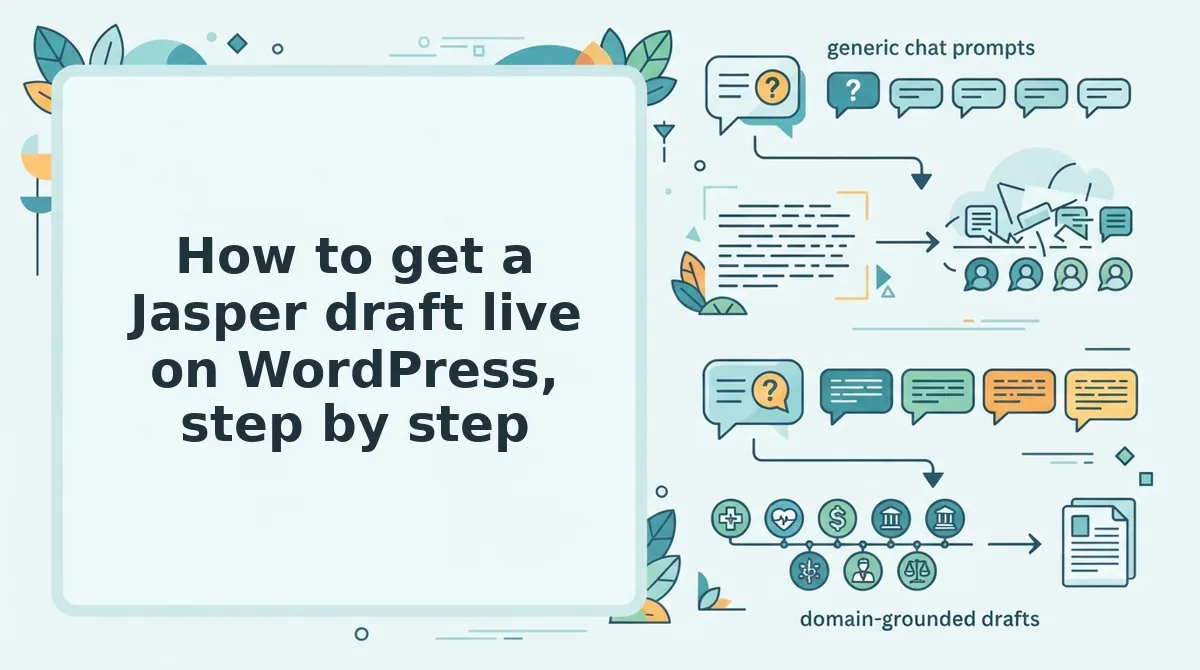
How to get a Jasper draft live on WordPress, step by step
Getting a Jasper draft live takes seven steps: convert and format the text, rebuild headings as blocks, add images, write meta fields, add internal links, set categories and a schedule, and request indexing. Each step below notes which tool can cover it.
Prerequisites: a finished Jasper draft, WordPress admin access, and an optional Make or Zapier account.
- Convert and format the draft. Copy the draft from Jasper and paste it into a new post under Posts, then Add New. The text should appear without stray styling or broken line breaks. Time: 5 minutes. Covered by: automation, direct-publish engine.
- Rebuild headings as blocks. Select each heading and convert it to a Heading block at the correct H2 or H3 level. When you're done, the List View panel should show a clean outline. Time: 5â10 minutes. Covered by: direct-publish engine.
- Add images with alt text. Upload each image through Add Media, then type descriptive alt text and use a clear file name. Follow these image alt text and file naming rules. Every image should show a filled Alt Text field. Time: 10 minutes. Covered by: direct-publish engine.
- Write the meta title and description. Open your SEO plugin panel and enter a meta title and a description. The snippet preview should display both without truncation. Time: 5 minutes. Covered by: direct-publish engine.
- Add internal links. Highlight relevant phrases, click the link icon, and point them to related posts on your site. The links should turn clickable in the preview. Time: 5â10 minutes. Covered by: direct-publish engine.
- Set categories and schedule. In the Post sidebar, check a category, then click Publish and choose a date. The button should change to Schedule. Time: 2 minutes. Covered by: automation, direct-publish engine.
- Request indexing. After the post goes live, ask Google to crawl new posts via the Indexing API or submit the URL in Search Console. A confirmed request means Google has queued the page. Time: 2 minutes. Covered by: direct-publish engine.
Step 7 is the one most workflows forget, and skipping it can leave a finished post waiting quietly to be discovered. Jasper's role ends at the draft, so it is not tagged on any step after you paste.
Next, compare how much of this list each publishing route actually removes.
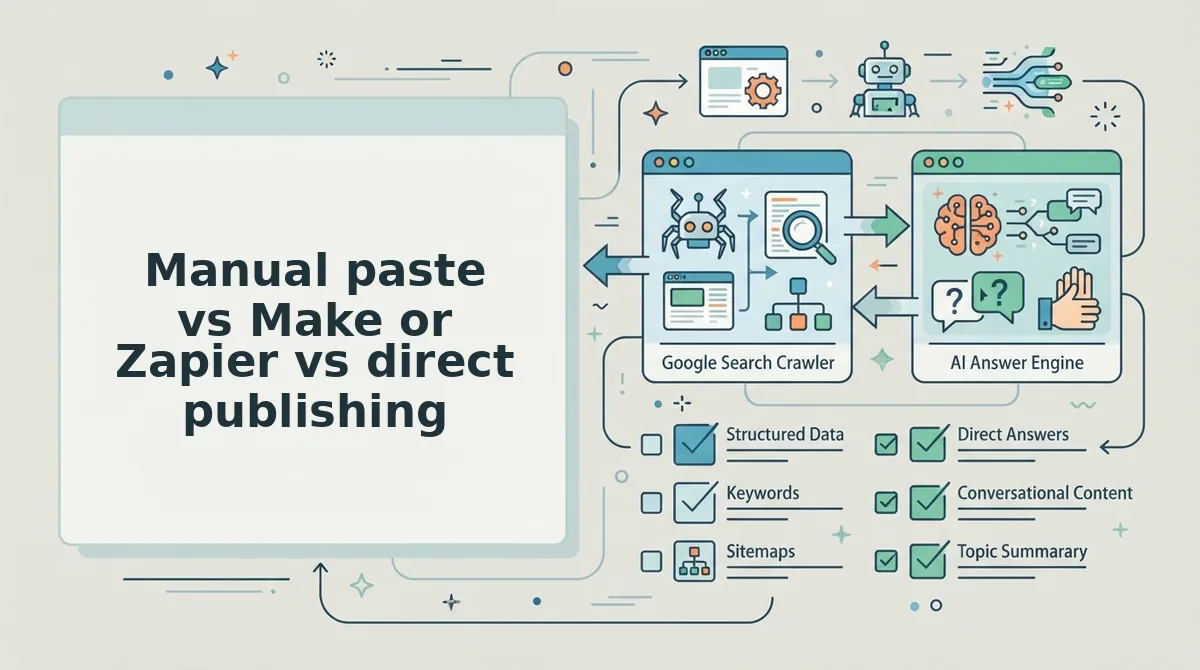
Manual paste vs Make or Zapier vs direct publishing
Manual paste suits occasional posts. Make or Zapier automates the handoff from Jasper to WordPress. Direct publishing removes the handoff entirely, so the right path depends on how many posts you ship and how many tools you are willing to maintain.
The Matrix Marketing Group video walks through a typical Make.com flow. Topics sit in Google Sheets, Jasper drafts each one, the draft lands in Google Docs formatted as HTML, and the scenario pushes it to WordPress as a post. For teams already fluent in Make, that saves real copy-paste time, and Zapier can run a similar chain.
That flow still leaves four jobs for a person: adding images, writing meta titles and descriptions, placing internal links, and getting the post indexed.
| Factor | Manual paste | Make or Zapier | Direct publishing |
|---|---|---|---|
| Setup effort | None beyond a WordPress login | Build, map, and test a multi-step scenario | Connect the site once |
| Failure points | Formatting lost on paste, forgotten fields | Each step can break: app auth, Docs-to-HTML conversion, field mapping | One connection to the CMS or endpoint |
| Tools involved | 2 (Jasper, WordPress) | 5 (Sheets, Jasper, Docs, Make or Zapier, WordPress) | 2 (content engine, CMS or endpoint) |
| Volume fit | Occasional posts | Steady batches, if someone owns upkeep | Recurring clusters and headless sites |
A custom API endpoint is a URL on your own server that accepts structured content, such as a title, HTML body, meta description, and image URLs, and turns it into a page on your site. It matters for headless stacks built on a framework or headless CMS, where there is no WordPress dashboard to paste into and most Jasper-to-CMS recipes do not apply. The content engine sends the finished article to that endpoint in one request, so non-WordPress teams get the same publishing path as WordPress users.
- Manual paste: Best for solo operators publishing occasional posts who want full hands-on control.
- Make or Zapier: Best for growth teams with existing automation and a person who owns scenario maintenance.
- Direct publishing: Best for publishers running recurring clusters, and for headless sites that need custom API delivery.
Maybe the part you want gone is the juggling between tools. If so, BloGoose is an AI SEO content engine that crawls your site, drafts with AEO content optimization built in, and publishes straight to WordPress or your custom API endpoint.
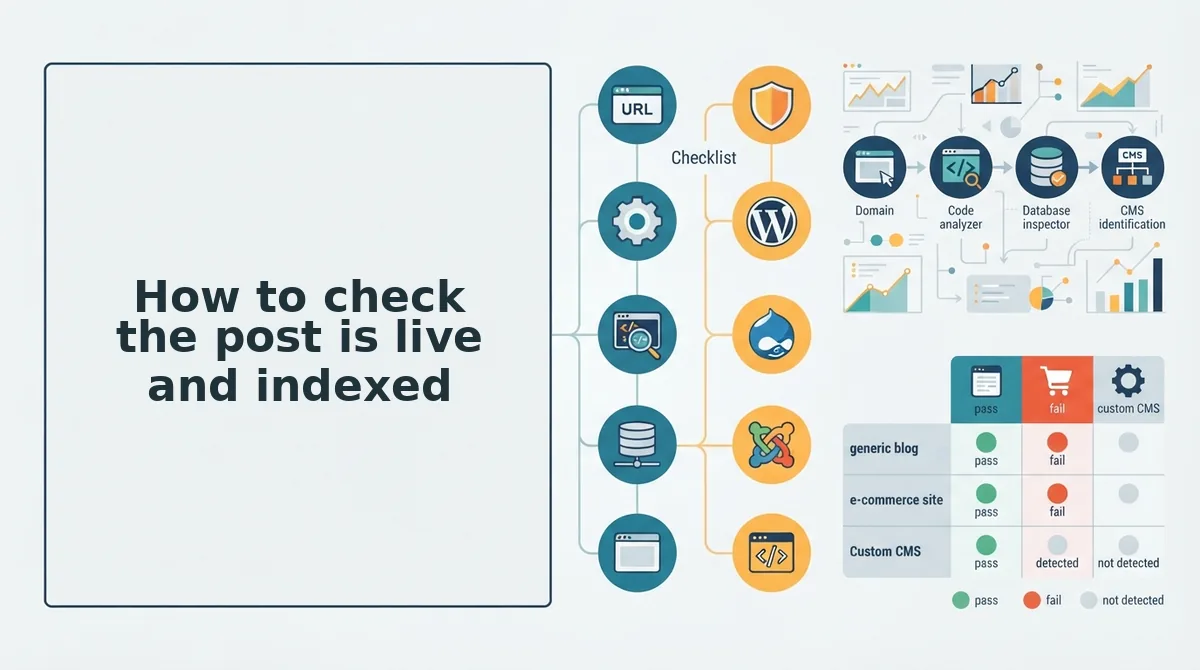
How to check the post is live and indexed
A post marked "Published" is not yet live and indexed. Reaching WordPress is only the halfway point, and the job ends when Google is asked to crawl the post. You need your WordPress login and Google Search Console access.
- Open the live URL in a private window (1 minute). You should see the post with no preview label and no login prompt.
- Check that the meta and images render (2 minutes). Right-click the page and select View Page Source, then search for the title and description tags. Your meta text should appear, and every image should load.
- Open your XML sitemap and search for the slug (1 minute). The new URL should be listed.
- Paste the URL into URL Inspection in Search Console and click Request Indexing (2 minutes). You should see a confirmation that indexing was requested.
The Indexing API is Google's programmatic way to ask for a crawl without manual submission. In worked example #3, BloGoose crawls the sitemap, drafts the post, publishes it to WordPress, and then requests indexing.
Which path should you pick?
Pick based on volume and stack, not on which tool writes best. Jasper drafts well but does not finish the job. Getting a post written, published, and indexed is where most workflows stall.
- Occasional posts: Use manual paste plus the live-and-indexed checklist above.
- Existing automation: Make or Zapier works, but budget time for images, meta, and indexing requests.
- Recurring clusters or headless sites: Use direct publishing to WordPress or a custom API.
If the third situation describes you, see plans and pick the one that matches your publishing volume. Then connect your site and publish your first post. From that point on, every article ships complete instead of half-finished.