How to Replace Content Calendar Spreadsheets With a Planning Engine
Nine tabs. Three owners. A publish date that every editor quietly re-checks inside WordPress because nobody believes the spreadsheet anymore.
That state is normal, and it does not mean your planning is broken. It means you are running a flat-file database as if it were a live publishing system. If the goal is to replace content calendar spreadsheets with something that stays true after publish, the port is smaller than you expect â and it is a port of the rows you already have, not a rebuild from a blank template.
Three terms carry the rest of this article. A content calendar is the dated plan of what publishes, when, and by whom. A delivery queue is the ordered list of work actually moving toward the CMS right now. Plan state is what the sheet claims is true; CMS state is what the site says is true.
You will get a column-by-column migration of the 40 rows already in your sheet, a verdict on which of them survive the move, and a troubleshooting set for week one. First, one question most guides skip: what happens to row 41 after the first post ships?
What a Content Calendar Spreadsheet Actually Does and Where It Stops Working
A content calendar spreadsheet is a shared flat-file database of planned articles â and it works well right up to the first publish, when the sheet becomes a copy of a system it cannot see.
Give the sheet its due: free editing, instant sharing, zero setup, no vendor, and three people fixing a typo in the same cell within a minute.
Think of plan state and CMS state like a whiteboard on the fridge listing what is inside it. The list is accurate the moment it is written and wrong the moment someone eats the leftovers â and every later copy is wrong in a new way.
Here is what the sheet holds, sorted by which kind of state each column is:
- Backlog â plan state. Unscheduled ideas exist nowhere else.
- Keyword and URL map â plan state. No CMS stores the keyword-to-URL pair for you.
- Owner and status â mixed. The owner is plan state; status is a copy of where the draft sits in the CMS.
- Publish date â a copy of CMS state, and the first casualty of drift.
- Internal link notes â plan state that stays wrong until the target URL exists.
After the first publish, every downstream copy drifts. The draft reads "scheduled" in the CMS and "drafting" in the sheet; the date slips and the sheet keeps the old one. Editors re-check WordPress because the sheet has already lied once.
A better template cannot fix this. A template is still a copy, just a cleaner one â the drift starts at the same publish event.
Map Every Spreadsheet Column to Its Automated Replacement
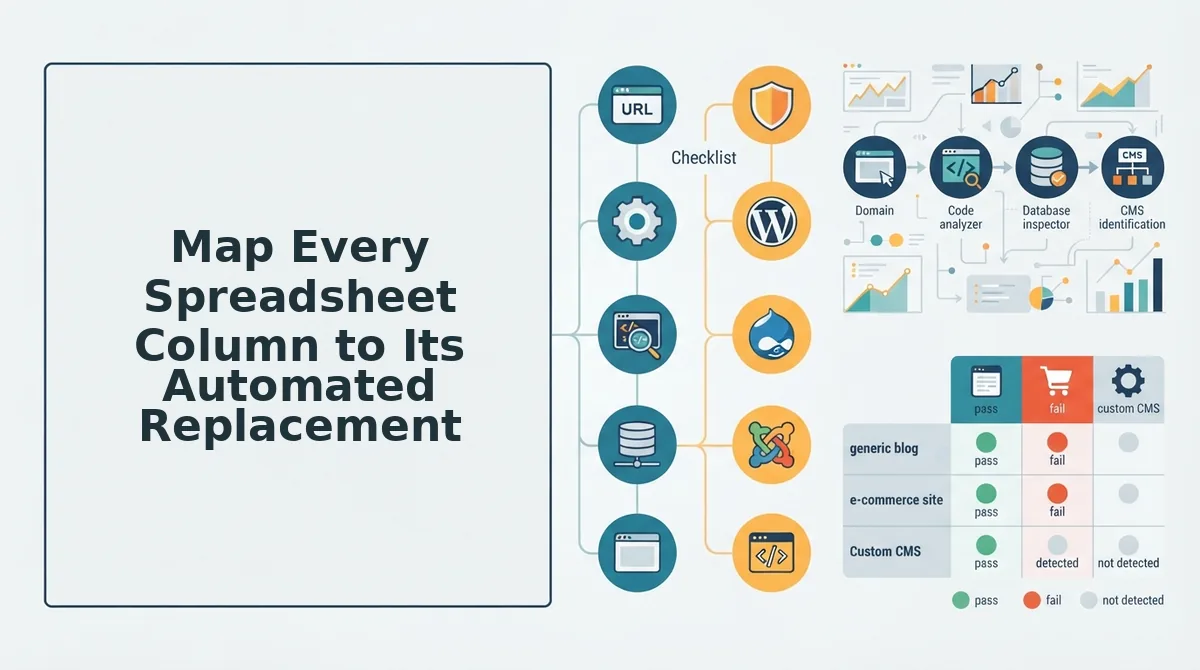
Five columns matter, and only two are genuinely irreplaceable: the keyword-to-URL map and the owner. The rest are duplicates of CMS state or arithmetic a planning engine recomputes on its own.
A spreadsheet-to-engine port moves five things: the backlog, the keyword and URL map, owner and status, the publish date, and internal link notes. Each maps to a specific engine function and removes a specific failure.
| Sheet column | Engine function | Failure it removes |
|---|---|---|
| Backlog | Sitemap crawl and 30-day calendar generation, grouped by pillar | Ideas that never get dated because nobody owns the queue |
| Keyword and URL map | Topic cluster assignment plus destination URL per article | Two posts targeting the same query, or orphan URLs |
| Owner and status | Live status synced from the CMS, with ownership kept as plan state | The "drafting" cell that should say "published" |
| Publish date | Delivery queue position derived from cadence | Manual date math that breaks the week someone is on leave |
| Internal link notes | Link insertion at publish, against URLs that exist | Planned links pointing at pages not yet live |
How do you migrate 40 existing rows without redoing keyword research? Export the sheet to CSV and keep only three columns: target keyword, destination URL, and owner. Import those rows as backlog items. Keyword research is already encoded in the keyword-to-URL pair, so nothing needs re-running. Drop status columns, because status regenerates from the CMS on every sync, and drop manual publish dates, because dates recalculate from cadence and queue position. Clustering then groups the 40 rows by shared keyword intent and assigns internal links â the one column that gains value during the move.
Be fair to the alternative. A Google Sheets content calendar template is still the cheapest way to start and is best for a solo operator with a small, slow-moving backlog and no publishing pipeline.
An engine is best for a content lead already publishing to WordPress or a custom API, where the sheet's job is coordination rather than record-keeping. BloGoose crawls the site, extracts brand voice rules, and ships finished articles straight to the CMS, so the calendar stops being a second place where truth lives. Teams weighing cadence can see how draft scheduling intervals change once dates come from the queue, and how topic cluster planning replaces hand-maintained cluster rows.
The 40-row teardown verdict is blunt: keyword-to-URL map and owner survive, status columns and manual date math get deleted, clustering and delivery queue get replaced.
Knowing which columns survive is half the work; the other half is the order you move them in.
How Do I Replace a Content Calendar Spreadsheet With an Automated Planning Tool?
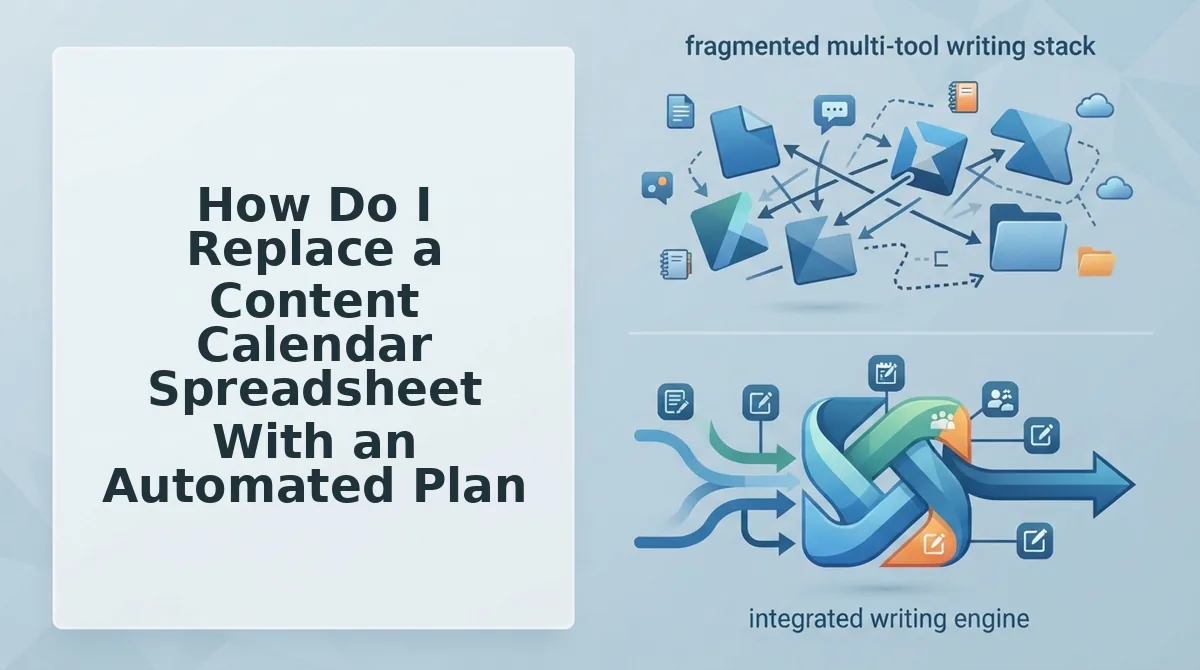
A planning engine replaces the spreadsheet in four moves: crawl the site, extract brand and keyword context, generate a clustered 30-day calendar, then review and publish rows to the queue.
Where a sheet waits for you to type a row, the engine reads your sitemap and drafts the rows itself. You point it at the domain, it extracts voice and keyword context, it produces a 30-day calendar of clustered articles, and you approve rows into a publishing queue that ships to your CMS. The part a template cannot do is calibration: every generated row already carries a target keyword, a URL slug, and a cluster parent, which is why the migration is shorter than rebuilding from a blank sheet.
Prerequisites: a live domain with a published XML sitemap, admin access to WordPress or an API key for your CMS, and your existing sheet exported as CSV so nothing is lost if you need to roll back.
- Open the setup wizard and enter your domain. The crawler looks for /sitemap.xml, falls back to the sitemap declared in robots.txt, then fetches published pages from it. You should see a page count that matches your sitemap's URL total.
- Click Context, then Brand Voice. The engine writes Markdown context files covering tone, sentence length, and formatting rules pulled from your published pages. You should see 3â5 files, each editable â this is the same mechanic covered in sitemap context extraction.
- Click Calendar, then Generate 30-Day Plan. Select your pillar pages so the generator clusters topics under existing URLs instead of inventing orphans. Takes 3â5 minutes; you should see dated rows grouped by pillar.
You now have a full calendar and zero drafts. That is exactly the point where the old sheet stalled. BloGoose drafts, images, and publishes from the same queue, so there is no second tool to hand off to.
- Click any queue row and edit. Change the headline, slug, or target keyword inline; check search intent against live SERP analysis before approving. You should see the row move from Draft to Approved.
- Click Publish, then Connect CMS. Paste an application password for WordPress or your API key for a custom endpoint, map the default category, and send one row. A green checkmark with a live URL means the credential is proven.
Expect the first week to break in predictable ways â this table doubles as your workflow map when it does, and it is worth comparing against Surfer SEO alternatives if your current stack splits drafting from publishing.
| Symptom | Cause | Fix |
|---|---|---|
| Sitemap not found or only a fraction of pages crawled | Sitemap at a non-standard path, or blocked in robots.txt | Paste the sitemap URL directly under Settings â Crawl and confirm the crawler is allowed |
| Duplicate slugs after a re-plan | Regenerating the calendar adds rows for topics already queued | Match on the keyword-to-URL map first; merge rows sharing a target keyword |
| Publish fails with 401 or 403 | Application password revoked, or API key scoped read-only | Reissue credentials with publish scope, then re-send only the failed row |
| Two articles competing for one query | Cluster overlap â both rows inherited the same pillar | Keep one canonical row per cluster; fold the other in as an H3 |
| Rows look stale after a refresh | Sheet state and CMS state diverged at first publish | Let the queue own status; stop editing status in the sheet |
Questions the Steps Do Not Cover
The three things readers ask before they migrate are about control, channel fit, and what happens to articles that are already ranking.
Do I lose control, history, or approvals if I leave the spreadsheet?
No. Ownership, status, and the keyword-to-URL map port intact, so approvals still route the same way and history stays queryable. What does not port is ad-hoc notes and tribal context â capture those in each article brief before you migrate.
Does this replace my social media calendar too?
No. It replaces the SEO publishing calendar. Every popular tutorial on this topic teaches social scheduling and never mentions clusters, sitemaps, or a publish pipeline. A social cadence still belongs in a social scheduler.
What happens to rows I already published and that are ranking?
They become refresh candidates, not new calendar entries. Mark them as published and let the engine schedule an update against the same URL rather than generating a competing article for the same query.
How long does migrating an existing calendar take?
Export the sheet to CSV, map its five columns to queue fields, and import. For a 40-row calendar this is an afternoon, and the slow part is confirming owners â not the import itself.
Run the Migration on One Cluster First
The cheapest way to prove an engine beats your sheet is to migrate one cluster, not the backlog. A single cluster gives you a real publish test in one sitting and fails small if it fails.
- Audit one existing cluster against the five-column matrix and mark any column with no owner.
- Run a 30-day generation against that cluster only, keeping the plan scoped and reviewable.
- Ship the first queue row end to end before committing the backlog, so auth and publish failures surface on one article instead of forty.
Two limits decide whether this is worth doing. A crawlable sitemap and working publish credentials are prerequisites, and a one-person social cadence with no publishing pipeline is still a spreadsheet job.
Ship one row and the divergence this article opened with closes: plan state and CMS state finally live in one place. Next, make that article citable â start with AEO content optimization.
Point the BloGoose setup wizard at your domain and let it read your sitemap; you will know within minutes whether the rest of the backlog is worth moving.
The sheet never failed because it was a spreadsheet. It failed because it kept a second copy of the truth.