How to Schedule WordPress Posts From a Content Calendar Queue
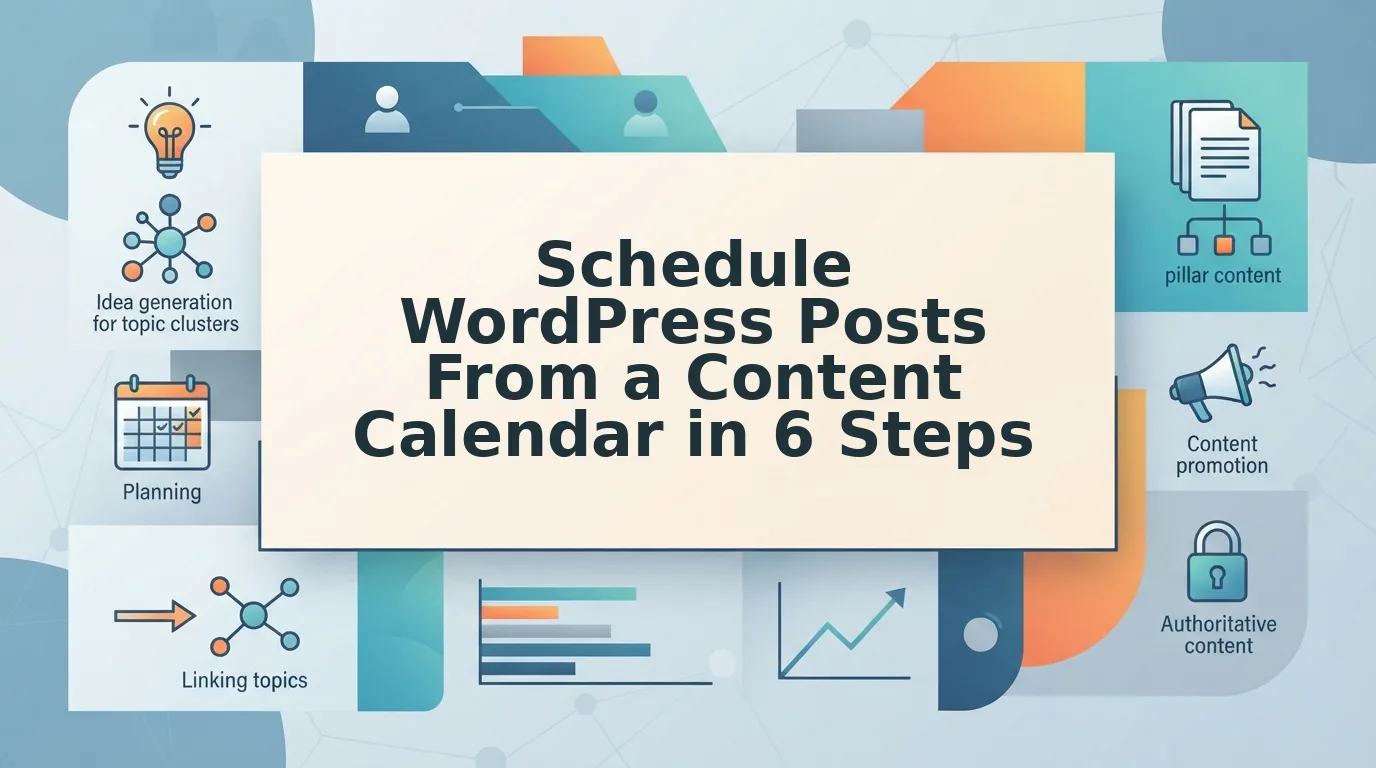
The calendar said Tuesday. It is Thursday and the newest post on the site is still last week's. That gap is not a discipline problem â it is a handoff problem, and it is why so many teams cannot reliably schedule WordPress posts from a content calendar.
A date in Notion, Sheets, or Google Calendar does not move itself into WordPress. Readers ask us whether Jasper publishes blog posts directly to WordPress â fair confusion, since planning tools were never delivery mechanisms. Themeisle and Levamo show the Publish box click path and stop, skipping the transport layer where scheduled posts are actually won or lost.
Here is what future status really means, the prerequisites nobody lists, and a six-step handoff from calendar slot to queued post. You will also meet the one cause of late posts that WordPress documents as a setting but never as a cause â it is not the date field.
BloGoose runs as an automated SEO content engine that builds the calendar, drafts the articles, and pushes them into WordPress, so the date in your plan is the date the CMS receives.
What Does Scheduling a Post Actually Do in WordPress
Scheduling a post sets its status to future and stores a publish date and time; nothing is visible to visitors and nothing is announced to search engines until that timestamp passes.
A scheduled post is a WordPress post whose status is future â a holding state between draft and publish. Think of it as a print issue sitting at the press with the cover date already stamped: the pages are set, but the run does not start until the press is switched on.
Three layers make the mechanism work, and each one can break on its own.
- Status layer: the database row flips from future to publish at the timestamp. Until it flips, the permalink returns a 404 for anyone outside the admin.
- Time layer: the date you type is read in the site timezone under Settings > General, not your laptop's clock. An author working in a different zone is the most common reason a post goes live hours off schedule.
- Trigger layer: WordPress checks for due posts through wp-cron, a pseudo-cron that only fires when someone loads a page. No traffic, no check, no publish.
Before you touch the Schedule button, confirm three things: your account holds the Editor or Admin role, the site timezone is correct, and the draft already has its title, slug, category, and featured image. A post scheduled with a missing slug still publishes cleanly â and then needs a second edit the moment it goes live.
How Do You Schedule a Post From Your Content Calendar Step by Step
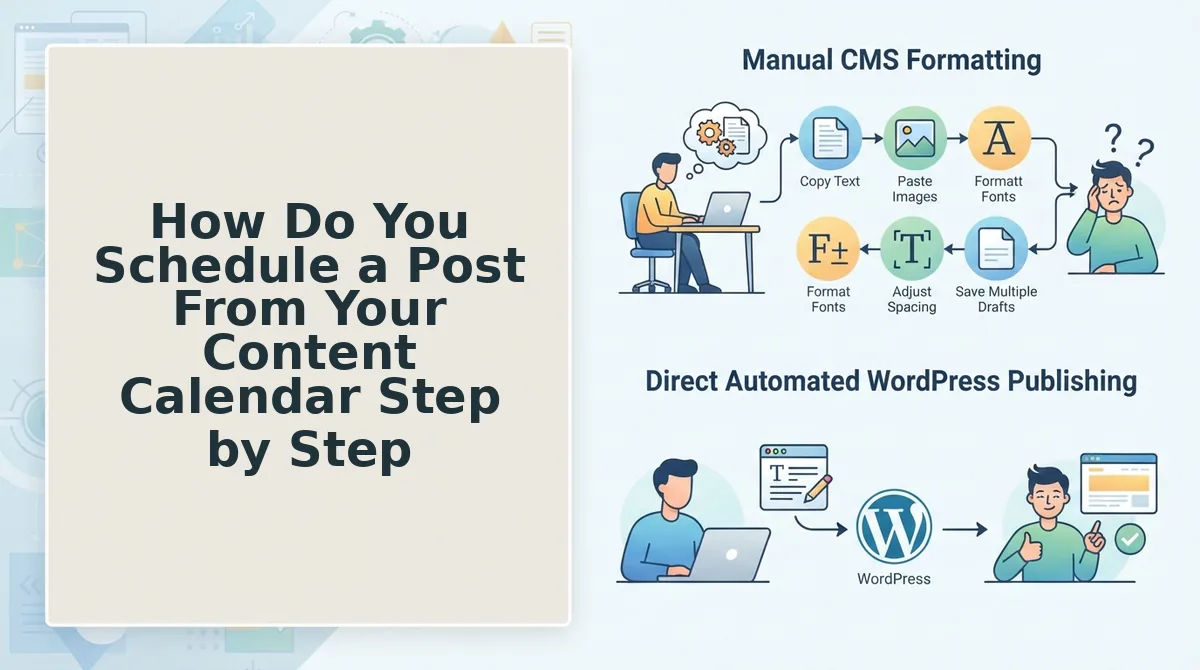
How do you schedule a post from a content calendar? Open the draft that matches the calendar slot, confirm its title, slug, category, and featured image, then use the Publish box in the editor sidebar. Click Edit beside "Publish immediately," enter the date and time in the site timezone, and press Schedule. WordPress stores the post with status future, so it stays invisible to visitors and search engines until the moment arrives. Confirm the status label reads Scheduled rather than Published â that single word is the difference between a queued post and one you shipped early.
You need Editor or Admin access plus a draft whose title, slug, category, and featured image are already set. The sequence below takes roughly three minutes per post.
- Open the draft assigned to the calendar slot under Posts > All Posts. Expected result: the editor loads with Draft shown in the top-left corner. (30 seconds)
- Verify the four fields â title, slug, category, featured image. Expected result: every field is populated and the slug reads as lowercase words, not a raw post ID. (90 seconds)
- Find the Publish box in the right sidebar. Expected result: a line reading "Publish immediately" with an Edit link beside it. (10 seconds)
- Click Edit and enter the date and time from your calendar, in the site timezone. Expected result: the fields hold your values but nothing is saved yet â this is the step where off-by-hours errors get caught. (30 seconds)
- Click Schedule. Expected result: a confirmation notice appears and the primary button label changes to Scheduled. (5 seconds)
- Confirm the status in the post header and under Posts > Scheduled. Expected result: the post is listed with its future date and the status reads Scheduled, not Published. (15 seconds)
Native WordPress has no bulk scheduling interface. Thirty calendar dates means thirty separate edits, which is why so many queues quietly go half-published. The two honest alternatives are a plugin that imports a CSV of dates, or a script that posts to the REST API at /wp/v2/posts with status future and a date field.
On a 30-day plan, that difference is the whole game: one cluster anchor article plus four supporting posts, with dates assigned in the calendar before a single draft exists. Handled that way, a month ships in one pass instead of one click per day â which is why building the pillar and cluster calendar comes before the publishing step. BloGoose then generates the plan, writes each article in your extracted voice, and publishes to WordPress on the dates the calendar already holds.
Which of these paths fits your queue comes down to where your calendar lives today.
Which Scheduling Path Fits Your Queue
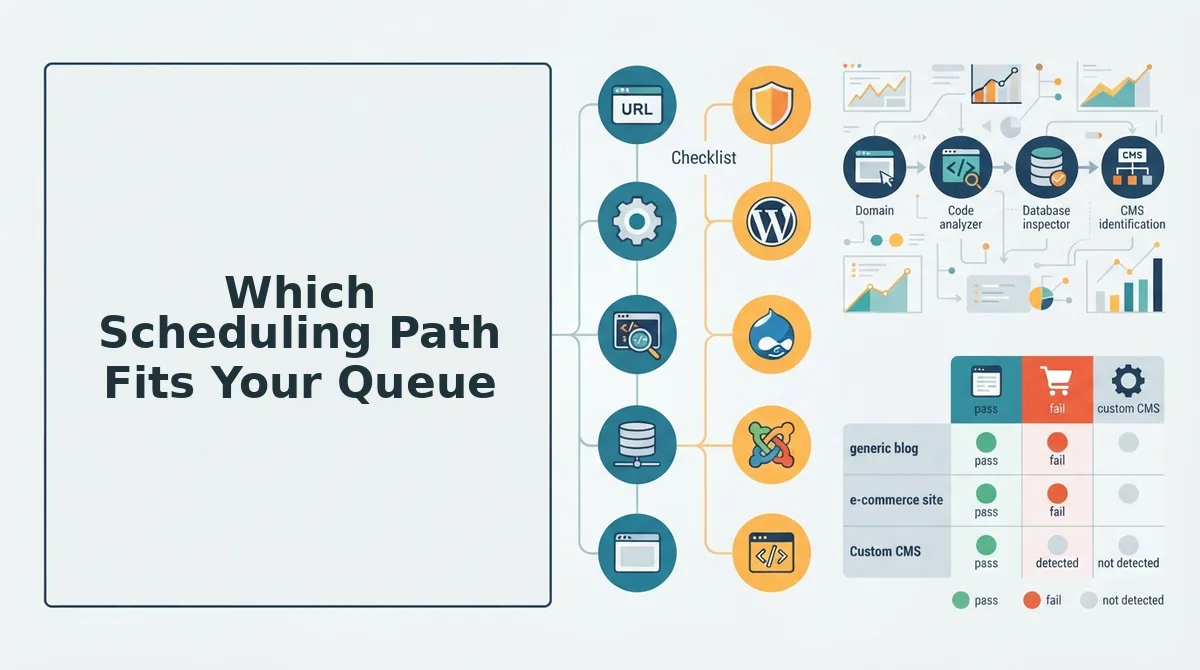
Native WordPress scheduling is the right call for a solo operator publishing a few times a month; an external content engine wins once the queue is a cluster on a fixed cadence. The two middle paths are a UI upgrade and a transport layer, not a reliability fix.
| Path | Setup | Bulk capability | Indexing ping | Failure mode | Best for |
|---|---|---|---|---|---|
| Native schedule (Publish box â Future) | Seconds, once per post | One post at a time | None | Flips late when wp-cron gets no traffic | The solo blogger posting weekly |
| Editorial calendar plugin | Install plus drag-and-drop dates | CSV import | None by default | Same wp-cron risk, now hidden behind a drag UI | The team that needs the month at a glance |
| REST API push | Application password plus one endpoint | Full â loop a calendar file | Only if you add one | Silent failure when the date is not site-local | The developer wiring Notion or Sheets into WordPress |
| External content engine | Domain connected at setup | Full â the calendar is the input | Configurable | Same delivery risk, but push logs surface it | The publisher running a cluster cadence |
Editorial calendar plugins deserve credit for planning: drag-and-drop dates and CSV import genuinely beat clicking into thirty draft screens. But they inherit the same wp-cron delivery risk, so a plugin is a UI upgrade, not a reliability upgrade.
The API path is the most controllable: POST to /wp/v2/posts with status set to future and a date field, authenticated with an application password, and the date must be in site-local time or it lands on the wrong day. Pair that with a manual ping to Google's Indexing API, because scheduling does not notify Google â nothing is visible until the status flips to publish.
If the calendar already lives outside WordPress, connecting an AI content engine to WordPress collapses the last two rows into one: the queue becomes the input, and the push is logged.
Why Scheduled Posts Miss Their Slot and How to Check It Worked
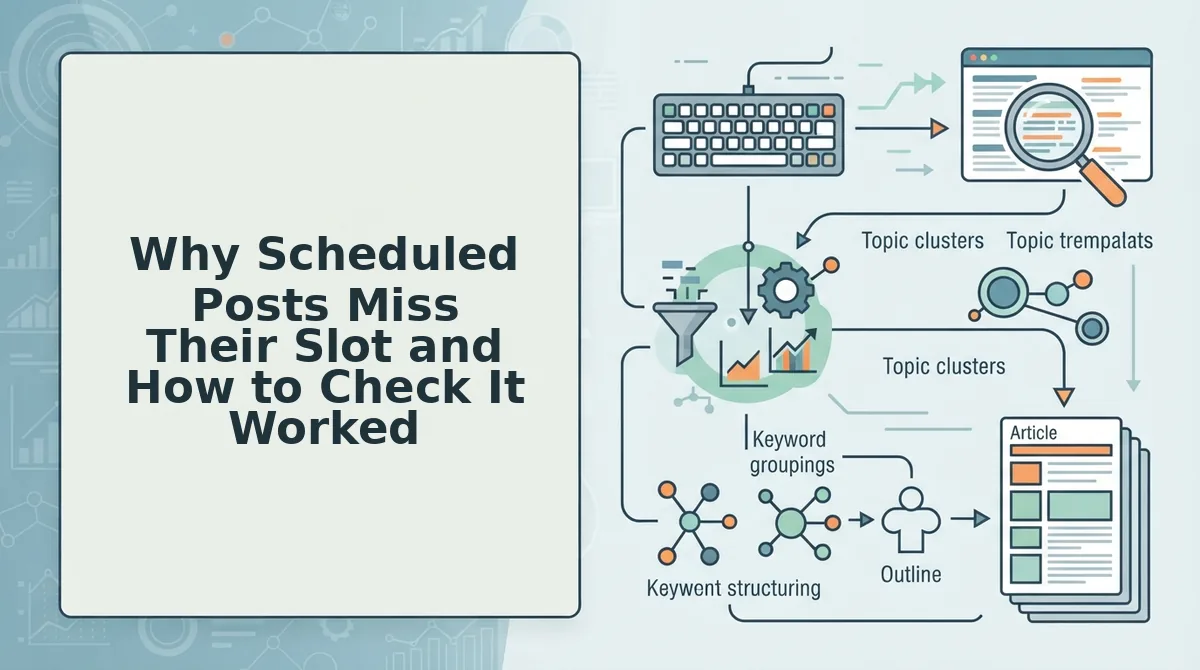
Missed slots almost always trace to one mechanism: WordPress runs due jobs when the site receives traffic, not when the clock reaches the scheduled time. A post set for 9am stays in future until something loads a page.
- wp-cron is traffic-triggered. Due jobs fire on page loads, so a quiet overnight window pushes your morning post to the first visitor or bot. The content is correct; the delivery is late.
- DISABLE_WP_CRON is set with no server cron. If wp-config.php disables the built-in trigger, a real cron job calling wp-cron.php on a short interval is mandatory. Add the job first, then disable.
- The timezone does not match your plan. The schedule box uses Settings â General, not your laptop's clock, so a post can appear a day early or late.
- The push failed silently. Calendar tools and API scripts drop posts without an error surface. Log every response code.
- Three checks the next morning. Confirm the post list reads Scheduled before the slot and Published after it, load the permalink in a logged-out browser, and confirm the pipeline logged a successful push rather than nothing.
The fix is one line of infrastructure: a server cron hitting wp-cron.php every few minutes converts WordPress from traffic-driven delivery to clock-driven delivery. Do that before blaming the calendar, and the missed-schedule notice stops appearing â the same discipline that keeps a post citable in AI answers after it goes live.
Turn Your Calendar Into a Publish Queue That Keeps Its Slots
Queue depth beats queue length. Two posts a week that always publish outperform a ten-post sprint that dies in week three, and the difference is never the writing â it is the delivery layer, where most content plans quietly fail.
The finding teased at the start holds: the missed slot was not a WordPress bug. It was a calendar, a status flag, and an indexing ping living on three separate rails.
Put them on one rail. Set the server cron first, then route the queue through a pipeline that writes the scheduled date, flips the status, and logs the push every time.
If you would rather not build that yourself, review how BloGoose's publishing pipeline handles the queue and let the calendar do the only job it should have: deciding what ships next.