
How to Send AI Blog Posts to WordPress via Webhooks
You just spent 45 minutes prompting an AI to write a blog post, then another 20 minutes pasting it into WordPress, re-adding headings, fixing broken images, and manually setting categories. Now multiply that by five posts a week. The smarter path is to send AI blog posts to WordPress via webhooks, a direct pipeline where your AI tool delivers finished drafts to your site without you touching wp-admin.
You're right to be skeptical of yet another automation promise. Most tutorials push third-party connectors like Make or Zapier, adding cost and complexity to a problem that WordPress already solves natively. This article skips the middleman.
By the end, you'll know exactly how to configure a webhook that creates WordPress drafts using the built-in REST API, no plugins, no paid automation layers. You'll learn the two prerequisites that cause most failures, the exact JSON payload to send, and why draft-first publishing beats auto-publish for professional workflows. One surprising detail: the SERP landscape for this topic is dominated by video demos of third-party tools, while the native WordPress path remains nearly undocumented. That gap is your advantage. If you're weighing this against a chat-window workflow, see how an AI content engine vs chat window workflows compares before you build.
Why Send AI Posts via Webhooks Instead of Copy-Paste
A webhook is a user-defined HTTP callback: when your AI tool finishes generating a draft, it automatically sends that content as structured data to a URL you control. Copy-paste works for one post. Webhooks work for a publishing schedule.
Copy-paste breaks down in three specific ways. First, formatting: pasting from ChatGPT or Claude into the WordPress block editor often mangles headings, lists, and code blocks, forcing manual cleanup. Second, metadata: categories, tags, featured images, and SEO fields must be re-entered by hand every time. Third, scale: the workflow collapses beyond a few posts per week because each post demands the same repetitive manual steps.
Think of a webhook like a pneumatic tube at a bank drive-through. You place the document in one end, and it arrives at the teller, formatted, timestamped, and ready to process, without you walking inside. A webhook does the same for content: the AI tool packages your post as JSON and delivers it directly to WordPress's REST API, which unpacks it into a draft with all metadata intact.
Here's the workflow payoff in sequence. Your AI content tool generates a post. It triggers a webhook to https://yoursite.com/wp-json/wp/v2/posts. WordPress creates a draft with your title, content, categories, and tags already assigned. You review, edit if needed, and hit Publish. The entire loop takes under a minute of human time per post.
For teams publishing at volume, this is the difference between content as a bottleneck and content as an assembly line. An autopilot SEO content engine extends this further by handling research, drafting, and optimization before the webhook ever fires.
What You Need Before You Start
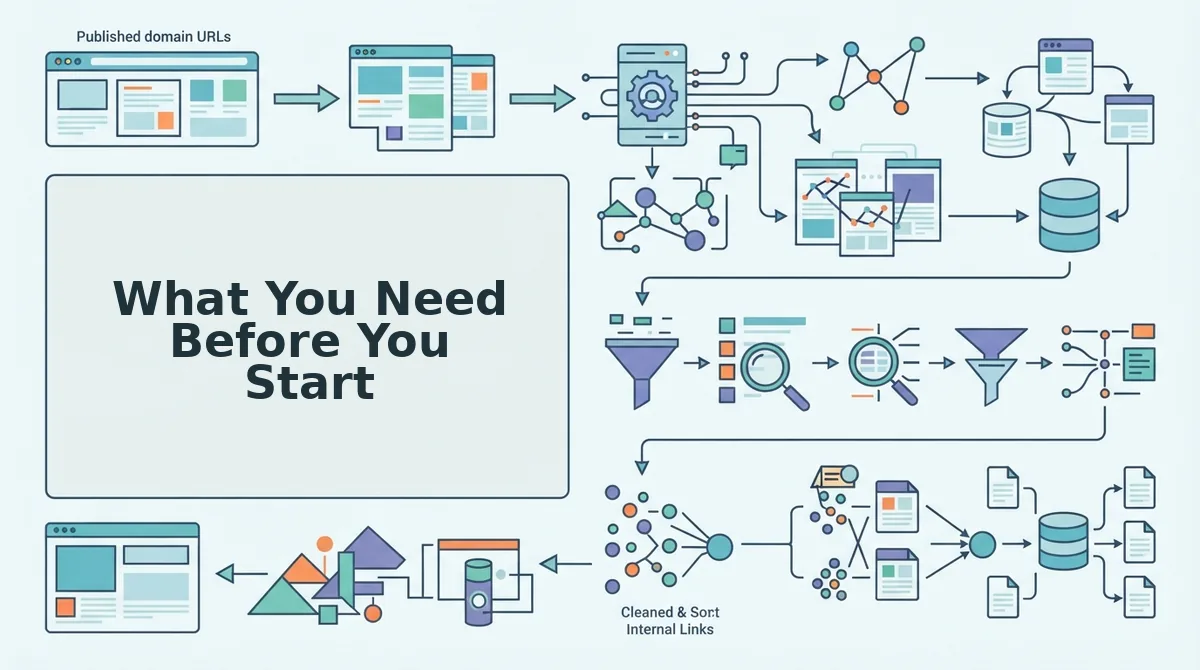
You need three things before configuring any webhook: a WordPress site with the REST API enabled, an Application Password for authentication, and a tool capable of sending HTTP POST requests. Most webhook failures trace back to skipping one of these prerequisites.
- Confirm your REST API is accessible. Open a browser and visit
https://yoursite.com/wp-json/wp/v2/posts. You should see a JSON list of your recent posts. If you see a 404 or an error, a security plugin or hosting rule is blocking the API, disable that block before continuing. This takes under one minute to verify. - Generate an Application Password. Log in to WordPress, go to Users to Profile, scroll to the Application Passwords section, and click Add New Application Password. Name it something like "AI Webhook" and click Add New. WordPress displays a 24-character password with spaces, copy it immediately, because it won't be shown again. This password is scoped to your user account, so your main admin password never leaves your AI tool.
- Note your REST API base URL. The base URL is always
https://yoursite.com/wp-json/wp/v2/. The posts endpoint appendspoststo that path. You'll paste this full URL into your AI tool's webhook configuration field. - Prepare a test post payload. Before wiring up your AI tool, send a minimal test request using a tool like Postman or curl. Include a title and content field. You should receive a 201 Created response with your new draft's ID in the JSON body, that green-light response confirms your authentication and endpoint are correct.
Application Passwords are generated at /wp-admin/profile.php and scoped per user, so you never expose your main admin password to an external service. The REST API base URL is always https://yoursite.com/wp-json/wp/v2/, regardless of your permalink structure or theme. If your AI tool supports custom webhook payloads, you can also map categories, tags, and excerpt fields in the same JSON body, a capability that platforms like BloGoose handle automatically when publishing to WordPress.
With these three pieces in place, you're ready to configure the webhook itself.
Step-by-Step: Configure a Webhook to Create WordPress Drafts
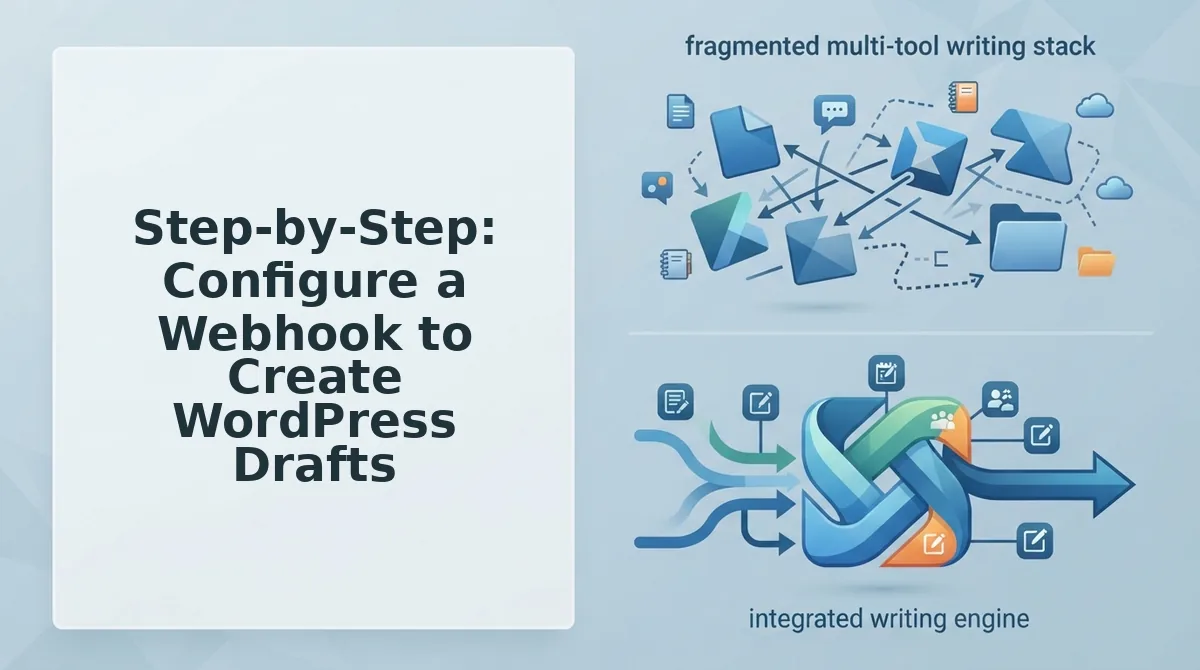
You can send AI-generated posts to WordPress as drafts using a single POST request to the REST API, no plugin required. This walkthrough assumes you have an AI content source (like BloGoose) that can fire webhooks, plus a WordPress site with the REST API enabled.
Prerequisites: A WordPress site running version 5.6 or later, an Application Password (created under Users to Profile), and a webhook sender that supports custom JSON payloads and HTTP Basic Auth.
- Open your WordPress admin and navigate to Users to Profile. Scroll to the Application Passwords section, type a label like "Webhook Drafts," and click Add New Application Password. WordPress generates a 24-character password separated by spaces. Copy the full string, you will not see it again. You should see the new password listed under your profile with a revoke option.
- Open your webhook sender's configuration panel. In BloGoose, go to Settings to Publishing Destinations and select WordPress REST API. Paste your site URL followed by
/wp-json/wp/v2/postsinto the endpoint field. The field should validate and show a green checkmark next to the URL. - Type your WordPress username into the auth username field. Paste the full Application Password, including spaces, into the password field. Select Basic Auth from the authentication dropdown. You should see a "Credentials accepted" confirmation after clicking Test Connection.
- Upload or paste the JSON payload template. Use this exact structure, replacing the placeholder values with your AI post data:
{
 "title": "Your AI-Generated Post Title",
 "content": "<!-- wp:paragraph --><p>Your full HTML post body here.</p><!-- /wp:paragraph -->",
 "status": "draft",
 "excerpt": "A one-sentence summary for search snippets.",
 "categories":
}- Click Send Test Webhook. The request posts to
POST /wp-json/wp/v2/postswithContent-Type: application/json. WordPress returns a 201 Created response containing the new post ID. You should see a "201 Created" status and a link to the draft in your WordPress admin under Posts to All Posts. - Verify the draft in WordPress. Open Posts to All Posts and confirm the new entry appears with a "Draft" label, correct title, excerpt, and category assignment. Total setup time: 10-15 minutes.
If your AI platform uses OAuth instead of Application Passwords, swap the Basic Auth fields for a Bearer token in the Authorization header. The endpoint and payload remain identical.
For a fully managed alternative, BloGoose's AI blog generator direct WordPress publishing handles authentication, payload formatting, and retry logic automatically, no manual JSON editing required.
Draft-First vs. Auto-Publish: Which Should You Choose?
The choice comes down to one field in your JSON payload: "status":"draft" sends posts to review, while "status":"publish" pushes them live immediately. Both approaches have legitimate use cases, and the right answer depends on your content volume, review capacity, and risk tolerance.
| Factor | Draft-First | Auto-Publish |
|---|---|---|
| Editorial review | Human checks every post before it goes live | No human gate; AI output ships as-is |
| Hallucination risk | Caught and corrected pre-publication | Errors reach readers immediately |
| Brand voice consistency | Editors can adjust tone drift before publishing | Relies entirely on AI prompt quality |
| Publishing speed | Slower, requires manual approval step | Instant, posts go live within seconds of generation |
| Best for | Agencies, regulated niches, and brands with strict editorial standards | High-volume publishers, news aggregators, and solo operators with limited time |
Best for agencies and regulated industries: Draft-first. Editorial review catches AI hallucinations and brand voice drift before they go live, a non-negotiable safeguard when publishing on behalf of clients or in finance, health, and legal niches.
Best for high-volume solo publishers: Auto-publish. If you produce 20+ posts weekly and your AI prompts are tightly calibrated, the speed advantage outweighs the occasional error.
Many teams start draft-first, then flip to auto-publish once they trust their AI output. Automating brand voice in AI blog posts is the prerequisite step, if your AI consistently matches your tone, the review step becomes a formality rather than a necessity.
Troubleshooting Common Webhook Failures
Most webhook failures trace back to one of four HTTP errors or a silent timeout. Here's how to diagnose and fix each one, ordered by how frequently they occur.
- 401 Unauthorized: Your Application Password is wrong, expired, or the user account lacks the
edit_postscapability. Regenerate the Application Password under Users to Profile and confirm the user role is at least Author. Fix: Re-test the connection with the new credentials before resending the webhook. - 400 Bad Request: The JSON payload is malformed or missing required fields. WordPress expects valid JSON with at minimum a
titleandcontentfield. Fix: Validate your JSON with a linter, then check that all field names match the REST API schema exactly. - 404 Not Found: The endpoint URL is wrong, permalinks are broken, or the REST API is disabled by a security plugin. Fix: Re-save Settings to Permalinks to flush rewrite rules, then temporarily disable security plugins to isolate the conflict.
- Silent timeout: The webhook sender times out before WordPress finishes processing, often because the receiver has a short timeout window. Fix: Use asynchronous processing on the sender side or increase the timeout threshold to 30+ seconds.
Still stuck? The next section answers the most common questions about webhook publishing workflows.
FAQ
Webhooks push AI-generated posts into WordPress as drafts or scheduled entries without manual copy-paste, using the built-in REST API and an Application Password for authentication.
Do I need a plugin to send AI posts to WordPress?
No. WordPress includes a built-in REST API that accepts POST requests to /wp-json/wp/v2/posts, so no plugin is required. Plugins like WP Webhooks add convenience features, but the core API handles draft creation, scheduling, and publishing natively.
What's the difference between a webhook and the REST API?
A webhook is a push: your AI tool sends data to WordPress automatically when an event fires. The REST API is a pull: you request or submit data on demand. Webhooks use the REST API as their transport layer.
Can I schedule posts via webhook?
Yes. Set status to future and include a date field in ISO 8601 format. WordPress will hold the post as scheduled and publish it at the specified timestamp without further action.
Is it safe to store my WordPress password in a webhook?
No. Never store your main WordPress password in webhook configurations. Create an Application Password under Users to Profile, which generates a revocable, scoped credential that works with the REST API without exposing your primary login.
Why does my webhook post show as HTML instead of formatted content?
The content field expects raw HTML, not Markdown. If your AI tool outputs Markdown, convert it to HTML before sending, or WordPress will render the syntax literally. Most AI content engines handle this conversion automatically.
How do webhooks help with AI answer citations?
Webhook-published posts reach your CMS instantly, which means search engines and AI crawlers index them faster. Faster indexing improves the odds your content gets cited in AI answer citations, since chatbots prioritize recently crawled, structured content.
From Manual Pipeline to Autopilot Publishing
Webhooks close the gap between AI drafting and WordPress publishing, but the real unlock is removing the drafting step from your workflow entirely. Every manual handoff you eliminate is one less place where formatting breaks, credentials leak, or posts stall in draft limbo.
Start with the draft-first workflow: configure one webhook, send a test post, and verify the content renders correctly before enabling auto-publish. Once that loop is stable, the next step is automating the draft generation itself.
BloGoose ships webhook-ready drafts to WordPress and custom APIs with AI included, so your content moves from site crawl to scheduled post without a single copy-paste. After your first automated publish, ask Google to crawl new posts to accelerate indexing and AI citation pickup.
Your publishing pipeline should run while you sleep. Configure the webhook once, and let the content engine handle the rest.