
How to trigger search console indexing for new posts
You hit publish, share the post on social, and then… silence. Google hasn't indexed it days later, and you're refreshing Search Console like it's a slot machine. If you've ever wondered whether there's a faster way to trigger search console indexing for new posts, you're not alone, and the answer is yes, there are three ranked methods, one of which takes under two minutes yet most publishers never touch it.
You're right to want speed. Indexing requests accelerate discovery, not rankings. Google still decides relevance and quality on its own timeline. But discovery is the gatekeeper, and skipping it means your best content sits invisible.
Here's what you'll learn: the manual URL Inspection method you can run right now, why sitemap submission is your set-and-forget baseline, and how to automate indexing at scale with the Indexing API. Along the way, I'll show you how to ask Google to crawl new posts correctly, and reveal the surprising reason most publishers' indexing requests never actually reach Google. If you're publishing regularly, a platform like BloGoose can ship posts straight to WordPress with indexing-ready structure built in, so the manual steps below become optional.
How to Request Indexing via URL Inspection (The 2-Minute Manual Way)
Requesting indexing via URL Inspection is the fastest manual method to notify Google about a new post. You paste the URL into Google Search Console, confirm ownership, and submit a crawl request, the whole process takes under two minutes per URL.
Prerequisites: You need a verified property in Google Search Console and the exact URL of the published post. The URL must return a 200 status code and be accessible to Googlebot.
- Open Google Search Console and select the property that contains your new post. You should see the property listed in the dropdown at the top left. If you manage multiple sites, pick the one matching the post's domain.
- Paste the full URL of your new post into the URL Inspection search bar at the top of the page, then press Enter. Google will retrieve data about the URL, which takes a few seconds. You should see a status card showing whether the URL is indexed or not.
- Click "Request Indexing" on the right side of the inspection result. A confirmation message appears stating the URL was added to the priority crawl queue. You should see a green checkmark or a "Request submitted" notice.
- Wait for the re-inspection to complete. Google typically processes the request within a few hours to a few days. Check back in the same URL Inspection tool to see if the status changed to "URL is on Google."
Google's URL Inspection tool documentation confirms the request submits a URL for crawling, not ranking. Submitting a URL does not guarantee it will be indexed, and it never influences where the page ranks once indexed.
Pro tip most tutorials omit: Request Indexing only works for URLs you own in that specific Search Console property. If you paste a URL from a different domain, or a subdomain not covered by your property, the request fails silently, with no error message telling you why. Always verify the property scope before submitting.
For a deeper walkthrough of the full process, see our guide on how to ask Google to crawl new posts after publishing.
Why Submitting Your Sitemap Is the Set-and-Forget Baseline
A sitemap is a machine-readable file that lists every URL on your site you want Google to discover. Submitting it in Search Console gives Google a permanent map of your content, so new posts are found automatically without manual requests.
Think of a sitemap like a restaurant menu that updates itself every time the kitchen adds a dish. Without it, Google's crawler has to wander through your site link by link, hoping to stumble on new pages. With it, Google checks the menu, sees what's new, and prioritizes crawling accordingly.
Google Search Central's "Ask Google to recrawl your URLs" documentation confirms sitemap submission is the baseline discovery method for new content. It doesn't guarantee immediate indexing, but it ensures Google knows a URL exists, which is the prerequisite for everything else.
Most tutorials skip the step that makes sitemaps actually work for new posts: ensuring the sitemap updates automatically when you publish. If your CMS generates a static sitemap only on manual rebuild, every new post is invisible to Google until someone remembers to regenerate the file. Check your CMS settings. WordPress with Yoast or Rank Math updates the sitemap dynamically, but custom setups may require a cron job or build hook.
For a full breakdown of structure, priority, and update frequency, see our XML sitemap best practices guide. Platforms like BloGoose handle sitemap-aware publishing automatically, so every new article lands in the sitemap the moment it ships. Once your sitemap is solid, the next step is automating individual URL submissions, which is where the Google Indexing API comes in.
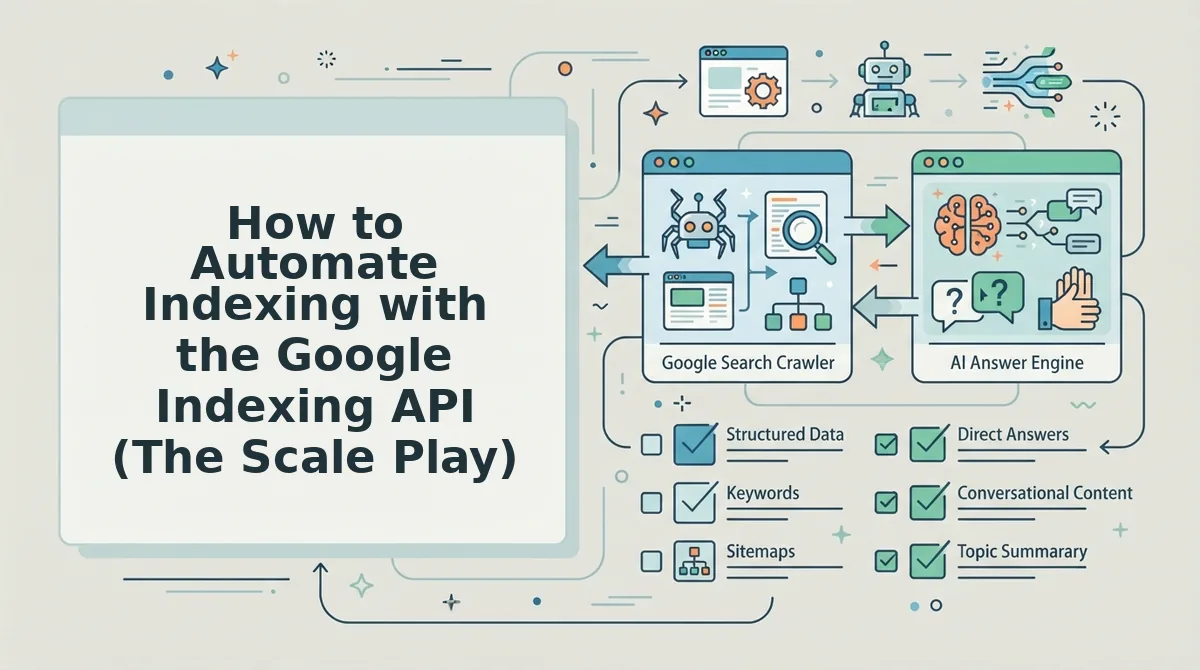
How to Automate Indexing with the Google Indexing API (The Scale Play)
The Google Indexing API lets you notify Google directly when pages are created or updated, bypassing the crawl queue for near-instant discovery. It's officially designed for JobPosting and BroadcastEvent structured data, but many publishers use it for time-sensitive content with a default quota of 200 URLs per day.
Prerequisites: A Google Cloud project with the Indexing API enabled, a service account JSON key, and a publishing pipeline that can fire HTTP requests, or a platform like BloGoose that handles the API calls automatically when you publish.
When it's worth it: Use manual URL Inspection for fewer than 10 posts per month. Use the Indexing API for 10-200 posts per month. For higher volume, rely on sitemaps plus strong internal linking, the API quota won't cover your output anyway.
- Open the Google Cloud Console and create a new project. Go to console.cloud.google.com, click the project dropdown, then select New Project. Name it something like "Indexing Automation" and click Create. You should see a notification confirming the project was created within a few seconds.
- Enable the Indexing API for your project. Navigate to APIs & Services, then Library, and search for "Indexing API." Click the result and select Enable. You should see a green checkmark and an "API enabled" confirmation banner.
- Create a service account and download the JSON key. Go to APIs & Services, then Credentials, then click Create Credentials and choose Service Account. Name it, click Create and Continue, then Done. Open the service account, go to the Keys tab, click Add Key, then Create New Key and choose JSON. The key file downloads automatically to your computer.
- Add your service account email as an owner in Google Search Console. Open the JSON key file and copy the client_email value. In Search Console, click Settings, then Users and Permissions, then Add User. Paste the email, select Owner permission, and click Add. You should see the service account listed with Owner status.
- Send a URL_UPDATED notification for each new post. Use a script, a tool like Zapier, or BloGoose's built-in Indexing API integration to POST to
https://indexing.googleapis.com/v3/urlNotifications:publishwith the URL and typeURL_UPDATED. A successful response returns an empty 200 status, no error means Google accepted the notification. - Monitor the quota in the Google Cloud Console. Go to APIs & Services, then Quotas, and check your daily usage against the 200-URL default. If you hit the limit, requests fail with a 429 error, so stagger submissions or request a quota increase if your use case qualifies.
For a deeper walkthrough of authentication and request formatting, see the Google Indexing API documentation in BloGoose's integration guide. If you're publishing through BloGoose, the platform fires Indexing API calls automatically on every publish, no service account setup or script maintenance required.
Why Your New Post Still Isn't Indexed (Fixing 'Discovered, Currently Not Indexed')
"Discovered, currently not indexed" means Google found your URL but chose not to crawl or index it yet, usually because of content quality, crawl budget, or weak internal linking. Rank Math's 57,000-view video on this exact status proves it's the single most common indexing frustration among publishers.
Here's the fix sequence, ordered by impact. If a post sits in this state for more than 2 weeks, the problem is content quality or internal linking, not your indexing request.
- Wait 72 hours before taking any action. The standard timeline is: crawl request processed at 24 hours, Googlebot visits at 48 hours, and the page is indexed or flagged at 72 hours or later. Acting before this window closes often creates noise without fixing anything.
- Add 3-5 internal links from already-indexed pages. Google discovers and re-evaluates pages through links from pages it already trusts. Link from your homepage, category pages, or older high-performing posts using descriptive anchor text that matches the new post's target keyword.
- Check if the content is thin or duplicate. Pages under 300 words, near-duplicates of existing posts, or content that adds no new information are routinely deprioritized. Expand the post with original data, examples, or a unique angle before resubmitting.
- Run a crawl budget reality check on your site. If you have thousands of low-value URLs, tag pages, parameter variations, or thin archives. Googlebot spends its budget there instead of your new posts. Block or noindex those URLs to redirect crawl capacity.
- Resubmit via URL Inspection only after making changes. Click "Request Indexing" again only after you've added internal links or improved content. Repeated requests without changes don't move the needle and can look like manipulation.
- Verify the page isn't accidentally blocked. Check your robots.txt file, meta robots tag, and any noindex directives from SEO plugins. A single misconfigured rule can keep a page in "Discovered" limbo indefinitely.
If you've completed all six steps and the post remains unindexed after two weeks, the issue is almost certainly content depth. Google's indexing system prioritizes pages that demonstrate expertise and originality. A post that simply rewrites what already ranks will keep getting skipped, no matter how many times you request indexing.
Frequently Asked Questions About Triggering Google Indexing
How long does Google indexing take for a new post?
Google typically crawls a new post within 24 to 72 hours after you request indexing, but full indexing can take 1 to 2 weeks. The crawl request is processed at 24 hours, Googlebot visits at 48 hours, and the page is either indexed or flagged at 72 hours or later.
Does requesting indexing improve rankings?
No, requesting indexing only speeds up discovery, it does not affect where your page ranks. Rankings are determined by content quality, relevance, backlinks, and user signals, none of which change when you submit a URL to Google.
Can I bulk-index multiple URLs at once?
Yes, the Google Indexing API lets you submit multiple URLs programmatically with a default quota of 200 URLs per day. This is the fastest method for bulk indexing, though it's officially intended for JobPosting and BroadcastEvent structured data.
Why does Google crawl my page but not index it?
Google crawls pages it discovers but only indexes those it considers valuable enough to serve in search results. The most common reasons for crawl-without-index are thin content, duplicate content, weak internal linking, or crawl budget constraints on large sites.
Pick the Method That Matches Your Publishing Volume
Manual URL Inspection works if you publish once a week. Sitemap submission covers you if you publish a few times a month. The Indexing API is the right call only when you're shipping daily and can justify the setup overhead.
But here's the pattern most publishers miss: indexing speed compounds with publishing consistency. A site that triggers indexing on every post within seconds of publishing builds a crawl-frequency reputation that a site submitting sitemaps weekly never achieves. Google learns to expect fresh content from you, and it checks back more often.
That's the real bottleneck for most teams, not the method, but the relentless manual step between hitting publish and notifying Google. Stop manually submitting every URL. The BloGoose AI content engine automates indexing requests on every publish, so each article goes live already pinged to Search Console, no tab-switching, no copy-pasting URLs, no forgetting the step at 11pm.
Your next action: connect your site to BloGoose, publish your next article, and watch it appear in Search Console's indexing queue without touching the API console.
The sites that win in 2026 aren't the ones with the best indexing tricks, they're the ones where indexing is invisible infrastructure, not a manual chore.