
How to Add Images to AI Blog Posts Without Manual Uploads
You've automated the writing, the keyword research, even the publishing schedule, yet every post still grinds to a halt the moment you need to add images to AI blog posts without manual uploads. That's the hidden bottleneck nobody puts on their workflow diagram.
You're right to be frustrated. YouTube creators like Website Learners and SHAHG stitch together three to five separate tools for text generation, image creation, and manual WordPress uploads, and still call the result "automation." It isn't.
Here's the promise: by the end of this article, you'll know exactly how to attach featured and inline images to AI-generated posts without ever opening the WordPress media library. You'll learn the three-stage pipeline that handles generation, attachment, and publishing in one pass, why automated blog image generation is the missing layer most content engines skip, and the one retroactive-insertion mistake that breaks layouts on live posts.
One finding might surprise you: the friction isn't the image generation itself, it's the four manual steps between generation and a published post. We'll break those down next.
Why Manual Image Uploads Break AI Content Automation
Manual image upload is any workflow where a human must download, rename, upload, and insert an image file before it appears in a published post. If your pipeline includes even one of those steps, you don't have image automation, you have image delegation with extra clicks.
Think of it like a self-driving car that still requires you to get out and open the garage door at every intersection. The car drives itself, but the trip isn't hands-free.
The Four Friction Points That Kill the Workflow
- Download from the generator. You generate an image in one tool, then manually save it to your desktop or downloads folder.
- Rename for SEO. You change the filename from img_48291.png to something keyword-relevant like ai-content-workflow-diagram.png.
- Upload to the WordPress media library. You drag the file into the CMS, wait for the upload, and let WordPress generate thumbnails.
- Manually insert into the post. You scroll to the right block, click "Add Media," select the image, and set alignment and alt text.
Each step takes 30 to 90 seconds. Across a 10-post content cluster with three images per post, that's 30 manual insertions and roughly 45 minutes of pure friction, before you've written a single alt tag.
The YouTube landscape proves the gap. Creators demonstrate workflows that pair a separate image generator with a manual WordPress upload, presenting the result as an automated system. It isn't. An AI content engine vs chat window workflows comparison shows the same pattern: chat-based tools produce text and images, but the handoff to your CMS remains a human task.
True automation means the image is generated, named, attached to the correct post, and published in the same pipeline that produced the article. Anything less is a manual upload workflow wearing an automation costume.
The 3-Stage Image Pipeline: Generate, Attach, Publish
The image pipeline is a three-stage sequence where images are generated to match the post topic, attached to the draft before publishing, and pushed live with the article in a single automated pass. Here's how to execute each stage.
Prerequisites: You need a content platform that can crawl your site, extract brand context, and publish directly to WordPress or your API. If your current stack requires a separate image generator, you'll still hit the manual upload wall at Stage 2.
Stage 1: Generate Images Matched to the Post Topic
- Run brand context extraction on your domain before drafting. The platform should detect your visual style, color palette, and content categories from existing pages.
- Generate the featured image at the draft stage, using the post's primary keyword and title as the prompt context. You should see an image that matches your site's existing visual language, not a generic stock photo.
- Generate inline images for each major section or step. Aim for one image per 300-400 words of body content.
Success looks like this: every image in the draft is already named with a keyword-relevant filename and carries alt text derived from the surrounding heading. No downloads folder involved.
Stage 2: Attach Featured and Inline Images Before Publishing
- Open the draft preview in your content platform. Confirm the featured image is set and the inline images appear at the correct anchor points.
- Check alt text on each image. The platform should have generated it from the post context automatically, verify it reads naturally, not like a keyword dump.
- Adjust placement only if an image landed in the wrong section. Drag-and-drop reordering is fine; re-uploading is not.
Success looks like this: the draft is complete with images attached, and you haven't opened the WordPress media library once.
Stage 3: Publish Images with the Post to WordPress or API
- Click Publish in your content platform. The article, featured image, and inline images should push to WordPress or your custom API in a single action.
- Verify the live post loads images correctly. You should see the featured image in your blog listing and inline images rendering at full width without broken URLs.
- Check the media library only to confirm the files arrived, not to fix anything.
Success looks like this: the post is live, images are attached, and your total hands-on time was under two minutes.
Pro tip: Generate images at the draft stage, never after publishing. Retroactive image insertion into a live post frequently breaks layouts, shifts headings, and leaves orphaned media files in your library. The same principle applies to brand context extraction mistakes, fixing context after the fact is always more expensive than getting it right at draft time.
If this pipeline sounds like what your current stack is missing, the next section shows exactly how BloGoose attaches images without you touching the media library.
How BloGoose Attaches Images Without You Touching the Media Library
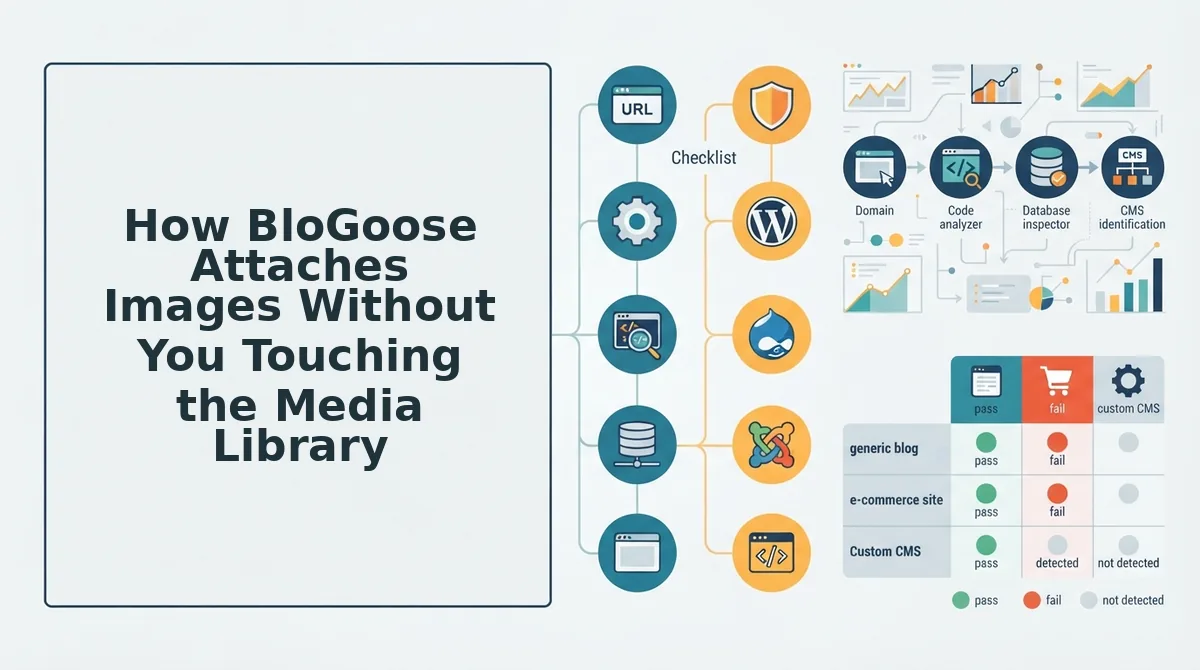
BloGoose handles image attachment end-to-end: it generates visuals during the drafting phase, then pushes them to WordPress alongside the post so the media library updates automatically. You never open the WordPress media uploader.
Prerequisites: a connected WordPress site (or custom API endpoint) and a completed site crawl with brand context extracted. Total hands-on time: under 2 minutes.
- Connect your WordPress site. Open Settings, then Integrations, and click Connect WordPress. Enter your site URL and application password. You should see a green checkmark confirming the connection before moving on.
- Run the site crawl. Enter your domain in the setup wizard and click Start Crawl. BloGoose locates your XML sitemap, inspects published pages, and extracts brand voice rules including tone, formatting patterns, and existing image style. Expect this to take 2-5 minutes depending on site size.
- Enable image generation in the content calendar. Open any draft in your pillar-based calendar and toggle Auto-generate images to on. BloGoose creates one featured image per post, auto-matched to the topic and your brand context, plus inline images placed where the content structure calls for visual support.
- Click Publish. Select Publish to WordPress from the draft menu. BloGoose sends the article text, featured image, and inline images in a single request. The images land in your WordPress media library automatically, attached to the post with generated alt text and file names, no manual upload step exists.
For a deeper walkthrough of the publishing mechanics, see our guide on AI blog generator direct WordPress publishing. If your current workflow still involves downloading AI-generated images and re-uploading them by hand, BloGoose removes that entire loop.
What the YouTube Tutorials Get Wrong About Image Automation
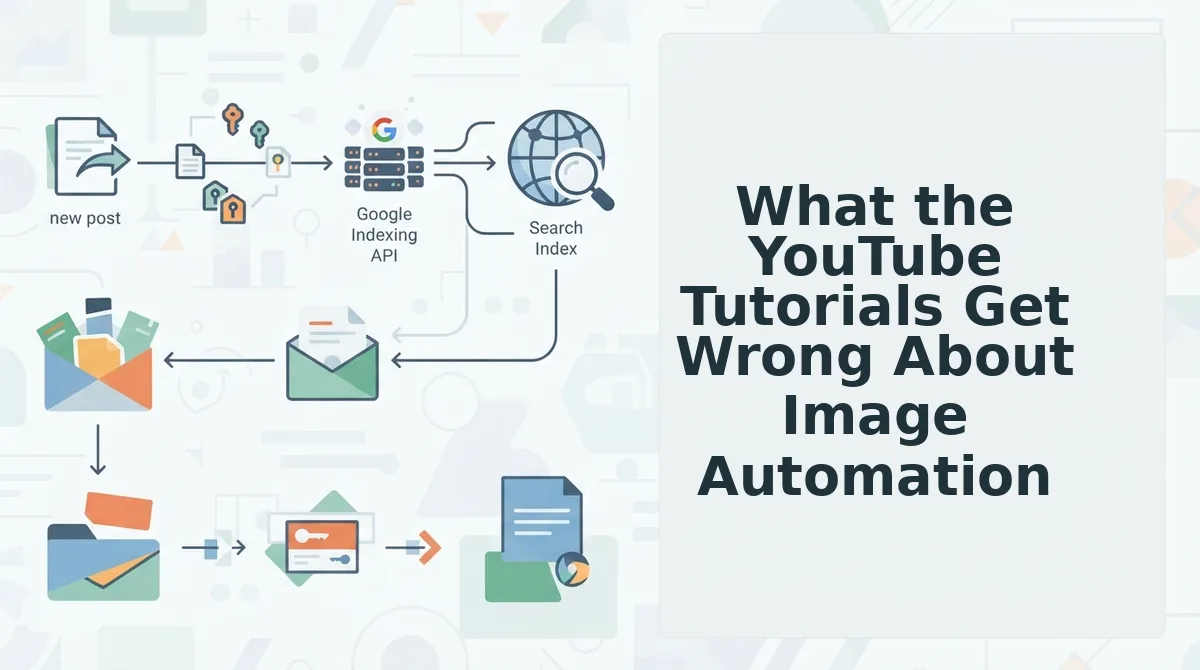
Most YouTube tutorials on AI blog images teach a multi-tool patchwork: generate text in one AI tool, create images in another, then manually upload both to WordPress. The tutorials are honest about the steps, they just accept the sprawl as normal.
| Approach | How It Works | Manual Hand-off Points | Best For |
|---|---|---|---|
| YouTube tutorial method (Website Learners, SHAHG, Josephs AI, 알파GOGOGO) | Separate tools for text generation, image creation, and publishing, stitched together with manual steps | 3+ (export text, generate images, download images, upload to WordPress) | Beginners learning the individual components of AI content production |
| Single-engine workflow (BloGoose) | One platform crawls your site, generates text and images, and publishes both to WordPress in one request | 0 | Publishers and agencies who need consistent output at scale without stack sprawl |
The tutorials aren't wrong about image quality, they're wrong about the workflow. Every hand-off point is a place where files get misnamed, alt text gets skipped, or publishing stalls. The single-engine approach eliminates those hand-off points entirely, which is why we built automated blog image generation directly into the publishing pipeline.
Image Quality Checklist for Automated Publishing
Automation removes the upload step, but it doesn't remove the need for quality control. Run every auto-published image through these five checks to keep your WordPress media library clean and your pages fast.
- Alt text and file names are descriptive and keyword-aware. Alt text is the primary anchor AI answer engines use when citing visual content, and descriptive file names reinforce topical relevance. BloGoose generates both from your page context, verify they read naturally rather than as keyword stuffing before publishing at scale.
- Compression is applied before upload. Uncompressed images are the fastest way to tank Core Web Vitals on image-heavy posts. Automated pipelines should compress images during generation, not after upload, so the media library never stores bloated originals.
- Dimensions match your theme's content width. Oversized images force browsers to downscale, wasting bandwidth and slowing render time. Check that generated images match or slightly exceed your theme's maximum content width, with responsive srcset variants handled by WordPress.
- Naming conventions prevent duplicates. A predictable pattern, topic slug plus descriptor, such as
ai-seo-content-engine-featured.jpg, makes deduplication trivial and keeps the media library searchable. Random AI-generated filenames create orphaned files that accumulate silently. - CDN delivery is confirmed for published images. Once images land in the media library, they should serve through your CDN, not the origin server. This is a one-time configuration check that pays off on every subsequent auto-published post. For a full breakdown of how images affect rankings, see our image SEO guide.
With these checks in place, automated image publishing stays clean at scale, which brings us to the questions readers ask most.
FAQ: Adding Images to AI Blog Posts Without Manual Uploads
An AI image pipeline generates, attaches, and publishes visuals inside the same engine that writes the post, so no file ever touches your desktop or media library manually.
How do I get images into my AI blog post without downloading and re-uploading each one?
Use a content engine that generates images at draft time and maps them to the post body before publishing. The image URL is written directly into the HTML, so WordPress or your API receives a complete post with visuals already attached.
Can AI generate a featured image that matches my post topic automatically?
Yes. The engine reads the post title, headings, and target keyword, then generates a featured image sized for your theme's requirements. It assigns the image as the post thumbnail during the same publish call that sends the article.
What happens to images when the post goes to WordPress?
The images are uploaded to your WordPress media library through the REST API or XML-RPC during publishing. They receive standard attachment metadata, alt text, and file names derived from the post topic, so they appear in the media library like manually uploaded files.
Do AI-generated images hurt SEO or AEO citations?
No, when alt text and file names match the post's target keyword. Search engines index AI images the same as stock photos or screenshots. For AI answer engines, descriptive alt text gives the image context that can be quoted in visual search results.
Why does my AI blog writer skip images even when I ask for them?
Most AI writers output text only because they have no connection to an image generation model or your CMS. The image request stays in the prompt but never executes. An integrated engine treats images as a pipeline stage, not a prompt suggestion, so the visual is generated and attached before publishing.
Automated image placement works when the engine controls all three stages: generating the visual from the post's topic, writing the image tag with alt text into the HTML, and uploading the file to WordPress during the publish request. If any stage requires a human to download, rename, or drag a file, the loop is no longer automated. The practical test is publishing one post and checking whether the featured image and in-body visuals appear in the media library without any manual step between draft and live URL.
Start Publishing AI Posts With Images on Autopilot
The image problem was never about generating better pictures. It was about the gap between the text model that writes your post and the CMS that publishes it. Close that gap and images stop being a separate task.
The only way to truly automate image placement is to generate images inside the same engine that writes and publishes the post. Separate image tools will always leave you downloading, renaming, and re-uploading files.
Your next step depends on where you are:
- Test the pipeline: Run one post through BloGoose and watch the featured image and in-body visuals land in your media library without a single manual upload.
- Connect your site: Link your WordPress site or API endpoint so every future post ships with images already attached.
- Scale the system: Set up an autopilot 30-day content calendar generator and let the engine produce image-ready posts on a schedule you never have to babysit.
Every post you publish without images is a ranking opportunity left on the table. Every post you publish with automated images is proof the pipeline works. The engine is already built. The only variable left is whether you turn it on.