
How to Automate Blog Image Creation Without Design Tools
Every blog post you publish is quietly costing you an extra 20-40 minutes in image creation alone, time spent wrestling with Canva templates, hunting for stock photos, or resizing screenshots that still look off-brand. If that sounds familiar, you're not alone: most content teams treat images as an afterthought, then wonder why publishing cadence stalls. The good news is you can fully automate blog image creation without design tools by building a simple four-layer pipeline that runs on your existing content and site data. In this guide, you'll learn how to source image ideas automatically from your article structure, generate on-brand visuals without touching a design canvas, and publish them straight into your CMS, no prompt engineering required. Along the way, you'll see why the real bottleneck isn't design skill but the manual handoff between steps, and how an automated SEO content engine collapses that entire loop into one workflow.
What Is the 4-Layer Image Automation Stack?
The 4-Layer Image Automation Stack is a workflow model that breaks blog image production into four sequential layers, Source, Style, Generate, and Publish, so every tool and manual step maps to a single, automatable decision point. Think of it like a restaurant kitchen: sourcing is the ingredient list, styling is the recipe, generation is the cooking, and publishing is plating the dish. Most teams already do layers one and four by hand, which is exactly where the bottleneck hides.
Here's how each layer works. Source extracts image concepts from your article's H2 headings, section keywords, and brand voice files, no brainstorming session needed. Style pulls visual rules from your existing site images via a crawl, so every new graphic matches your current look without a manual brand kit. Generate turns those sourced concepts and style rules into finished images using an AI image model. Publish pushes the output into your CMS with proper alt text and file naming.
Consider a publisher staring at a 50-post backlog. The problem isn't that they can't design, it's that each post requires a manual handoff between sourcing ideas, matching brand style, generating the image, and uploading it. The 4-Layer Stack removes those handoffs by treating each layer as a data input, not a creative task. For a deeper look at the generation layer specifically, see our guide on automated blog image generation. When you map your current workflow onto this framework, the automation opportunities become obvious, and the time savings compound across every post you publish.
How to Source Image Ideas Automatically (Zero-Prompt Generation)
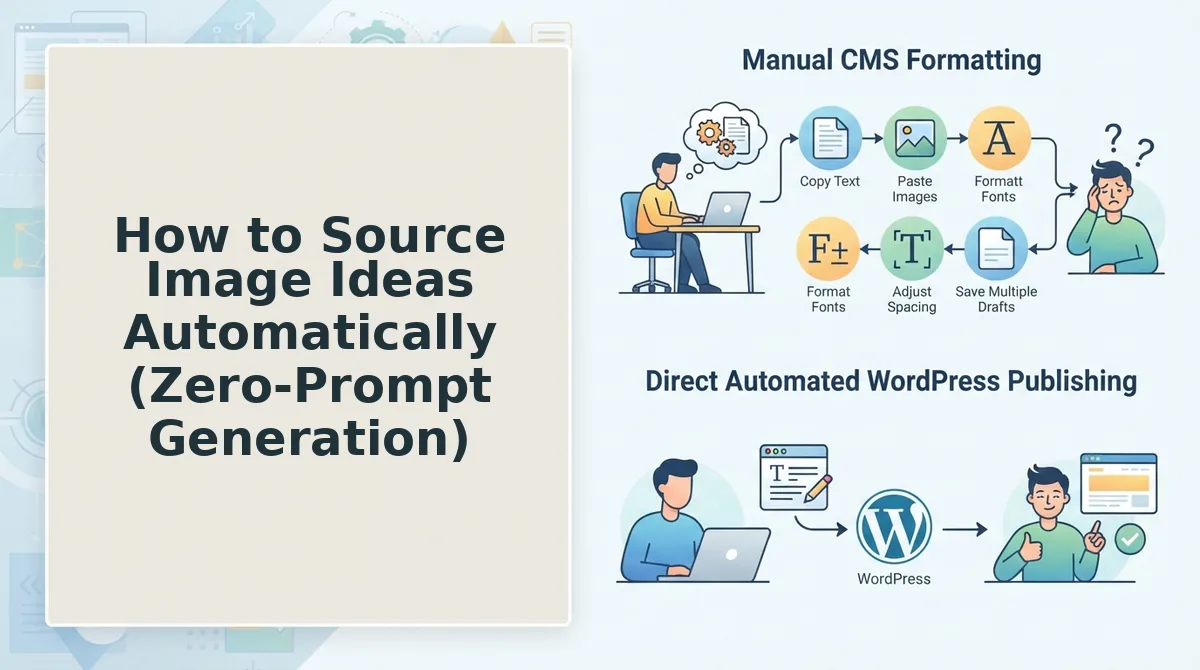
Zero-prompt image ideation means your article's structure. H2 text, section keywords, and brand voice files, automatically drives image prompts, so you never write a single prompt by hand. Before starting, you'll need a site crawl of your published pages and a brand context file that captures your visual rules.
- Run a site crawl on your domain. Paste your URL into the crawler and let it inspect your XML sitemap and published pages. You should see a list of all existing images, their alt text, and the pages they appear on, this becomes your style reference library.
- Extract H2 headings from your draft article. Open your content file and copy every H2 heading into a plain text list. Each heading becomes a candidate image concept: a heading like "How to Reduce Bounce Rate" maps to a chart-style graphic, while "Tool Comparison" maps to a side-by-side visual.
- Pull section keywords from each H2 block. For every heading, identify the 3-5 most repeated nouns and action verbs in that section. These keywords become the subject matter for the image prompt, no manual brainstorming required.
- Feed the heading and keyword pairs into your image generator's source field. Most platform-native generators accept structured text inputs. Paste the pairs and let the system compose prompts from the context. You should see a preview of proposed image concepts before generation begins.
- Apply your brand context file as the style layer. Upload the file that defines your color palette, typography, and image tone. The generator now combines sourced concepts with your visual rules, producing on-brand images without any design tool.
Style extraction from existing site images via crawl, rather than building a manual brand kit, is what keeps every post visually consistent, a pain point YouTube tutorials rarely solve. Avoid the common pitfalls by reviewing our breakdown of brand context extraction mistakes before you start. Once your sourcing pipeline is live, the next decision is where to run the generation itself.
Next: Bulk Image Generation, Chrome Extensions vs Platform-Native Workflows.
Bulk Image Generation: Chrome Extensions vs Platform-Native Workflows
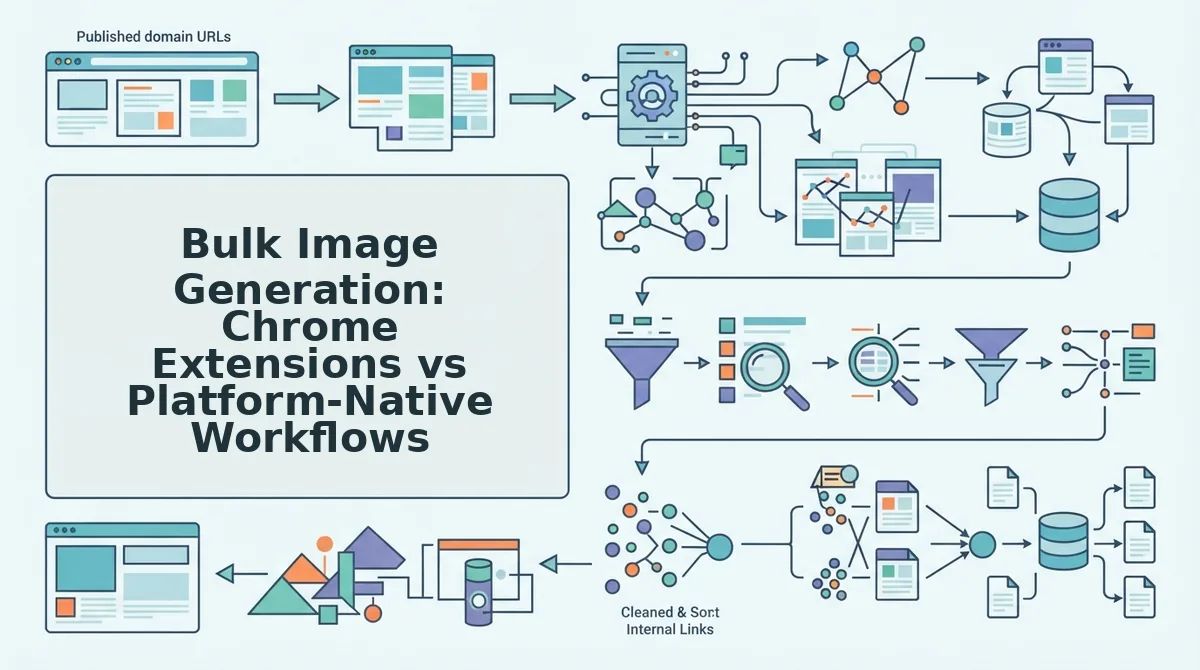
Chrome extensions generate images on demand from your browser, while platform-native workflows generate images during the drafting process and push them directly to your CMS. Both approaches eliminate manual design work, but they differ sharply in setup time, failure points, and how well they integrate with publishing.
Chrome extensions like TurboFlow and Google Flow are genuinely useful for quick, one-off image batches. They sit in your toolbar, generate images from prompts or page context, and let you download results immediately. The honest tradeoff: they break when browsers update, require you to trigger each batch manually, and leave you with a folder of files you still have to upload to WordPress yourself.
Platform-native generation happens inside the content engine as it drafts each article. The system reads the article context, generates matching images, and attaches them to the post before publishing, no extensions, no manual download/upload loop. This is the same architectural difference covered in our breakdown of an AI content engine vs chat window workflows.
| Factor | Chrome Extensions (TurboFlow, Google Flow) | Platform-Native Generation (BloGoose) |
|---|---|---|
| Setup time | Minutes: install extension, configure prompts | None beyond site crawl; rules extracted automatically |
| Failure points | Browser updates, extension conflicts, manual triggering | Minimal; runs inside drafting pipeline |
| Publishing integration | Manual download, then upload to CMS | Images attached to post and published together via direct WordPress publishing |
| Context awareness | Limited to prompt or visible page | Uses full article context during drafting |
| Best for | Solo bloggers testing image ideas quickly | Publishers and agencies running recurring content clusters |
Best for solo bloggers: Chrome extensions win when you need a handful of images for a single post and don't mind the manual upload step. Best for publishers, agencies, and DTC brands: platform-native generation wins when image volume scales with your content calendar and you want publishing to stay hands-off.
How to Keep Blog Images Consistent Without a Brand Kit
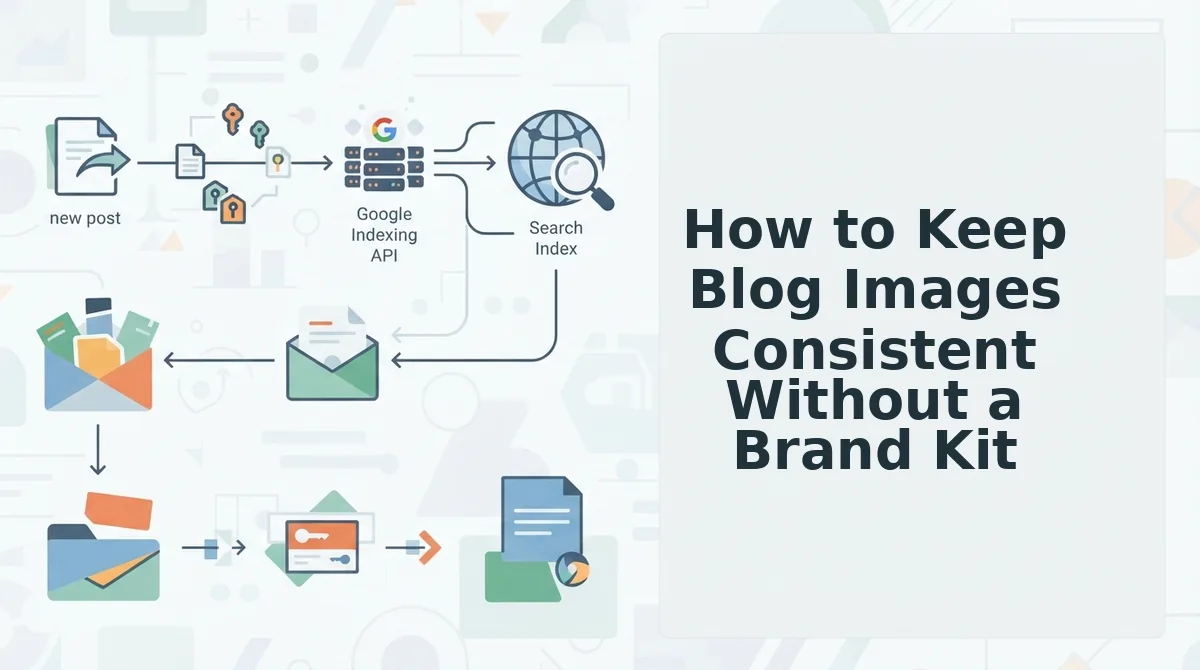
Consistency isn't a design problem, it's a data problem. Manual brand kits fail because they require ongoing maintenance and rarely reflect what's actually published on your site. The fix is to extract visual rules from your existing content automatically, then apply them to every new image.
- Start with a site crawl that extracts visual patterns. A content engine crawls your published pages and detects recurring colors, image styles, and layout conventions already live on your site. This gives you a style baseline grounded in reality, not a designer's aspirational PDF. Use the extracted rules as the source of truth for all future image generation.
- Generate a style guide from your website automatically. Instead of writing a brand kit from scratch, let the platform generate a style guide from your website. The guide captures typography, color palettes, and image treatments actually in use, so every new image matches what readers already associate with your brand.
- Apply the extracted rules to every image prompt. Feed the style guide back into the image generation step as fixed constraints, same color range, same aspect ratio, same overlay treatment. This turns consistency from a manual checklist into an automated parameter.
- Validate new images against the extracted baseline. Before publishing, compare generated images to the style guide for color drift or format mismatches. Automated checks catch inconsistencies before they reach your readers.
- Re-crawl periodically to update the rules. Your site evolves, and so should your visual baseline. Schedule a re-crawl every quarter to refresh the extracted patterns, keeping image consistency aligned with your current content, and your image SEO performance intact.
How to Publish Images to WordPress Without Manual Upload
A direct publishing pipeline generates images during drafting, attaches them to the post, and pushes everything to WordPress together, no manual download or upload step. You need a content engine with WordPress publishing enabled before starting.
- Connect your WordPress site in the platform's Settings. Open Settings, then API Keys, and enter your WordPress credentials or application password. You should see a green checkmark confirming the connection is active.
- Start a new draft with image generation enabled. Create a post and toggle image generation on. The platform generates images using the article's context and your extracted style rules while drafting, no separate tool required.
- Review the attached images in the draft preview. Open the preview to confirm each image matches the section it sits beside. Swap or regenerate any image that misses the mark before publishing.
- Click Publish to send the post and images together. The platform pushes the article and its attached images to WordPress in one action. You should see the post live with images already in your media library.
- Request indexing for the new post. After publishing, ask Google to crawl the new post so images and content enter search results faster.
For non-WordPress sites, the same pipeline works through a custom API, images are generated during drafting and delivered with the post payload to any CMS. This closes the loop on the AI blog generator direct WordPress publishing workflow. If you're still downloading images from a browser extension and re-uploading them manually, you're leaving the slowest step in your publishing loop. Next: the most common questions about automating blog images without design tools.
FAQ: Automating Blog Images Without Design Tools
Automating blog images without design tools means using AI image generators, bulk workflows, and CMS integrations to produce and publish visuals with zero manual editing. The answers below address the most common real-world questions from Reddit threads, YouTube comments, and Google's People Also Ask.
Can I automate blog images without any design skills?
Yes. AI image generators like DALL·E, Midjourney, and Stable Diffusion create finished visuals from text prompts alone, requiring no design software or layout knowledge. You describe the scene, style, and aspect ratio in plain language, and the tool returns a usable image in seconds. The only skill involved is writing clear prompts, which improves quickly with practice.
What's the fastest way to generate images in bulk for free?
Use a platform with native bulk generation rather than generating one image at a time. Free tiers on tools like Bing Image Creator or Leonardo.ai let you queue multiple prompts in a single session. For true bulk output at scale, a content engine that batches image requests alongside article drafts eliminates the manual copy-paste loop entirely.
How do AI image generators keep a consistent style?
They rely on style references, seed values, and prompt templates. You define a reusable prompt suffix, such as "flat vector illustration, muted palette, 2:1 aspect ratio", and append it to every image request. Some tools also let you upload a reference image so the model mimics its visual language across all subsequent generations.
Do I need Chrome extensions for bulk AI image generation?
No. Chrome extensions are one option, but platform-native workflows are faster and more reliable. Extensions often break when sites update their DOM, and they still require you to manually download and rename files. A platform that generates images inside the same workflow as your article drafts removes the extension dependency completely.
Can blog images be published to WordPress automatically?
Yes, through the WordPress REST API or a direct CMS integration. The workflow uploads the generated image to your media library, sets alt text and a featured image flag, and inserts it into the post body, all without opening the WordPress dashboard. This is the final layer of a fully automated image pipeline.
The Fastest Path Is One Workflow, Not Four Tools
Every layer of the image automation stack, sourcing ideas, generating visuals, maintaining consistency, and publishing, can be handled by separate tools. But each handoff between tools is a place where the process breaks, files get misnamed, or style drifts. The real unlock is collapsing all four layers into a single workflow.
BloGoose handles all four layers, site crawl for style, context-aware generation, bulk output, and direct WordPress publishing, in one workflow. You drop in your domain, and the platform extracts your existing visual language, generates on-brand images alongside every article, and ships them to your CMS without a single manual upload.
Your next step is to run one article through the full pipeline and compare the time spent against your current process. The gap between what you measure and what's possible is the automation dividend waiting to be claimed.