
How to Set Image Style Rules for AI Blog Generation
You generate ten images for one blog post and get ten different art styles back, different lighting, different palettes, different moods. That inconsistency quietly erodes reader trust, even when nobody can articulate why. If you publish AI-assisted content at scale, you need to set image style rules for AI blog generation before you generate a single asset.
Agree: you've probably already noticed that prompting "make it look on-brand" produces wildly different results every time. Promise: by the end of this article, you'll have a reusable five-rule framework that locks your AI images to a consistent visual identity, no prompt engineering gymnastics required. Preview: we'll cover why AI images drift off-brand, the five style rules every prompt needs, and a copy-paste rule block you can drop into any AI image tool.
One publisher generates ten AI images for a single blog post and gets ten different styles because no persistent rule system exists. Fresh van Root's YouTube video shows creators manually hacking brand colors into prompts, proving the need for a reusable framework. The surprising part? Most of the fix isn't in the prompt itself, it's in the rule layer you build once and reuse forever. Platforms like BloGoose bake this rule layer directly into automated blog image generation, so every asset ships with the same visual DNA.
Why AI Blog Images Drift Off-Brand (And What Style Rules Fix)
A style rule is a persistent prompt constraint that applies to every generated image. A style context file is a stored set of brand rules an AI engine reads before generating content. Without these, every image generation call starts from zero.
Think of style rules like a restaurant's recipe book. A chef can improvise a dish once, but without written recipes, the same order tastes different every shift. AI image models work the same way: they sample from enormous visual probability spaces, and without constraints, they drift toward generic, mid-journey aesthetics that have nothing to do with your brand.
Most competitors stop at "add your brand colors to the prompt." That fixes one failure mode and ignores four others. The full drift problem has five distinct causes: no palette lock, no composition rule, no lighting constraint, no texture spec, and no subject treatment. Each one silently pulls generated images away from your visual identity.
Here's the passage that answers the core query directly: AI blog images drift off-brand because image models have no memory of your previous outputs. Each generation call is stateless, the model doesn't know what your last image looked like, what colors you used, or what framing you prefer. Style rules fix this by acting as a persistent constraint layer that gets prepended or injected into every generation request. When you define a palette lock, a composition rule, a lighting constraint, a texture spec, and a subject treatment, you give the model a fixed visual anchor. The result is that ten images generated across ten different blog posts look like they came from the same brand, not ten different stock photo sites.
Five rules cover an estimated 90% of brand consistency failures in AI images. That's not a tested statistic, it's a working estimate based on the five failure modes above. If you're already using automated blog image generation, these rules become the difference between a coherent visual brand and a chaotic image feed.
The 5 Style Rules Every AI Image Prompt Needs
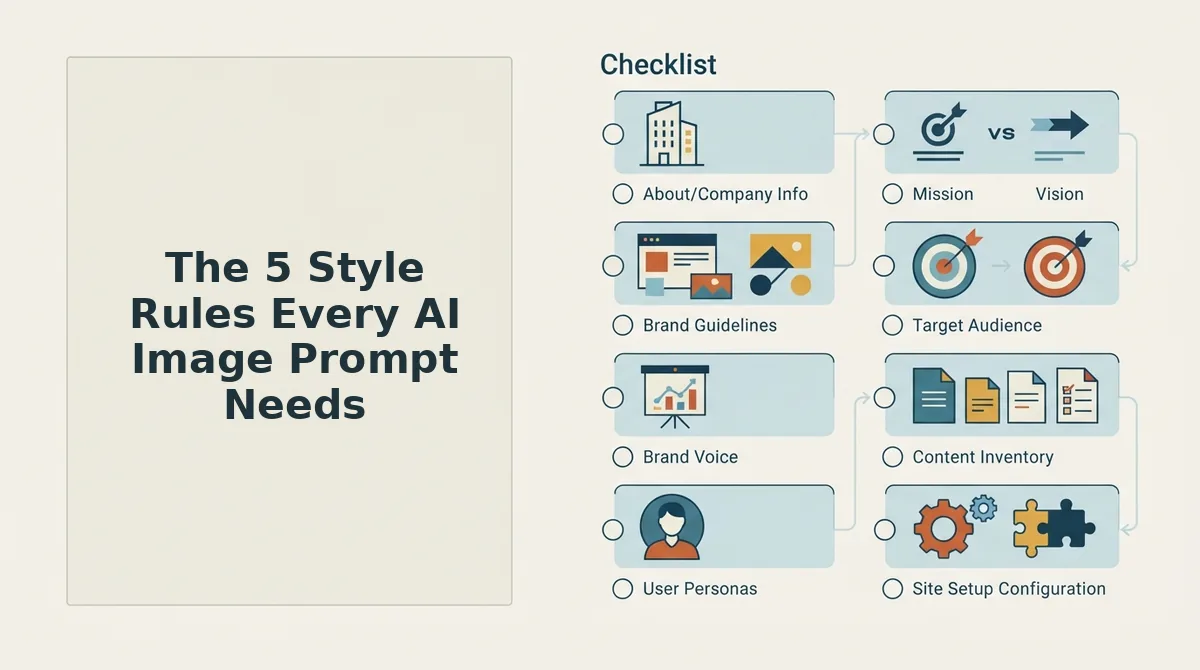
Every AI image prompt needs five locked constraints: color palette, composition, lighting, texture, and subject treatment. Apply all five and your generated images stay visually consistent across every blog post.
Before you start, have your brand hex codes ready and one reference image that represents your ideal visual style. You'll reuse these for every rule below.
Rule 1: Lock Your Color Palette
- Open your brand style guide or design file and copy your primary and secondary hex codes.
- Type the hex codes directly into your prompt or style context file, for example, "primary #1A2B3C, accent #F5A623, background #FAFAFA."
- Add one sentence describing how colors should be used: "accent color appears only on focal elements, never as a background."
You should see generated images that consistently use your brand palette instead of random color schemes.
Rule 2: Define Composition and Framing
- Select one framing rule for all blog images: rule of thirds, centered subject, or negative space dominant.
- Type the rule as a constraint: "subject occupies left third, right two-thirds is negative space."
- Specify aspect ratio if your platform supports it, 16:9 for hero images, 4:3 for in-post illustrations.
You should see consistent subject placement across every generated image, eliminating the random-crop feel.
Rule 3: Set Lighting and Mood
- Choose one lighting style: soft studio light, golden hour, high contrast, or flat even light.
- Type the lighting constraint with a mood qualifier: "soft studio light, warm and approachable, no harsh shadows."
- Test one generation and check that the mood matches your brand voice, a B2B SaaS blog shouldn't look like a sunset travel vlog.
You should see consistent emotional tone across images, which directly affects how readers perceive your content quality.
Rule 4: Specify Texture and Medium
- Pick one medium: matte photo, 3D render, watercolor, flat vector, or line illustration.
- Type the medium plus a texture qualifier: "matte 3D render, soft plastic texture, no photorealism."
- Lock this rule permanently, medium is the hardest drift to fix retroactively.
You should see every image share the same visual medium, preventing the jarring mix of photos and illustrations in one post.
Rule 5: Constrain Subject Treatment
- Define what subjects are allowed: no people, flat illustration only, isometric view, or abstract shapes.
- Type the constraint as a negative prompt if your tool supports it: "no human faces, no hands, no text in image."
- Apply the same subject rule to every image in a post, including hero and inline images.
You should see subject consistency that makes your blog feel like one cohesive visual system, not a collage.
Learn With Shopify's 149K-view video teaches general prompt structure but never applies it to persistent blog style rules, that's the gap this framework closes. If you want to automate this entire layer, you can generate a style guide from your website and let BloGoose apply these five rules to every image it produces, without you touching a prompt.
Once you've locked all five rules, the next step is packaging them into a reusable block you can paste into any AI image tool.
Copy-Paste Style Rule Block for Any AI Image Tool
You can standardize every AI-generated blog image by pasting one five-rule style block into your image prompt. This block works in Midjourney, DALL·E, Stable Diffusion, and as a style context file for an AI blog generator with direct WordPress publishing.
Prerequisites: Your brand hex codes, one reference image (optional), and access to your AI image tool's prompt field.
- Open your AI image tool and locate the prompt field. In Midjourney, type /imagine; in DALL·E, click the prompt box; in Stable Diffusion, use the txt2img tab. You should see a blinking cursor ready for input.
- Copy the style rule block below in full. Paste it as the first paragraph of your prompt, before any scene description. The block takes under 10 seconds to paste and sets all five rules at once.
- Type your scene description after the block. Example: "A laptop showing a growth chart, minimal icons only." Keep the description under 15 words so the style rules dominate the output.
- Generate one test image and check the result against your brand palette. The image should use only your specified hex colors, show a centered subject, and contain no people. If colors drift, re-paste the block and regenerate, this takes under 30 seconds per attempt.
- Save the block as a text snippet in your tool or CMS. Name it "brand-image-style" so every team member pastes the identical rules. You should see consistent outputs across all future generations.
Here is the copy-paste block:
Style: flat vector illustration; Palette: #1A2B3C, #F4F4F4, #E67E22; Composition: centered subject, 2/3 negative space; Lighting: soft ambient, no shadows; Texture: smooth matte; Subject: no people, minimal icons.
Replace the hex codes with your own brand colors before first use. The block encodes all five rules, style, palette, composition, lighting, texture, and subject, in a single string that any major image model can parse.
How to Store Style Rules So They Apply Automatically
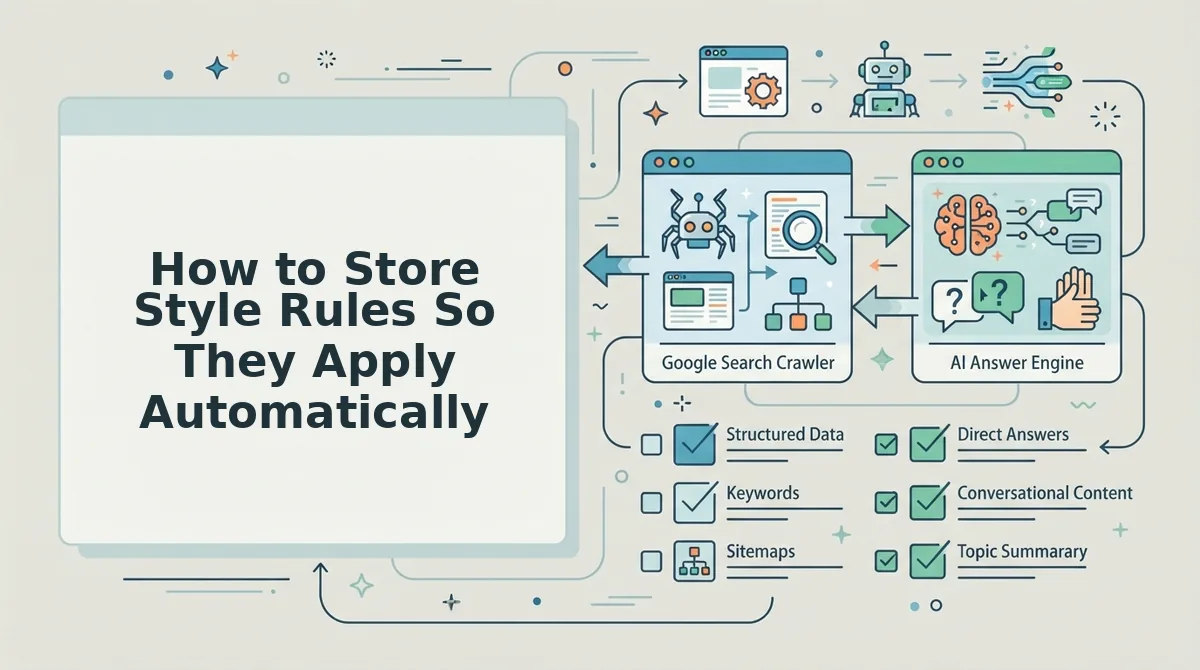
Store your image style rules in a persistent brand context file, and every future AI-generated blog image inherits them without re-prompting. BloGoose automates this by crawling your site, extracting brand style from your sitemap, and writing rules into a Markdown brand context file.
Prerequisites: A BloGoose account, your domain URL, and your five-rule style block from the previous section.
- Open the BloGoose setup wizard and enter your domain. The crawler locates your XML sitemap and inspects published pages. You should see a crawl progress indicator within 60 seconds.
- Click Brand Context, then Style Guide. BloGoose auto-fills detected colors, typography, and layout patterns from your live site. Review the extracted values for accuracy.
- Paste your five-rule style block into the image-style field. Include the hex codes, composition rule, and subject restriction exactly as written. This takes under one minute.
- Select Save Style Context. BloGoose writes the rules to a
style-guide.mdfile, one of eight Markdown brand context files used for autopilot content generation. You should see a green checkmark confirming the file saved. - Generate a test article and inspect the featured image. The image should match your palette and composition rules automatically. If it drifts, revisit the style-guide.md file and tighten the wording.
AI image tools interpret style rules differently across models, so rules reduce variance but do not eliminate it entirely. Avoid common setup errors by reviewing brand context extraction mistakes before your first full batch.
Once your style context file is saved, BloGoose applies it to every image in every generated post, no per-article prompting required. That turns a manual, error-prone step into a set-and-forget workflow.
FAQ About AI Blog Image Style Rules
AI image style rules are reusable prompt instructions that lock in your brand's visual identity, palette, composition, lighting, texture, and subject constraints, so every generated blog image looks like it came from the same design system.
How do I make AI images match my brand colors?
Put your exact hex codes in the style rule block and paste that block before every scene description. Test with your full brand palette, then adjust any hex code that renders inconsistently. Most models respect hex codes more reliably than color names like "navy" or "teal."
Can I use one style rule block for featured and inline images?
Yes, but you may need a simplified version for small inline images. Featured images can carry full texture and composition rules, while inline images often render better with just palette and subject constraints to avoid visual clutter at small sizes.
What if my brand style changes later?
Update the style context file once, and all future images inherit the new rules. Past images remain unchanged, but every subsequent generation pulls from the updated file automatically, no need to edit individual prompts or regenerate old posts.
Why do AI images still drift even with style rules?
Different models interpret style language differently, and prompt weighting varies across tools. Rules reduce drift significantly but cannot eliminate it. Test each model with your block, then tighten wording for the tool you use most.
Do style rules work with AI blog generators that publish automatically?
Yes. Platforms like BloGoose store style rules in a brand context file and apply them to every generated image before publishing to WordPress or your API, removing the manual paste step entirely.
Style Rules Are the Difference Between a Blog That Looks Engineered and One That Looks Alive
Palette, composition, lighting, texture, and subject treatment are not five separate decisions. They are one decision made five times. When you lock each one into a style context file, you stop prompting and start publishing.
The blogs that win AI citations in 2026 do not have better taste. They have better defaults. Every image inherits the same visual grammar because the rules live in the system, not in someone's memory of what "felt right" last Tuesday.
Here is the sequence that closes the loop:
- Write your Five Style Locks once, using the copy-paste block from this guide.
- Store them in a BloGoose style context file so every generated article pulls the same rules automatically.
- Publish without a manual image review step, because the rules already did the reviewing.
Start with BloGoose style context files to automate image style rules across your entire blog. The autopilot content engine applies your palette, composition, lighting, texture, and subject treatment to every draft before it ships to WordPress or your API.
Consistent images are not a creative constraint. They are the creative signature your readers and AI answer engines learn to recognize.