How Many Inline Images Should a Long-Form Blog Post Have?
How many images should run in a post? Mediavine says its publishers ask that question often. If you have a draft open and a stock library in another tab, you know the feeling: three images feels thin, ten feels like clutter.
Wanting one fixed answer to how many images per blog post makes sense, because a number is easy to follow. This guide gives you a sturdier rule tied to your heading structure.
Before you start, have a finished outline with H2s and a clear sense of each section's job. Then picture a 1,500-word post with six H2s and count which ones need a visual job. The total matters less than where each image sits.
Quick answer: A long-form post should carry one featured image plus one inline image for each H2 section that has a visual job. A 1,500-word post with six H2s usually needs four to six inline images, not a fixed quota.
Answers that stand on their own like this are easier for search and AI engines to quote. That idea drives AEO content optimization.
What Counts as an Image in a Blog Post?
Only inline images count toward the spacing rule. An inline image is a visual placed inside a section of the post body that supports the text around it.
Most advice lumps three different image types together. That inflates the count and muddies the question. Separate them first:
- Featured image: the header and thumbnail that represents the post in feeds and archives. Vince Comfort's video on featured image size treats it on its own, apart from body images.
- Inline image: a diagram, screenshot, chart, or photo that sits inside a section and helps explain it.
- Social image: an Open Graph (OG) or share card. OG is the metadata standard that tells platforms which image to show when someone shares a link. Readers may never see this card on the page itself.
Think of a printed book. The cover is the featured image. The illustrations inside the chapters are inline images. The poster in the bookstore window is the social image. You would only count the illustrations when deciding how heavily to illustrate each chapter.
In practice, open your draft, skip the header and the share card, and tally only the visuals between headings. That tally is your inline count. Each image still needs alt text and sensible file sizes, which our image SEO guide covers. BloGoose creates images as part of drafting, so each visual is planned alongside the section it supports.
How to Space Inline Images With the Section-Anchored Rule
Space inline images by tying each one to an H2 that has a visual job, then placing it right after that section's direct answer. You need a finished outline with every H2 written and about 15 minutes per post.
- List every H2 in your outline. Copy the headings into one column, one per line, which takes about 2 minutes. You should see the full section count, such as six H2s.
- Give each H2 a visual job or mark it "text only." Choose explain, compare, show steps, or prove. Every heading should carry a label, with no blanks left (about 5 minutes).
- Match each job to a format using the table below. Write the format beside each heading. Each labeled H2 now has a specific image brief instead of "add a picture."
- Place each image after the section's direct answer. Insert it below the opening one or two sentences, never above them. The answer stays the first thing readers and crawlers reach under the heading.
- Lock image assignments at the outline stage. Save labels and formats in the outline before drafting starts. Images arrive planned, not bolted on afterward.
| Section type | Visual job | Image format |
|---|---|---|
| Definition | Explain | Diagram |
| Process | Show steps | Screenshot sequence |
| Comparison | Compare | Side-by-side |
| Data | Prove | Chart |
Return to the 1,500-word post with six H2s. Two sections are pure prose, so they get "text only." The post ends with four inline images plus one featured image.
The Section-Anchored Image Rule: assign one inline image to each H2 section that has a clear visual job, such as explaining a concept, comparing options, showing steps, or proving a claim. Sections that work as pure prose get no image. Place each image directly after the section's opening answer, and lock assignments while outlining rather than after drafting. The section count, not the word count, sets the number of inline images. Treat this as a rule of thumb for readability and structure, not a Google requirement.
Jennifer Barden argues that images should illustrate the point of the post. This rule pushes that idea down to the section level: each image illustrates one section's purpose. Strong blog outlines that answer engines cite make those purposes obvious from the start.
If planning images by hand slows you down, an AI SEO content engine like BloGoose builds the outline, drafts each section, creates its images, and publishes to WordPress.
Next, confirm that every planned image earned its place.
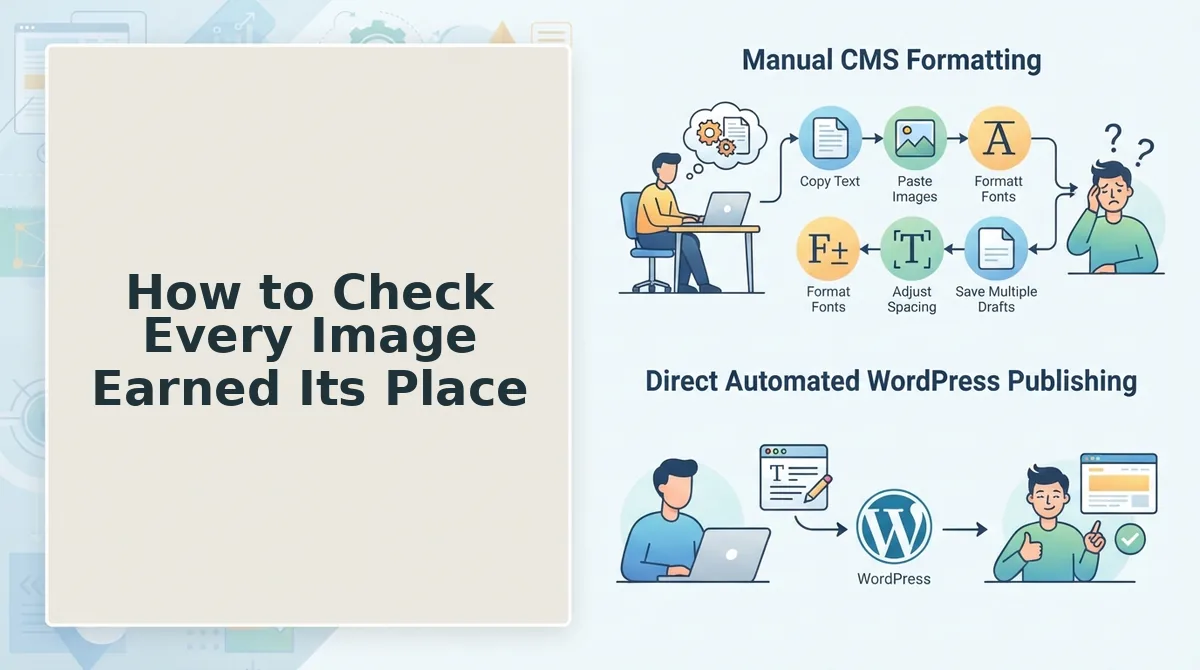
How to Check Every Image Earned Its Place
An image earns its place only when it does a job the text cannot do as well alone. Extra images can hurt a post, so audit every visual before publishing and cut the ones that fail.
The Image Job Test is a pass-fail check that asks one question of every inline image in a blog post: does this visual do a job the text cannot do as well on its own? The four valid jobs are to explain a concept faster than prose, compare options side by side, show the steps of a process, or prove a claim with a screenshot, chart, or real result. If an image does none of the four, the fifth outcome applies and you cut it, so the final count reflects what the content needs instead of an arbitrary quota.
Remove an image if any of these padding warning signs apply:
- It does none of the four jobs. An image that cannot explain, compare, show steps, or prove adds scroll without adding understanding. Label each image with its job, and delete any image you cannot label.
- It sits above the answer as decoration. A decorative image placed before a section's direct answer pushes that answer down for readers and answer engines. Move the answer up, or cut the image.
- It repeats the heading as a stock photo. A handshake under "Building Client Trust" restates the H2 without new information. Replace it with a screenshot or diagram, or remove it.
- It sits back to back with another image. Two images with no text between them break reading rhythm and blur which point each supports. Add a connecting sentence, or keep only the stronger image.
- It ships as an uncompressed file. An oversized file adds page weight without adding meaning. Resize it to its display width and export it in a modern format before upload.
Pro tip: Lazy-load every image below the fold and compress it before upload. Keep the first visible image loading normally so the opening section renders without delay.
Frequently Asked Questions About Blog Post Images
These answers cover the image questions the earlier sections leave open, from structured data to alt text.
Do images help blog post SEO?
Images help search engines understand a post, but they do not raise rankings on their own. Give every informative image descriptive alt text, and reference a representative image in the image property of your article schema so crawlers can connect that visual to the article.
How many images should a 1,000-word blog post have?
A 1,000-word post usually needs two to four images under the section-anchored rule. With three or four H2 sections, give an image only to the sections with a visual job, plus an optional featured image. Sections that are pure argument can run without one.
Are AI-generated images okay for blog posts?
Yes, AI-generated images work in blog posts when they pass the same Image Job Test as any other visual. An AI diagram that explains a workflow earns its place, but a generic AI scene that repeats the heading does not. Check labels, accuracy, and rendered text before publishing.
Do inline images need alt text?
Yes, every informative inline image needs alt text. Describe the job the image does, such as "five-step diagram of a WordPress publishing workflow," rather than repeating the target keyword. Purely decorative images can use empty alt text so screen readers skip them.
Plan Images in the Outline, Not After the Draft
The right image count comes from your outline, not your word count: one image for each section with a visual job, and none for sections without one. That is why word-count quotas keep producing padded posts.
Start with one existing post. List its H2s, run the Image Job Test on every image, cut the ones that fail, and add a visual only where a section needs to explain, compare, show steps, or prove. That single content refresh becomes a template for the rest of your archive.
Then plan your next content calendar with images mapped to sections before drafting begins. BloGoose uses sectional drafting to generate an inline image for each section that has a visual job, so every visual is assigned its job when the section is drafted.
When images are planned at the outline stage, every visual you publish has a reason to be there.