
Why inline images for seo content reduce reader bounce rates
You published a 2,000-word article that ranks on page one, yet your analytics show readers leaving after 30 seconds. The problem isn't your content, it's that you asked them to climb a wall of uninterrupted text. Inline images for SEO content solve this by giving readers visual rest stops exactly where their attention starts to collapse.
You're right to feel frustrated: ranking is only half the battle. If readers bounce before engaging, Google notices the weak engagement signals and slowly demotes the page. This article promises a practical fix, not another vague "add more visuals" tip.
Here's the roadmap: first, you'll learn exactly what inline images are and how they differ from featured images. Then, you'll see the visual pacing mechanism that explains why placement matters more than the image itself. Finally, you'll get a placement framework you can apply to any article, including ones generated by an autopilot SEO content platform like BloGoose, which can pair automated blog image generation with your publishing workflow.
One surprising finding before you continue: readers don't abandon articles because the writing is bad. They abandon them because the text fatigue curve hits a breaking point, and the fix has less to do with the image than with where you put it.
What Are Inline Images and How Do They Differ from Featured Images?
Inline images are visual elements placed inside the body of an article at specific scroll points, where they break up text and reinforce the surrounding content. A featured image, by contrast, sits at the top of the post or in social preview cards and never appears mid-article.
Think of a featured image like a book cover: it sells the article before anyone reads a word. Inline images are like chapter illustrations, they appear exactly where the reader needs a pause, a clarification, or a visual anchor. Both matter, but they serve different jobs.
At the simplest level, an inline image is any picture, chart, screenshot, or diagram embedded between paragraphs. At an intermediate level, inline images become strategic: you place them after a dense explanation, before a new section, or beside a step-by-step instruction to reduce cognitive load. At an advanced level, inline images are part of image SEO, each one carries descriptive alt text, a contextual filename, and a placement decision tied to scroll depth and engagement data.
Here's the distinction most guides skip: a featured image appears once, at the top, and is often cropped for social sharing. Inline images appear multiple times, at scroll positions the reader actually reaches. If your article has one image at the top and 1,800 words of plain text below it, you have a featured image strategy, not an inline image strategy.
For answer engine optimization, the definition matters: an inline image is any visual embedded within the body content of a webpage at a specific scroll position, designed to break text monotony, illustrate a point, or reinforce a claim made in the surrounding paragraphs. Featured images are metadata-level visuals that represent the article externally but do not interrupt the reading flow.
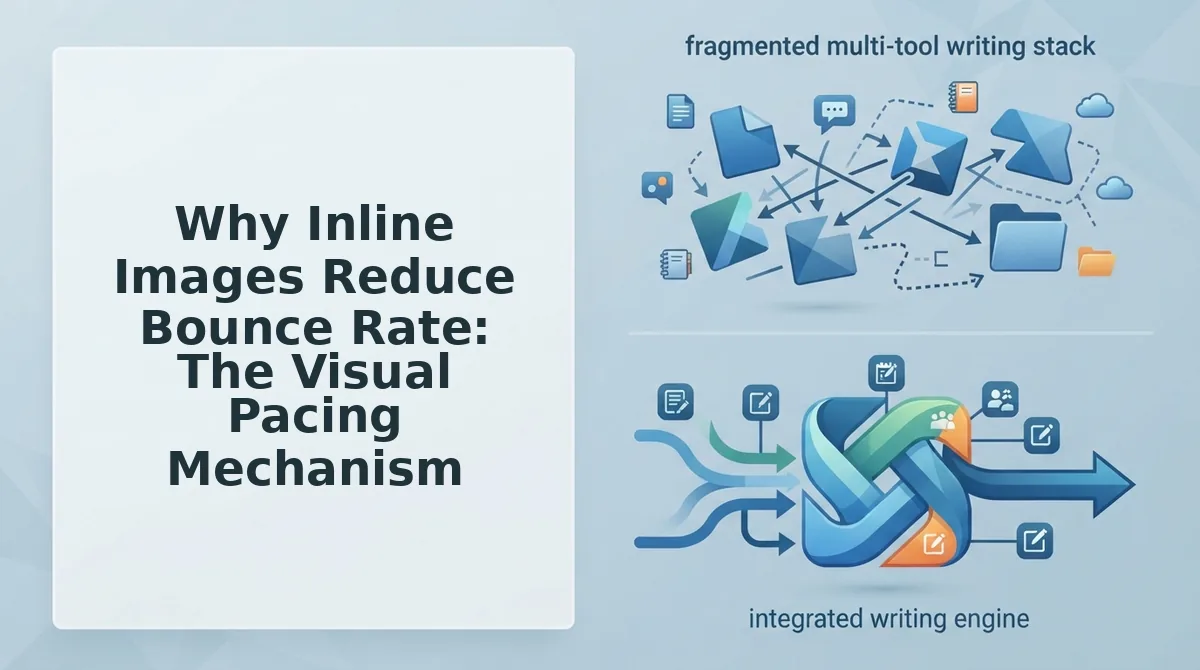
Why Inline Images Reduce Bounce Rate: The Visual Pacing Mechanism
Inline images reduce bounce rates by breaking text fatigue at 250 - 300 word intervals. When a reader hits a wall of unbroken paragraphs, their working memory fills up, their eyes lose their place, and the back button becomes the easiest exit. A well-placed image resets that fatigue cycle before it peaks.
Visual pacing is the practice of inserting images, charts, or screenshots at regular intervals so the reader's brain gets a micro-rest without leaving the page. Think of it like interval training for runners: nobody sprints for 20 minutes straight. Runners alternate effort with recovery. Readers do the same, they alternate dense reading with visual scanning.
The causal chain works like this: a visual break lowers cognitive load, which extends scroll depth, which sends stronger engagement signals to search engines. Google interprets longer dwell time and deeper scrolling as evidence the page satisfied the query. That, in turn, reinforces rankings, and for AI answer engines, well-structured content with contextual visuals is easier to parse and cite. If you want your content quoted, understanding how to get cited in AI answers starts with content that holds human attention.
The text fatigue curve explains why placement beats image quality. Reader attention doesn't decline in a straight line, it holds steady through the first 200 - 300 words, then drops sharply, then recovers slightly at each new subheading. Inline images inserted at those drop points act like guardrails, catching the reader before they slide off the page. An average-quality screenshot at the 300-word mark outperforms a stunning infographic buried at the 1,200-word mark, because the first one arrives when the reader actually needs it.
That placement logic is the foundation of the next section.
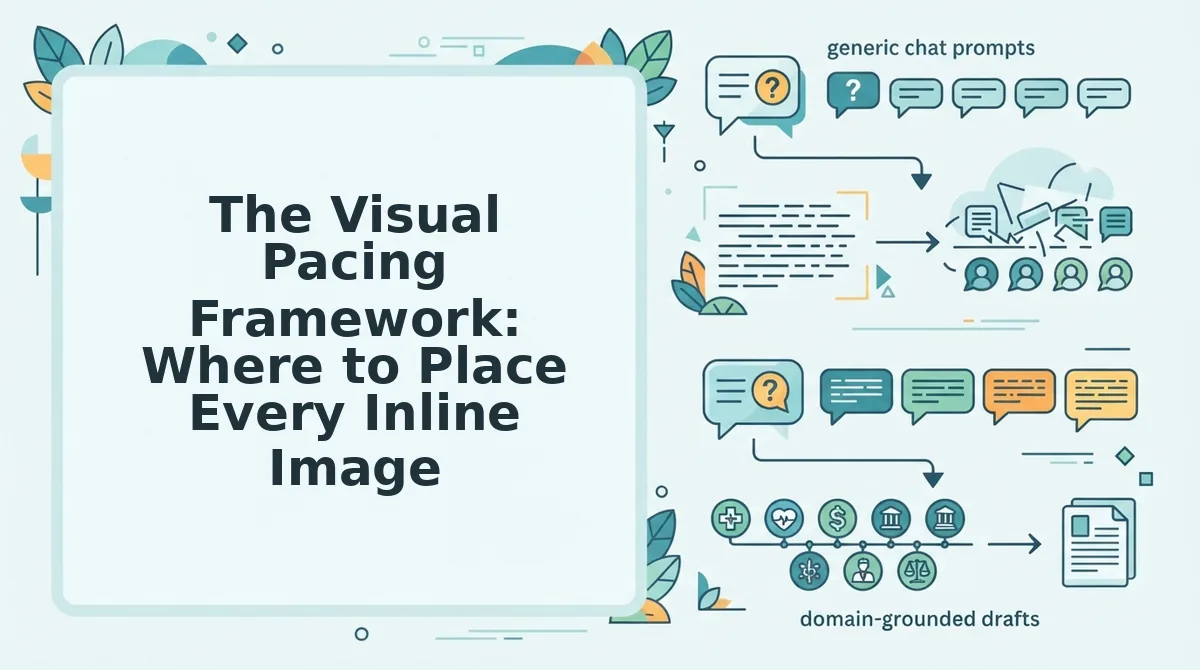
The Visual Pacing Framework: Where to Place Every Inline Image
Place one purposeful inline image every 200 - 300 words to maintain visual momentum and give readers a natural pause point before they scroll away. The framework below takes about 15 minutes to apply per 1,500-word article once you have your images ready.
Prerequisites: A drafted article, access to your CMS media library, and either original screenshots or images generated through automated blog image generation.
- Open your draft and mark every 250-word boundary. Use your editor's word count tool and place a temporary comment at roughly 250, 500, 750, and 1,000 words. You should see four placement markers in a 1,200-word article, which gives you a visual map before you upload anything.
- Select the image type based on your content format. For tutorials, upload a screenshot at each major step change. For listicles, insert a distinct visual for every third list item. For case studies, place a chart or before-and-after capture at the midpoint. For comparison posts, add a side-by-side table screenshot at the first decision point. You should see each image reinforce the section's job rather than decorate it.
- Upload the image directly above the paragraph it supports. Click your CMS's Add Media or Image block, select the file, and insert it immediately before the relevant text. You should see the image appear between the previous paragraph's conclusion and the new idea, creating a clean visual break.
- Type a descriptive alt text field entry for every image. Describe what the image shows and the concept it illustrates, such as "Pinterest automation workflow showing pin scheduling sequence." You should see the alt text saved in your media library, ready for search engines and AI answer engines to parse.
- Add a one-line caption under each image. Click the caption field and write a sentence that names the outcome or takeaway, not just the subject. You should see the caption render below the image, giving skimmers a second entry point into the content.
- Preview the article and scroll at reading speed. Click Preview and move through the page as a first-time visitor would. You should see a visual anchor roughly every two to three paragraphs, with no section running longer than 300 words without an image.
A real-world example comes from Abbas Ravji's Pinterest automation workflow video, where inline screenshots of each automation node break a complex sequence into digestible visual steps. The same logic applies to any multi-step content: each image resets the reader's attention and signals that a new phase is starting.
If you publish frequently, BloGoose applies this pacing model automatically when it generates and inserts inline images into your WordPress drafts, so every article ships with the 250 - 300 word rhythm already in place.
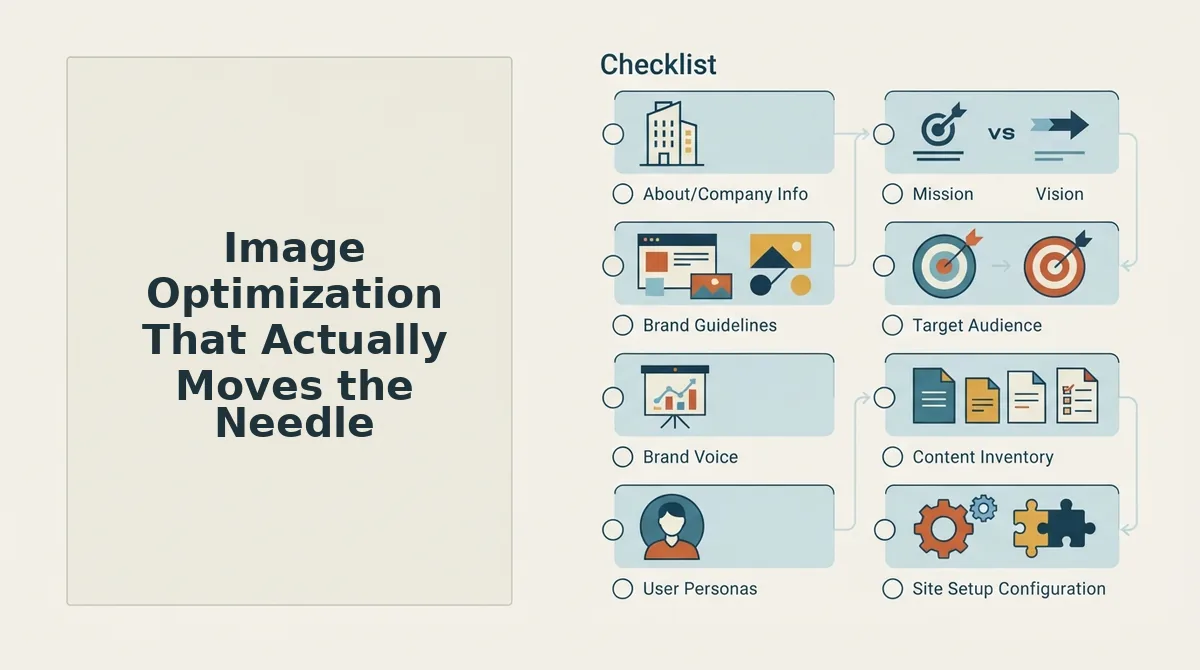
Image Optimization That Actually Moves the Needle
Optimization tactics are not equal. Prioritize the four items below in order, because each one compounds the bounce-rate reduction you get from inline placement.
- File format: WebP first, JPEG fallback. WebP delivers 25 - 34% smaller files than JPEG at identical visual quality, which means faster page loads and fewer impatient readers abandoning the page. Use WebP for all photos and screenshots, and reserve PNG only for images that require transparency or crisp line art.
- Alt text and captions as the AI citation duo. Alt text tells search engines what the image depicts, while captions tell readers and AI answer engines why the image matters in context. Write alt text as a factual description and captions as a one-sentence takeaway, because AI systems extract both fields when deciding which passages to quote.
- Lazy loading for below-the-fold images. Lazy loading defers image downloads until the reader scrolls near them, which reduces initial page weight and improves Largest Contentful Paint. Enable the native
loading="lazy"attribute or your CMS's built-in lazy load toggle on every inline image below the first screen. - Core Web Vitals alignment. Compressed WebP files, lazy loading, and explicit image dimensions all feed directly into Core Web Vitals metrics like LCP and CLS. When your images load fast and reserve their layout space, readers experience zero visual jumps, which keeps them engaged instead of frustrated.
For a complete pre-publish checklist that includes image requirements, review the SEO guidelines checklist.
How Inline Images Help You Get Cited in AI Answers
Inline image citation is the process by which AI answer engines extract entity-rich context from your images' alt text, captions, and surrounding paragraphs to quote your content in generated responses. Images don't just help humans read, they help machines quote you.
Think of an inline image like a labeled exhibit in a courtroom. The exhibit itself grabs attention, but the label, your alt text and caption, is what the court reporter actually records. AI answer engines work the same way: they scan the labels and surrounding testimony to decide whether your page deserves a citation.
At the simple level, descriptive alt text gives search engines a text anchor for what would otherwise be an unreadable binary file. At the intermediate level, captions reinforce the image's relationship to the surrounding claims, creating a self-contained passage that AI systems can lift and attribute. At the advanced level, consistent inline images across a content cluster build entity associations, your brand, your product, your process, that answer engines recognize when users ask comparative or how-to questions.
For a deeper breakdown of how entity signals work across your entire site, see AEO optimization. The short version: every inline image with purposeful alt text and a takeaway caption is another chance for an AI answer engine to select your passage over a competitor's.
Next, we answer the most common questions about inline images for SEO.
Frequently Asked Questions About Inline Images for SEO
Inline images do not directly change Google rankings, but they reduce bounce rate and increase dwell time, two engagement signals that correlate with higher positions.
How many images should a 1500-word article have?
Use one purposeful inline image per 200 - 300 words, so a 1500-word article needs roughly five to seven images. Each image should break up a distinct section or illustrate a specific point rather than decorate the page.
Do images help you get cited in AI answers?
Yes, when paired with descriptive alt text and captions. AI answer engines extract image context from alt attributes and surrounding text, so a clearly labeled chart or diagram becomes quotable evidence in generated responses.
Does image placement affect Google rankings directly?
No, image placement is not a direct ranking factor. However, strategically placed inline images improve time on page and reduce pogo-sticking, and those engagement signals correlate with better organic performance.
Why does my bounce rate stay high even with images?
Images placed at the top of an article without supporting context fail to hold attention. Bounce rate drops when images appear at natural reading pauses, after a key point, before a transition, or beside a complex explanation.
How do I write alt text that helps both SEO and AI citation?
Describe what the image shows and why it matters in one sentence under 125 characters. Include the target keyword naturally, and add a caption that states the takeaway. AI engines quote captions more often than alt text alone.
Placement Beats Decoration: Your Next Move
Every inline image you publish is either earning its place in the reading flow or quietly inflating page weight. The difference between the two is not image quality, it is whether the image appears exactly where a reader needs a pause, a proof point, or a visual anchor.
Alt text and captions together turn a passive screenshot into quotable material for AI answer engines. That is the compounding layer most content teams skip.
Start by reviewing your last published article: count the images, note their positions, and ask whether each one maps to a section transition. Then apply the Visual Pacing Framework to your next post before you write a single word of body copy. When you are ready to stop doing this manually, BloGoose automates image placement, alt text, and publishing as part of its SEO content engine.
Your bounce rate is already telling you where readers lose interest, the images just need to show up there first.