How to Avoid CMS Export Mistakes in AI Blog Formatting
You export a 2,000-word AI draft into WordPress, and suddenly your H2s are flat paragraphs, every image lost its alt text, and three internal links now point to a 404. If you've watched a promising post turn into a formatting salvage job, you already know the real question isn't whether AI can write, it's whether the formatting survives the transfer. The good news: you can avoid CMS export mistakes in AI blog formatting entirely by fixing the draft before it ever touches your CMS. This guide walks you through a 7-point pre-flight checklist, explains why AI drafts break during transfer, and shows you how to lock heading hierarchy before export. Along the way, you'll see why the problem starts in the draft, not the CMS, and how a platform that handles formatting at the source, like BloGoose's automated publishing engine, removes the cleanup step altogether.
The 7-Point CMS Export Pre-Flight Checklist
To avoid CMS export mistakes in AI blog formatting, run this seven-point checklist on every AI draft before you export it. Each item targets a specific failure mode that breaks formatting, SEO signals, or reader experience after the transfer.
- Heading hierarchy is clean and sequential. Every H2 must sit under an H1, every H3 under its parent H2, with no skipped levels. CMS themes render headings based on hierarchy, so a draft with orphaned H3s exports as visually broken structure that confuses both readers and search crawlers.
- Alt text is written into every image block. AI drafts often generate images without descriptive alt attributes, and CMS importers won't add them retroactively. Missing alt text strips accessibility and image-search visibility the moment the post goes live.
- Internal links use absolute URLs, not relative paths. A draft that links to
/blog/old-postinstead of the full URL breaks when the CMS restructures permalinks. Verify every link resolves to a live, absolute https:// address before export. - Embeds are converted to CMS-native blocks. YouTube iframes, tweets, and other raw embed code often get stripped or escaped by CMS sanitizers. Replace raw embed snippets with the CMS's native embed block so media survives the transfer intact.
- Metadata fields are populated in the draft. Title tags, meta descriptions, and slugs should be defined before export, not after. CMS importers frequently leave blank metadata fields empty, forcing you to manually re-enter SEO data for every post.
- Code blocks and tables are marked with explicit formatting. AI drafts sometimes render code snippets or tables as plain text. Tag them as code blocks or table blocks in the draft so the CMS importer maps them to the correct HTML elements instead of flattening them into paragraphs.
- Featured image is assigned and sized correctly. A draft without a designated featured image exports as a post with no social-sharing thumbnail. Confirm the image exists, is compressed, and is assigned before the transfer.
This checklist mirrors the failure modes most publishers hit after export: headings, images, links, embeds, metadata, code blocks, and tables. If you want a deeper walkthrough of each item, see this AI blog formatting checklist. A content engine like BloGoose applies these checks automatically during drafting, so the export is clean by default rather than by manual review.
Why AI Drafts Break in CMS Transfers
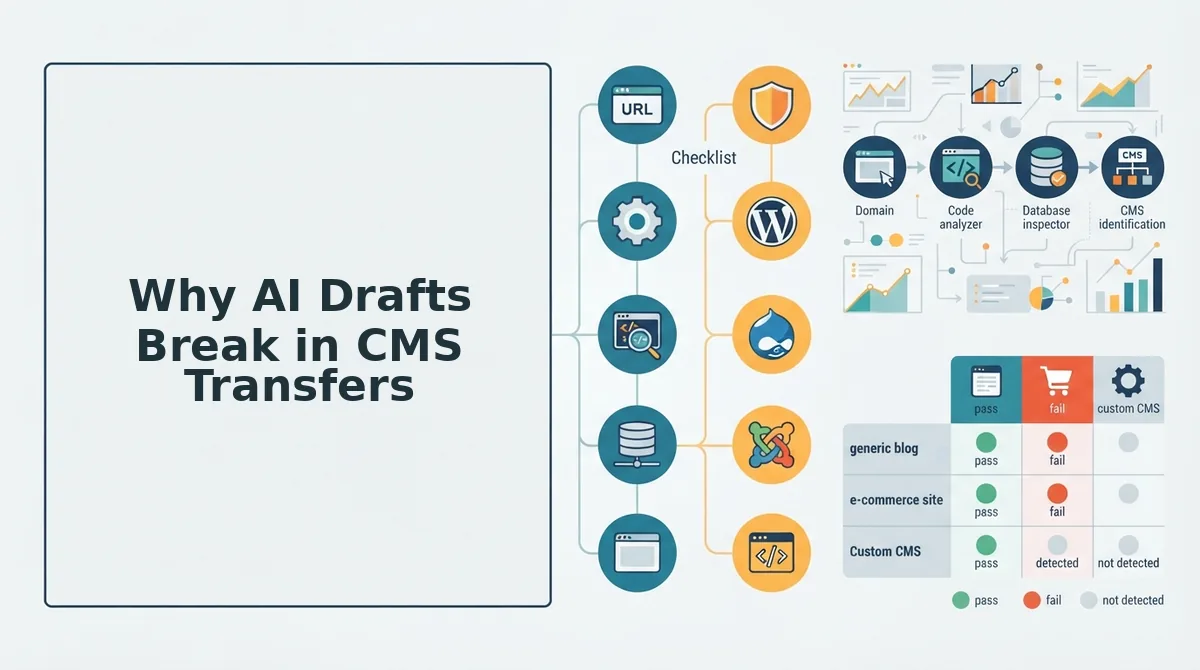
A CMS export formatting error is any structural or metadata loss that occurs when an AI-generated draft moves from its source editor into a content management system. The root cause is almost always a mismatch between how the draft stores formatting and how the CMS expects to receive it.
Think of it like copying a formatted spreadsheet into a plain-text email. The data survives, but the styling, merged cells, and formulas silently disappear. The same thing happens when an AI draft written in a rich-text or markdown environment gets pasted or imported into a CMS that only understands its own block structure.
Here's the part most formatting guides skip: the problem starts in the draft, not the CMS. AI writing tools produce editor-native formatting, bold tags, heading markers, and link syntax that work inside the AI's own interface. When you export, that formatting must be converted into CMS-native blocks. Any element the converter doesn't recognize gets flattened into a paragraph or stripped entirely. Markdown-to-HTML conversion is the second failure point: some converters drop alt text, ignore heading levels, or mangle nested lists. The third is metadata stripping during paste, where title tags, slugs, and descriptions vanish because the clipboard only carries visible text.
For a deeper look at how formatting errors compound across a publishing workflow, see this guide on CMS export formatting errors. The fix is to standardize the draft's structure before export, which is exactly what the next section covers.
How to Fix Heading Hierarchy Before You Export
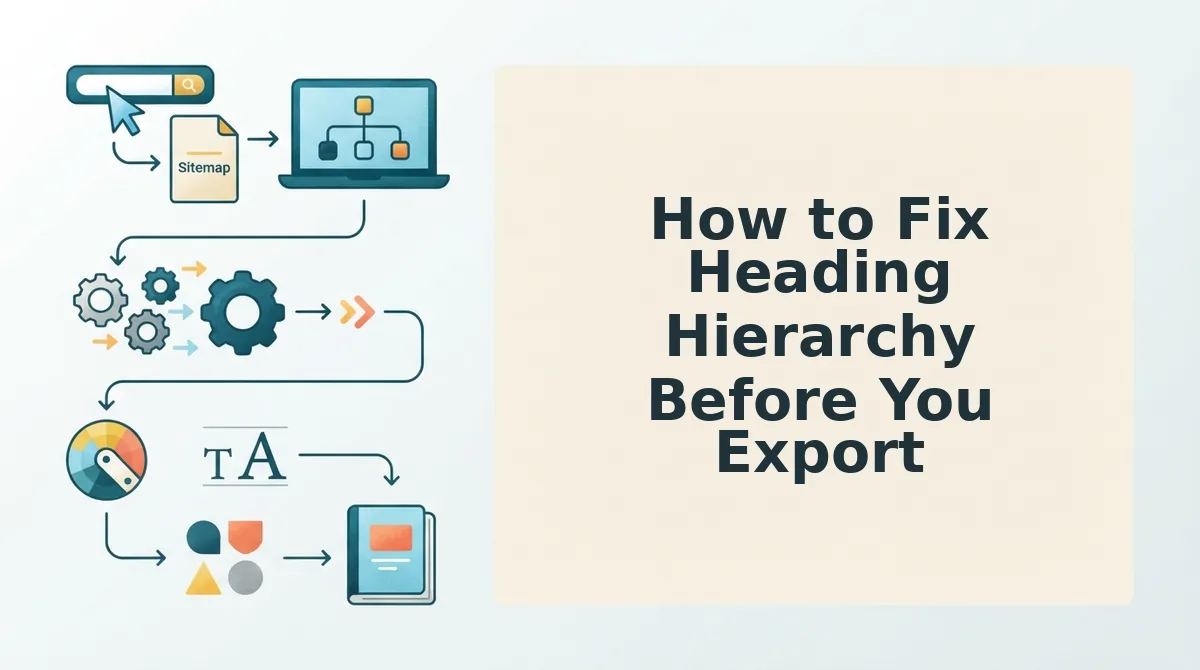
Heading hierarchy is the skeleton search engines read first, and AI drafts routinely output every section as a flat H2, which tells crawlers no topic is more important than any other. Fix the hierarchy in the draft, before export, and you preserve the semantic structure that both Google and AI answer engines use to parse your content.
Prerequisites: Your AI draft in an editable format (Google Docs, Notion, or the BloGoose editor), plus access to your CMS's HTML or block view. Total time: 10-15 minutes.
- Open the draft's outline view (in Google Docs, click View to Show document outline; in Notion, hover the left margin). Expected outcome: You should see a nested list of every heading in the article. If the outline shows ten H2s and nothing else, you have the flat-H2 problem.
- Locate the single H1, it should be the article title only. Expected outcome: Exactly one H1 in the outline. If the AI generated multiple H1s, demote all but the title to H2 or lower.
- Click each section heading and reassign its level so that every H2 represents a major topic and every H3 nests under its parent H2. Expected outcome: A clean tree. H1 to 3-6 H2s to H3s only where a subtopic genuinely belongs to the H2 above it.
- Type the heading text into a plain-text checklist and verify no H3 exists without an H2 above it. Expected outcome: No orphaned H3s. This is the same heading structure audit you'd run on a live page, just moved earlier in the pipeline.
- Select the CMS's preview mode after import and confirm the outline matches your draft. Expected outcome: You should see the identical hierarchy in the CMS sidebar, if not, the export stripped your levels and you need to re-map them in the block editor.
One YouTube creator documented nearly tanking a site's rankings after an AI blogging tool exported every section as H2, the fix took an afternoon of manual re-nesting across 40 posts. A five-minute pre-export audit would have prevented all of it.
Mini checklist before export: one H1, no skipped levels (H2 to H4), every H3 has a parent H2, and the CMS outline matches the draft outline.
Images, Alt Text, and Captions: What Survives Export
Image metadata is the most fragile asset in any CMS export, markdown image syntax often survives, but alt text, captions, and title attributes get silently stripped depending on the pipeline. Knowing what your specific export path preserves determines whether you fix metadata before or after transfer.
BloGoose preserves alt text and captions as native CMS fields because it maps markdown to blocks directly, rather than passing content through a generic markdown-to-HTML converter. Competitors that rely on plain markdown export or copy-paste workflows frequently drop alt text entirely, a real strength of those tools is raw speed and simplicity, which suits teams that already have a manual image workflow in place.
| Markdown syntax | CMS block result | What's preserved | What's stripped |
|---|---|---|---|
 |
Image block | Alt text, image file | Caption, title attribute |
 |
Image block | Alt text, title (some CMS) | Caption |
HTML <figure> with <figcaption> |
Image block with caption | Alt text, caption | Title attribute |
| BloGoose native image block | Native CMS image field | Alt text, caption, title | Nothing |
Best for WordPress publishers: BloGoose's native block mapping, because WordPress stores alt text and captions in separate database fields that generic markdown converters don't populate. Best for teams with an existing DAM: A markdown-first competitor, since you're already managing metadata in your asset library and only need the image reference to survive. Best for solo bloggers on a tight budget: Manual paste with a pre-export alt-text checklist, accepting that captions will need re-entry.
Run an image alt text CMS export check as a distinct step: export one test post, open the media library, and confirm the alt field is populated before you batch-publish anything.
The Paste Test: Verify Formatting Before You Publish
The Paste Test is a tool-agnostic verification method: paste your exported content into a plain-text editor first, then into the CMS, and compare rendered output at each stage. It catches formatting corruption that preview modes miss because it forces you to see exactly what the CMS received, not what you intended to send.
Prerequisites: Your exported content, a plain-text editor (Notepad, TextEdit in plain-text mode, or VS Code), and CMS draft access. Total time: 5-8 minutes.
- Open a new plain-text file and paste the exported content. Expected outcome: You should see raw text with no hidden styling, if bold or heading markers appear as literal characters, the export format is wrong.
- Click through each heading in the plain-text view and confirm the hierarchy matches your pre-export audit. Expected outcome: H1, H2, H3 levels all present and correctly nested.
- Select all text and paste into a new CMS draft using the CMS's paste-as-text option if available. Expected outcome: The CMS should render headings, lists, and links as native blocks, not as a wall of text.
- Open the CMS preview and compare it side-by-side with the plain-text version. Expected outcome: Identical structure, any difference means the CMS interpreted something differently than intended.
- Click each link in preview to confirm the URL survived and points to the right destination. Expected outcome: No broken or truncated hrefs.
- Type a one-line note in your content audit log recording what changed during the test. Expected outcome: A dated entry you can reference if formatting regresses on the next export.
The Hashmeta AI workflow video makes the point plainly: audits only matter when they end in a specific, reviewed change, not a vague "looks fine." The Paste Test forces that review by making the before and after states visible side by side.
Run it once per export pipeline, not once per post, and you'll catch systemic issues before they reach a live URL. Now let's answer the questions that come up most after a failed export.
FAQ: CMS Export Formatting Questions
CMS export formatting failures fall into four repeatable categories: heading hierarchy collapse, stripped image metadata, broken internal links, and Markdown-to-HTML conversion errors. Each has a specific fix you can verify before publishing.
Why do headings lose their hierarchy when I export from an AI draft to WordPress?
Heading hierarchy breaks because AI drafts often use inconsistent heading levels or Markdown syntax that WordPress interprets as plain paragraphs. The block editor expects explicit H2/H3/H4 tags, not bold text or ## markers. Paste into the Code Editor view first to confirm each heading renders as a real heading block, then switch back to visual mode.
How do I keep alt text and captions from disappearing during export?
Alt text and captions disappear when images are exported as raw URLs or Markdown image syntax instead of native WordPress media blocks. Upload images through the Media Library or use the Image block, then attach alt text and captions inside the block settings. Alt text stored in the media library survives future exports; inline Markdown alt text does not.
What breaks internal links when I move an AI draft into my CMS?
Internal links break when the AI draft uses relative paths, placeholder slugs, or Markdown link syntax the CMS does not parse. WordPress requires absolute URLs or valid post IDs in the block editor. Run a broken link check after import and replace any /blog/post-name style links with full https:// URLs before publishing.
Should I export AI content as Markdown or HTML for WordPress?
Export as HTML, not Markdown. WordPress's block editor parses HTML natively and preserves heading tags, lists, and links without conversion errors. Markdown requires a plugin or manual conversion step that frequently strips inline formatting, table structure, and image metadata. If your AI tool only outputs Markdown, convert it with a dedicated parser before pasting.
How do I check formatting before publishing without manually reviewing every block?
Run the paste test: copy the exported HTML into a clean WordPress draft, switch to Code Editor view, and scan for stray Markdown characters, unclosed tags, and heading level jumps. Then preview the post and check the document outline panel. BloGoose automates this verification by validating headings, images, and links before export reaches your CMS.
Make CMS Export Mistakes a Thing of the Past
Every formatting failure covered in this guide shares one root cause: manual handoff between AI drafts and your CMS. The paste test, heading audit, and image metadata checks work, but they consume the time AI content was supposed to save. The real fix is removing the handoff entirely.
BloGoose closes that loop by validating heading hierarchy, alt text, internal links, and HTML structure before the article ever reaches WordPress or your custom API. You skip the pre-flight checklist because the export is already CMS-ready.
Your next step: run the 7-point checklist on your next AI draft once, then let BloGoose handle export verification automatically on every article after that. The fewer manual paste tests you run, the more your publishing pipeline actually scales.