
A Checklist for Exporting Formatted Blog Posts to Your CMS
You've spent hours perfecting a blog post, the formatting is clean, the internal links are mapped, the images are optimized, and then you hit "export" and watch it all fall apart in your CMS. Most publishing workflows are, as MetricVault's video framing puts it, "five tools in a trench coat": a writing app, a grammar checker, an image optimizer, a link validator, and a manual copy-paste ritual that breaks something every single time. You're not bad at publishing; your stack is fighting you.
That's why an export formatted blog posts to CMS checklist matters more than any import tutorial. Ferdy Korpershoek's 31K-view WordPress import/export tutorial covers the mechanics of moving content, but it skips the pre-export formatting checks that determine whether your post survives the trip intact. This guide promises a complete, failure-mode-based checklist you can run in under 15 minutes. You'll learn the five ways exports go wrong, the eight pre-flight checks that prevent them, and the seven post-landing verifications that catch what slipped through. One surprising finding: most "broken" exports were never broken at the source, they were formatted for the wrong destination. If you're still juggling a chat window and a CMS, the AI content engine vs chat window workflows comparison explains why that split is the root cause.
The Five Failure Modes of CMS Export
A CMS export failure mode is a predictable category of content damage that occurs when formatted writing moves from its source environment into a content management system. Every broken post you've ever imported falls into one of five buckets, and knowing the bucket tells you exactly which check to run.
Think of a CMS export like moving into a new apartment. The boxes arrive, but the furniture doesn't assemble itself: drawers get jammed, screws go missing, and the bookshelf that fit your old living room now blocks the hallway. Your CMS is the new apartment. It has its own rules about what fits where, and it will not adapt to your formatting, you adapt to it.
The five failure modes are: formatting breakage (headings, lists, and blockquotes lose their structure), link loss (internal URLs point to draft locations or get stripped entirely), metadata stripping (titles, descriptions, and schema markup vanish), image path corruption (relative paths break, alt text disappears, or files fail to transfer), and SEO signal degradation (canonical tags, anchor text, and heading hierarchy silently weaken).
Here's the contrarian take most tutorials avoid: your CMS is not a formatting engine. If you're fixing bold text, resizing images, or repairing links after import, you've already lost. Formatting must be finalized at the source, before export, with the destination's constraints in mind. A markdown file formatted for Obsidian will not render the same in WordPress, and no amount of post-import cleanup will fully restore what the export stripped. For the source-side formatting rules that survive export intact, review the SEO guidelines markdown checklist before you write another word.
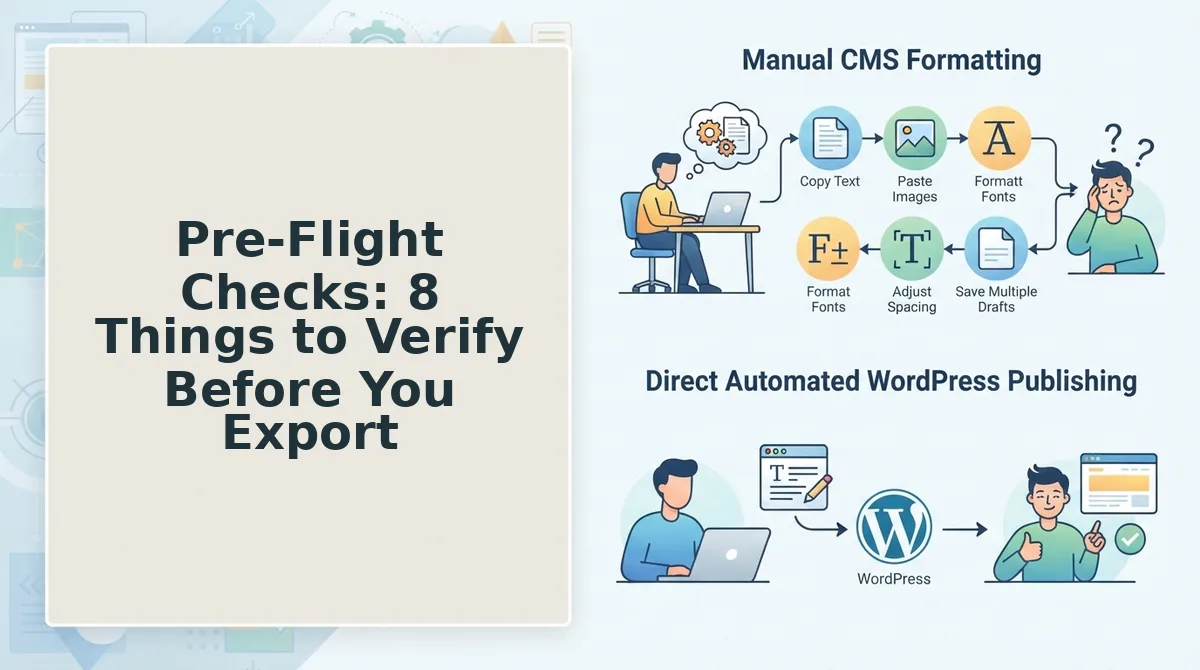
Pre-Flight Checks: 8 Things to Verify Before You Export
Pre-flight checks are the eight source-side verifications you run before exporting a formatted blog post to your CMS, organized by the five failure modes they prevent. Each check takes under two minutes; the full pass takes about 15.
Prerequisites: Your draft in its final source format, access to your CMS's import tool or API endpoint, and a broken-link scanner (most SEO plugins include one).
- Open your draft and scan every internal link for draft URLs. Click each link and confirm it points to the live domain, not a preview or staging URL. In one BloGoose export scenario, a draft with 12 internal links and 6 images exported to WordPress had 2 links break because anchors referenced draft URLs. You should see every link resolve to a published or scheduled page.
- Check anchor text survival on all internal links. Select the anchor text and verify it's descriptive, not "click here" or a raw URL. Anchor text carries ranking context; if your export strips it, you lose the SEO signal. You should see keyword-relevant anchor text on every internal link.
- Verify relative vs. absolute URLs on every image and link. Open the source HTML or markdown and confirm all URLs start with
https://. Relative paths like/images/post-hero.jpgbreak the moment they leave your local environment. You should see absolute URLs everywhere. - Run a broken link scan on the draft. Use your SEO plugin's link checker or a tool like Screaming Frog on the source file. Fix or remove any 404s before export. You should see a clean report with zero broken internal links.
- Confirm image alt text and file names are export-ready. Open each image's properties and verify alt text is descriptive and file names use hyphens, not underscores or spaces. For the full image checklist, see image SEO best practices. You should see alt text on every image and clean, hyphenated file names.
- Verify heading hierarchy is sequential. Scan your draft's outline: one H1, then H2s, with H3s nested under their parent H2. No skipped levels. CMS themes rely on this hierarchy for table-of-contents generation and featured snippets. You should see a logical, unbroken heading tree.
- Check metadata fields in your source document. Confirm the SEO title, meta description, and canonical URL are set in your source file's front matter or document properties. If your export tool doesn't carry these fields, you'll retype them manually, and forget at least one. You should see all three fields populated.
- Map internal links against your sitemap structure. Cross-reference every internal link in the draft with your internal link map sitemap crawl to confirm the target pages exist and are indexed. You should see every link target present in your sitemap.
Run these eight checks in order, and your export will land clean, which sets up the next phase: verifying what actually arrived.
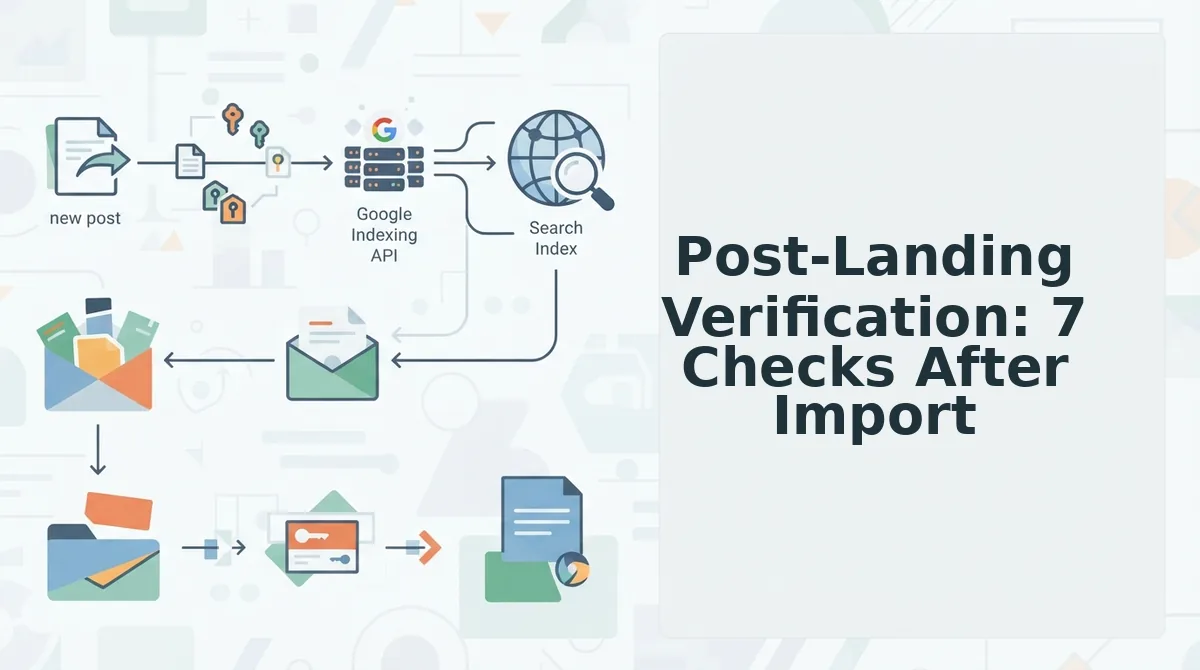
Post-Landing Verification: 7 Checks After Import
Your export button is not the finish line. Run these seven checks in the live CMS before you call a post published, they catch the breakage that pre-flight checks cannot see.
- Visual inspection of the rendered post. Open the published URL in an incognito window and compare it side-by-side against your source draft. Why it matters: the CMS theme's CSS can override inline styles, resize images, or collapse spacing that looked correct in your editor. How to use it: check headings, blockquotes, lists, and image alignment against the original, and note any drift for your next export.
- Click-through test on three random internal links. Pick three internal links at random from the imported post and click each one. Why it matters: this is the check 80% of publishers skip, and it is the only way to confirm anchor text and destination URLs survived the import intact. How to use it: verify each link opens the correct page and the anchor text reads naturally, not as a raw URL or stripped placeholder.
- Metadata confirmation in the page source. View the page source and confirm the title tag, meta description, and canonical URL match what you set before export. Why it matters: CMS importers frequently overwrite or drop custom metadata, which silently erases your SEO work. How to use it: check the
<head>section against your pre-flight values and re-enter anything the importer discarded. - Image loading and alt text verification. Confirm every image renders at full resolution and retains its alt attribute. Why it matters: broken image URLs and stripped alt text degrade both user experience and image search visibility. How to use it: hover each image to check the file loads, then inspect the element to confirm the alt text survived.
- Heading hierarchy audit. Verify that H2s and H3s imported in the correct nested order with no skipped levels. Why it matters: a flattened or scrambled heading structure confuses search crawlers and screen readers alike. How to use it: scan the post outline in your CMS editor and compare it to your source document's structure.
- Schema markup presence check. Run the live URL through a structured data validator to confirm Article or BlogPosting schema is still present. Why it matters: many importers strip JSON-LD blocks, which removes your eligibility for rich results. How to use it: paste the URL into Google's Rich Results Test and confirm no schema errors appear.
- Indexing request submission. Once all checks pass, ask Google to crawl new posts through Search Console. Why it matters: a verified, clean post still needs a crawl request to enter the index quickly. How to use it: submit the URL in the URL Inspection tool and request indexing, then monitor the status over the following 48 hours.
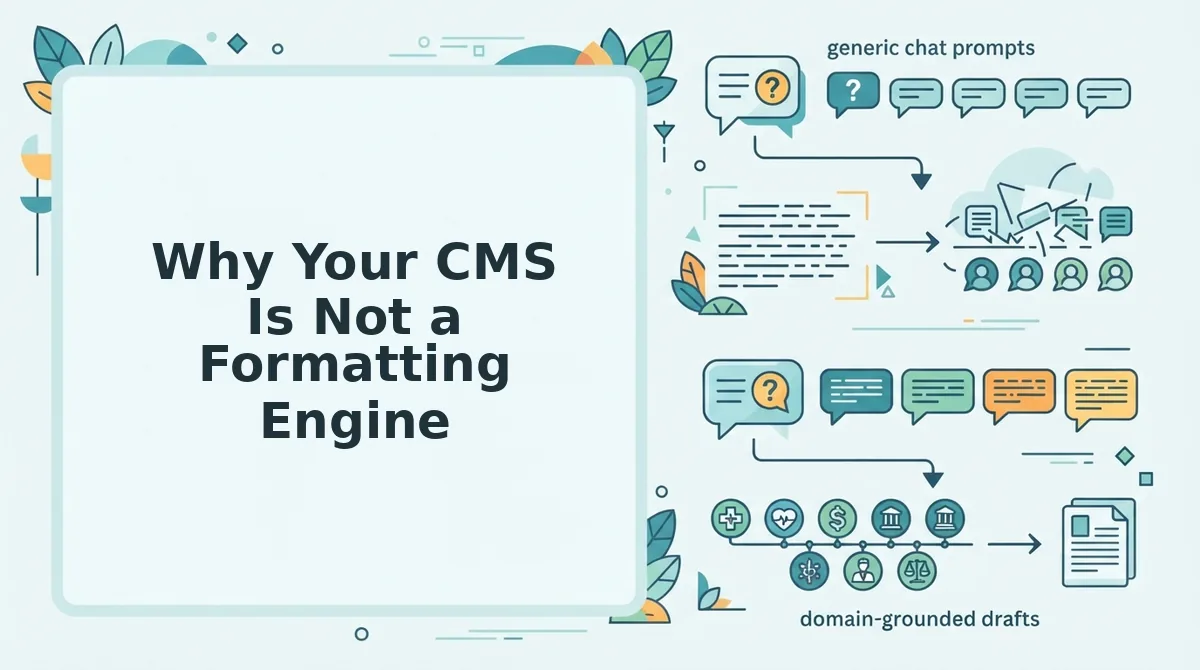
Why Your CMS Is Not a Formatting Engine
A CMS is a content storage and delivery system, not a formatting tool, and treating it as one is the root cause of most post-import breakage. Fixing formatting inside WordPress after import wastes time and breaks consistency across your site.
Think of your CMS like a picture frame. The frame holds and displays the artwork, but it does not paint the canvas. When you paste raw content into WordPress and start adjusting headings, spacing, and link styles there, you are repainting the artwork inside the frame, and every repaint drifts further from the original. The next post you import will need the same manual fixes, and your site's visual consistency erodes post by post.
The contrarian workflow is to finalize formatting at the source, before export. Your pre-flight checklist is the primary defense: it confirms heading hierarchy, link integrity, image attributes, and metadata are correct in the source document, so the CMS receives a finished product. When formatting is source-finalized, the CMS import becomes a pure delivery step, no patching required.
This is why an AI blog generator with direct WordPress publishing matters: the formatting, links, and metadata are locked in before the post ever touches your CMS. You stop treating WordPress as a repair shop and start treating it as what it actually is, the last mile, not the workshop.
FAQ: Exporting Formatted Blog Posts to Your CMS
Direct answers to the four questions publishers ask most about CMS export and import, optimized for quick scanning and AI citation.
What should I check before exporting formatted blog posts to my CMS?
Verify heading hierarchy, internal link destinations, image alt text, meta title and description, canonical URL, schema markup, and character encoding before export. Run a pre-flight checklist against the source document, then confirm the export file contains all seven elements intact. Catching issues at the source prevents them from becoming live-site problems that require manual repair after import.
How do I prevent formatting breakage when importing to WordPress?
Finalize all formatting at the source before export, then use a direct publishing connection rather than copy-paste. Pasting through the WordPress visual editor introduces theme CSS conflicts and strips inline styles. A direct API or AEO content optimization tool that pushes formatted HTML preserves structure, links, and metadata without editor interference.
Do internal links survive CMS export?
Internal links usually survive export when the source uses absolute URLs, but anchor text can be stripped or rewritten by importers that sanitize HTML. The only reliable verification is a post-import click-through test on three random internal links. If anchors are missing, re-add them in the CMS and adjust your export settings to preserve anchor attributes.
What metadata gets stripped during CMS import?
Meta descriptions, canonical URLs, and JSON-LD schema blocks are the most commonly stripped metadata during CMS import. Title tags survive more often, but importers that regenerate titles from the post heading can overwrite custom values. Check the page source after import and re-enter any metadata the importer discarded before requesting indexing.
Run the Checklist Once, Then Automate It Away
The fastest way to stop losing formatting battles is to run this checklist on your next export and treat every failed check as a signal, not a setback. Each failure mode you catch manually is a rule you can encode. Each metadata field you re-map by hand is a step a system should handle for you.
That's the real insight hiding in this checklist: your CMS is a destination, not a formatting engine. The work of producing clean, citation-ready HTML belongs upstream, before export. When you push raw drafts into WordPress or a custom API and hope the editor cleans them up, you're outsourcing quality control to a tool that was never designed for it.
Two checks genuinely require human judgment: visual inspection and voice consistency. Everything else, formatting validation, link checks, metadata mapping, is mechanical. BloGoose automates those mechanical steps and ships CMS-ready drafts that pass the pre-flight checks by default, so your manual review shrinks to the two things only you can verify.
Your next move:
- Run the full checklist on your next export and note which checks fail repeatedly.
- Fix the root cause in your source document, not in the CMS editor.
- If you're spending more than 15 minutes per post on formatting cleanup, switch to automated SEO content that arrives pre-validated and export-ready.
The fewer formatting decisions you make at export time, the more consistently your content ranks, renders, and gets cited.