
How to Publish AI Blog Posts to Custom API Endpoints
You've built the perfect AI content pipeline, research, drafting, optimization all automated, yet every article still dies at the final step: a human copying text from a chat window and pasting it into a CMS. That manual publishing loop is the bottleneck nobody talks about, and it's exactly why more teams are choosing to publish AI blog posts to custom API endpoints instead of clicking through dashboards. Luke Carter's video on building a CMS in 21 minutes (12k+ views) proves this isn't a niche hack, it's a mainstream shift.
You're right to feel the friction. Stack sprawl across five separate tools for research, writing, optimization, and publishing is exhausting. This guide promises to show you exactly how to wire your AI content engine directly into any custom endpoint, so articles flow from generation to live publication without a single manual step. We'll cover what a custom API endpoint actually is, how to choose between REST, webhooks, and GraphQL, the JSON payload your endpoint needs to accept, and the security and error-handling rules that prevent silent failures. Along the way, you'll see how an AI content engine vs chat window workflows comparison reveals one surprising reason most publishing pipelines break, and it's not the code.
What a Custom API Endpoint Actually Is (and Why It Beats Manual Publishing)
A custom API endpoint is a URL on your server that accepts structured data, like a blog post, and saves it to your database without any human clicking a publish button. Think of it like a restaurant's order window: the kitchen (your CMS) doesn't care who sends the order, only that it arrives in the right format.
At the simplest level, a REST API is a set of rules for sending and receiving data over HTTP. An endpoint is the specific URL that handles one job, /api/posts might create a new article, while /api/posts/123 updates an existing one. A webhook is the reverse: instead of you asking for something, the server pushes data to you when an event happens. A JSON payload is the actual content being sent, formatted as key-value pairs your endpoint can parse.
Here's the progression most teams experience. You start with manual upload: write in one tool, copy, paste, format, publish. It works, but it doesn't scale past a few posts per week. Next comes a WordPress plugin: it automates publishing, but only for WordPress sites and only with the plugin's fixed field mapping. Finally, a custom endpoint gives you total control, any CMS, any field structure, any validation rule. The tradeoff is setup time, but once built, it's the only method that scales to hundreds of posts without human intervention.
| Method | Setup Effort | CMS Flexibility | Best For |
|---|---|---|---|
| Manual upload | None | Any | Under 5 posts/month |
| WordPress plugin | Low | WordPress only | WordPress sites, moderate volume |
| Custom endpoint | Medium-high | Any CMS or custom stack | High volume, multi-CMS, headless setups |
Custom endpoints are becoming the default for serious publishers, not a workaround. When a developer can stand up a working CMS in 21 minutes, as Luke Carter demonstrated, the barrier to owning your publishing pipeline has effectively collapsed. Before you build one, though, you need to detect your CMS stack for content automation so your endpoint matches the system you're actually running.
If you're deciding between manual publishing and an API, the rule is simple: if you publish more than one article per week, the endpoint pays for itself within a month in recovered time alone.
Choose Your Publishing Method: REST, Webhook, or GraphQL
REST is the default choice for most publishing pipelines because it's request-response based, you send a POST request with your article, the server responds with a success or error code. Webhooks are event-driven, meaning your endpoint receives data automatically when something happens elsewhere. GraphQL lets you request exactly the fields you need in a single query, which matters when your CMS has a complex data model.
The decision comes down to your CMS architecture. WordPress sites with the native REST API already exposed should use REST, it's built in, well-documented, and requires zero additional infrastructure. Headless CMS platforms like Contentful or Sanity are natural fits for GraphQL, since their content models are often deeply nested and you'll want to fetch or mutate only specific fields. Custom or static site generators work best with webhooks or a simple REST endpoint, because you control the entire request lifecycle.
| Method | Trigger Model | Ideal CMS Type | Best For |
|---|---|---|---|
| REST | Request-response (you call the API) | WordPress, traditional CMS | Teams that want predictable, synchronous publishing with clear error codes |
| Webhook | Event-driven (server calls you) | Custom stacks, static site generators | Pipelines where publishing should trigger automatically after content generation completes |
| GraphQL | Request-response with flexible queries | Headless CMS (Contentful, Sanity) | Teams managing complex, nested content models that need field-level control |
Here's the decision rule that eliminates most confusion: if your workflow is "I have an article, publish it now," use REST. The request-response model gives you immediate confirmation and clear error handling. If your workflow is "whenever content is ready, push it to my site automatically," use a webhook. The event-driven model removes the need to poll or schedule calls. POST requests create new resources, while PATCH requests update existing ones, a distinction that matters when your AI engine regenerates or refreshes an article that's already live.
For WordPress users specifically, the native REST API is the path of least resistance. An AI blog generator with direct WordPress publishing can push articles straight to /wp-json/wp/v2/posts without any middleware. For everyone else, a custom endpoint that accepts a standardized JSON payload is the bridge between your content engine and your CMS, and that payload structure is exactly what we'll define next.
The JSON Payload Your Endpoint Needs to Accept
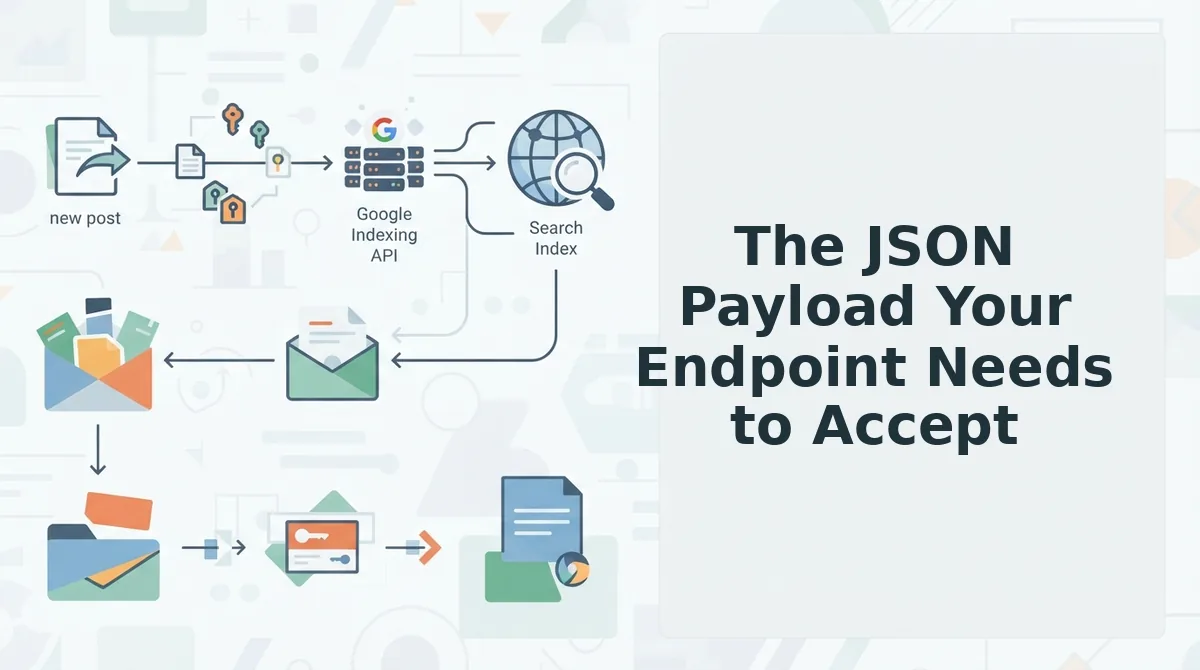
A blog post API endpoint needs a JSON payload with four required fields, title, slug, body_html, and status, plus optional metadata fields like meta_description and publish_at that control how the post appears in search results and when it goes live.
Before you configure any publishing pipeline, confirm your endpoint accepts application/json content type and returns a 201 Created or 200 OK response with the new post's ID. You'll need your endpoint URL and any required authentication headers ready.
- Open your API documentation or Postman collection and locate the create-post endpoint. You should see the accepted HTTP method (usually
POST) and a sample request body. - Copy the framework-agnostic schema below into your endpoint's request validator or test client. This schema works for any stack. Node.js, Laravel, Django, or serverless functions, not just WordPress.
- Send a test request with only the four required fields populated. You should see a success response with the new post's ID and a
201status code. - Add optional fields one at a time and re-send the request after each addition. You should see each field accepted without validation errors.
- Verify the response body echoes back the
slugandstatusyou submitted. You should see your submitted values, not server-generated defaults.
{
 "title": "string (required)",
 "slug": "string (required, URL-safe)",
 "body_html": "string (required, valid HTML)",
 "status": "string (required: draft | published)",
 "meta_description": "string (optional, 150-160 chars)",
 "featured_image_url": "string (optional, absolute URL)",
 "publish_at": "string (optional, ISO 8601 datetime)",
 "canonical_url": "string (optional, absolute URL)"
}| Field | Required | Purpose |
|---|---|---|
title | Yes | Post headline; used in <title> tag and H1 |
slug | Yes | URL path segment; must be lowercase, hyphenated, unique |
body_html | Yes | Full article HTML including headings, lists, and images |
status | Yes | Controls visibility; draft for review, published for live |
meta_description | No | Search snippet text; defaults to first 160 chars of body if omitted |
featured_image_url | No | Social share and hero image; must be publicly accessible |
publish_at | No | Scheduled publish time; endpoint must support queued publishing |
canonical_url | No | Overrides default canonical; useful for syndicated content |
What JSON structure does a blog post API endpoint need? The minimum viable payload contains title, slug, body_html, and status. The title populates the page's H1 and browser tab. The slug becomes the URL path, for example, how-to-publish-ai-blog-posts, and must be unique across your site to avoid collisions. The body_html field carries the complete article markup, including <h2> and <h3> headings, ordered and unordered lists, image tags, and internal links. The status field determines whether the post is immediately visible or held for editorial review. Optional fields like meta_description and canonical_url give you fine-grained control over how search engines index the post, while publish_at enables scheduled publishing without manual intervention.
When BloGoose generates articles, it can map your target keywords in markdown directly into the meta_description and body_html fields, ensuring every shipped post carries the search terms you're optimizing for.
Authentication: Keep Your API Keys Out of Your Codebase
API keys belong in environment variables, secret headers, or a secrets manager, never in committed code. A scraped key can give an attacker full write access to your publishing pipeline within minutes.
Prerequisites: A secrets manager (AWS Secrets Manager, Vault, or your hosting platform's built-in secret store) and access to your endpoint's authentication settings.
- Open your hosting platform's dashboard and navigate to Settings, then Environment Variables. You should see a list of existing variables for your project.
- Click Add Variable and name it
BLOGOOSE_API_KEY. Paste your key into the value field and save. You should see the variable appear in the list, masked by default. - Reference the variable in your code as
process.env.BLOGOOSE_API_KEYor your framework's equivalent. You should see the key load at runtime without appearing in any source file. - Open your endpoint's security settings and enable IP Allowlisting. Add your production server's static IP range. You should see a confirmation that requests from other IPs are rejected.
- Set a key rotation reminder in your calendar for every 90 days. When the reminder fires, generate a new key, update the environment variable, and revoke the old one. You should see zero downtime during rotation.
A publisher we worked with had their API key scraped from a public GitHub repo, within 24 hours, an attacker had published 40 spam posts to their production blog. The cleanup took three days and triggered a manual search-console disavow. Environment variables and IP allowlisting would have prevented the entire incident.
Before you ship, run your configuration through an SEO guidelines markdown checklist to confirm your publishing pipeline doesn't leak credentials in logs or error messages.
Configuring BloGoose to Ship to Your Custom Endpoint
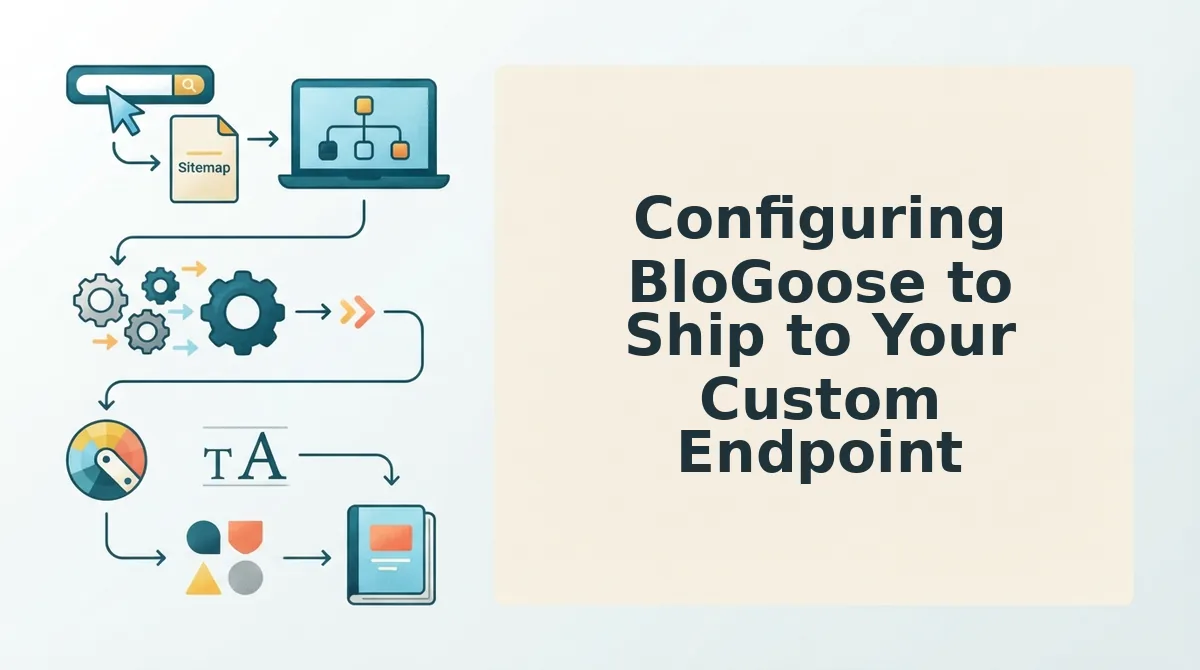
BloGoose ships articles to any custom endpoint by crawling your site, extracting brand context, generating the article, and POSTing the finished JSON payload to your configured URL. You can complete the entire setup in under 10 minutes.
Prerequisites: An active BloGoose account, your custom endpoint URL, and your authentication header values from the previous section.
- Open the BloGoose dashboard and navigate to Publishing, then Custom Endpoints. You should see an empty endpoint list with an Add Endpoint button.
- Click Add Endpoint and paste your endpoint URL into the URL field. Select
POSTas the method. You should see the URL validated with a green checkmark. - Type your authentication headers into the Headers section, for example,
Authorization: Bearer <key>orx-api-key: <key>. You should see headers stored encrypted, never displayed in plaintext. - Map BloGoose fields to your JSON schema using the Field Mapping panel. Drag
title,slug,body_html, andstatusto match your endpoint's expected keys. You should see a live preview of the outgoing payload. - Click Send Test Post and select
draftas the status. You should see a success toast with the new post's ID and a link to preview it in your CMS. - Open the preview link and confirm the title, slug, and body render correctly. You should see your article formatted exactly as it will appear live.
- Toggle Autopilot to On and select your publishing frequency. BloGoose will now crawl your site, extract brand context, generate articles, and POST them to your endpoint automatically, no manual steps required.
Start with a single test post before enabling autopilot. Once the test passes, you can pair your endpoint with the autopilot 30-day content calendar generator to schedule a full month of posts in one session.
With autopilot running, the next thing to plan for is what happens when a request fails, which is exactly what we'll cover next.
Error Handling: What Happens When Publishing Fails
Publishing failures are inevitable, but a well-designed error-handling pipeline turns them from silent content gaps into recoverable events. Here are the seven patterns that keep failed posts from disappearing.
- Retry logic with exponential backoff. Transient failures like rate limits or brief network outages resolve on their own. Implement retries that double the wait time after each attempt, 1s, 2s, 4s, 8s, capped at three to five tries, so your endpoint recovers without hammering it.
- Idempotency keys prevent duplicate posts. If your API times out after accepting a post, a naive retry publishes the same article twice. Send a unique key per article (a slug or content hash) and have your endpoint reject or deduplicate repeat keys, making retries safe.
- Webhook confirmation for async publishing. When your endpoint queues posts for later processing, the initial 202 response doesn't confirm success. Configure a webhook that fires back to BloGoose when the post actually goes live, closing the loop on delayed failures.
- Dead-letter queue for failed posts. Route posts that exhaust all retries into a dead-letter queue instead of discarding them. This preserves the payload, error code, and timestamp so you can inspect, fix, and replay the post manually without losing content.
- Structured error logging with context. Log the HTTP status, response body, article ID, and timestamp for every failure. Without this context, debugging a 422 validation error from three days ago becomes guesswork.
- Alerting on failure thresholds. A single failed post is noise; ten in an hour is a broken integration. Set alerts when failure rates cross a threshold so you catch endpoint outages before your publishing calendar falls behind.
- Fallback draft status. If publishing fails after all retries, mark the article as a draft in BloGoose rather than losing it. You can review the error, fix the payload, and resend, or ask Google to crawl new posts once it's live.
FAQ: Publishing AI Blog Posts to Custom API Endpoints
A custom API endpoint is any URL your application exposes to accept POST requests containing article data. It replaces manual copy-paste publishing by letting an AI content engine deliver finished posts directly into your CMS, database, or static site generator.
How do I schedule AI blog posts to publish at a specific time via a custom API endpoint?
Your endpoint can accept a scheduled_at field in the JSON payload and store posts in a queue with that timestamp. A background worker checks the queue on an interval and publishes any post whose scheduled time has passed. This queue-based logic works in any stack. Node, Python, or serverless functions, without requiring WordPress cron.
Do I need WordPress to publish AI blog posts to a custom API endpoint?
No. A custom endpoint works with any backend that can receive HTTP requests: a headless CMS, a static site generator like Astro or Next.js, a database, or a bespoke publishing pipeline. The endpoint just needs to accept a POST request, validate the JSON payload, and write the content wherever your site reads from.
How do I test my custom API endpoint before publishing live AI content?
Send a test POST with a draft or staging flag in the payload, or point the integration at a staging endpoint first. Verify the response code, inspect the stored content, and confirm authentication works before switching to production. Most failures come from untested payload mismatches, not endpoint logic.
Why does my custom API endpoint return a 422 error when publishing AI posts?
A 422 means the endpoint received the request but rejected the payload as invalid. Check that every required field in your endpoint's schema matches the JSON keys your content engine sends, mismatched field names, missing slugs, or wrong data types are the usual culprits.
Can I publish AI blog posts to multiple custom endpoints at once?
Yes. Configure separate endpoint profiles with their own URLs, authentication credentials, and payload mappings. This lets one article ship to a production site and a staging environment simultaneously, or distribute content across multiple properties from a single publishing workflow.
Ship Your First Post, Then Let the Engine Take Over
Publishing AI content to a custom endpoint comes down to three things: an endpoint that accepts POST requests, a JSON payload your backend validates, and authentication that keeps your keys secure. Once those are in place, the publishing loop closes itself.
The real unlock isn't the first successful post, it's removing yourself from the loop entirely. Configure one test post to your staging endpoint, verify the payload lands correctly, then switch to production. From there, BloGoose handles research, drafting, optimization, and delivery on a schedule you set once.
If you're ready to stop stitching together prompts, spreadsheets, and manual publishing, check BloGoose pricing and start the autopilot trial. Your endpoint is waiting for content, give it a steady stream.